External Data Lookup
External Data Lookup allows you to automatically retrieve person information from external systems when ordering Credentials. Instead of manually entering person details, you can enter a search identifier and let the system populate Credential fields automatically.
Overview
When a Credential Template is configured with an external data source, you can use external data lookup during Credential ordering to:
- Automate data entry — Retrieve person data automatically from authoritative sources
- Improve accuracy — Reduce manual input errors by pulling data directly from external systems
- Speed up ordering — Pre-fill Credential fields with verified person information
- Support compliance — Use data from official registries like Norwegian Folkeregisteret
Supported external data sources
Breeze supports the following external data sources for person lookup:
- Norwegian Folkeregisteret (FREG) — Norwegian National Registry for person data lookup
- SPAR — Swedish population register
- Breeze ID Connector — A generic connector for your own OAuth-protected person lookup API
To use external data lookup:
- The Credential Template you're using must be configured with an external data source
- You must have permission to order Credentials using that template
How external data lookup works
The lookup process is the same regardless of which external data source your template uses:
- Select a template — Choose a Credential Template that has been configured with an external data source
- Enter search identifier — Enter the identifier required by your external data source (see source-specific requirements below)
- Run the lookup — Click "Search" to retrieve person data from the external system
- Review populated data — If the lookup is successful and a match was found, Credential fields are automatically filled with data from the external source
- Complete the order — Review the populated data, fill in any remaining fields, and submit the Credential for ordering
If the lookup fails, you can typically continue by entering the information manually.
Source-specific requirements
Each external data source has specific requirements for search identifiers and may have different authentication or availability constraints.
Norwegian Folkeregisteret (FREG)
Availability: Only available if your organization has FREG configured as an external data source
Input format: Enter an 11-digit Norwegian personal identity number (exactly 11 digits, no spaces, dashes, or other characters)
Authentication: Level 4 authentication (BankID) may be required for natural person lookups
For configuration: See External Data Sources for how to configure FREG as an external data source
SPAR (Sweden)
Availability: Only available if your organization has SPAR configured as an external data source
Input format: Enter a Swedish personal number in the format YYYYMMDDNNNN (12 digits total). The format is:
- Year: 4 digits (19xx or 20xx)
- Month: 2 digits (01-12)
- Day: 2 digits (01-31)
- Last 4 digits: Any 4 digits
You can optionally include a dash (e.g., YYYYMMDD-NNNN), which will be automatically removed during validation.
Authentication: Level 4 authentication (BankID) is required for natural person lookups
For configuration: See External Data Sources for how to configure SPAR as an external data source
Breeze ID Connector
Input format: Enter the identifier or search value your organization uses for the connected external service
Response format requirement: The connected service must return person data in a specific Breeze format (it's not compatible with arbitrary API responses). At minimum, the response must include an identifier field.
Breeze ID Connector requires the connected service to return person data in a specific Breeze format (it's not compatible with arbitrary API responses). If the external service doesn't return the expected format, the lookup will fail.
Reach out to Breeze support—we can provide the expected response format and guidance for mapping.
Common errors:
- Person not found: "Identifier had no match"
- Invalid response format: Lookup fails if the external service doesn't return the expected format
Solution: Verify the search identifier is correct, or contact Breeze support for response format requirements
For configuration: See External Data Sources for how to configure Breeze ID Connector as an external data source
How to use external data lookup
Step 1: Start Credential ordering
- Navigate to the Credential ordering page
- Select a Mobile Credential Template that has been configured with an external data source
Step 2: Enter search identifier
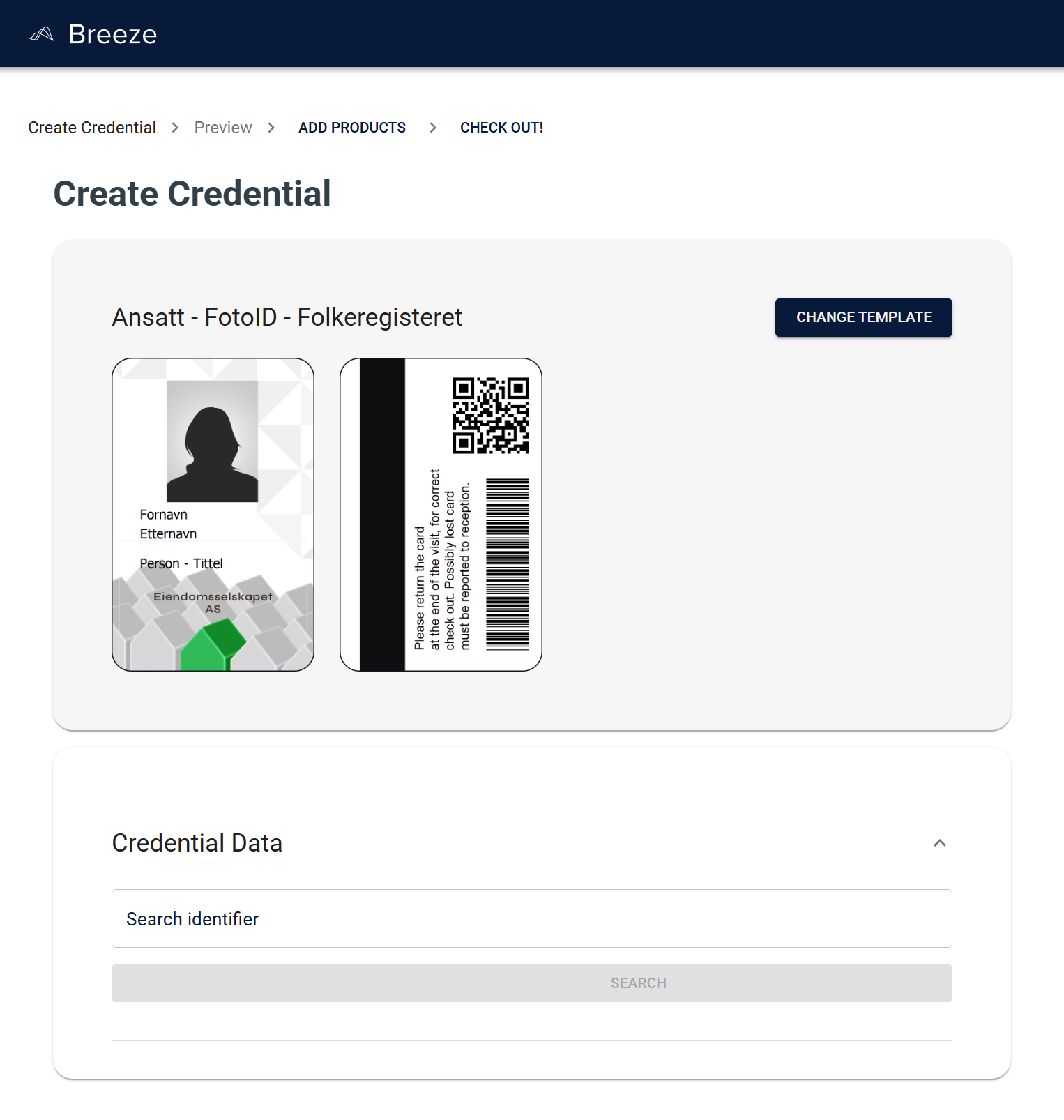
- In the Credential Data section, you'll see an external data lookup form
- Enter the search identifier in the "Search identifier" field (see Source-specific requirements above for format details)
- Click "Search" or press Enter
Step 3: Review populated data
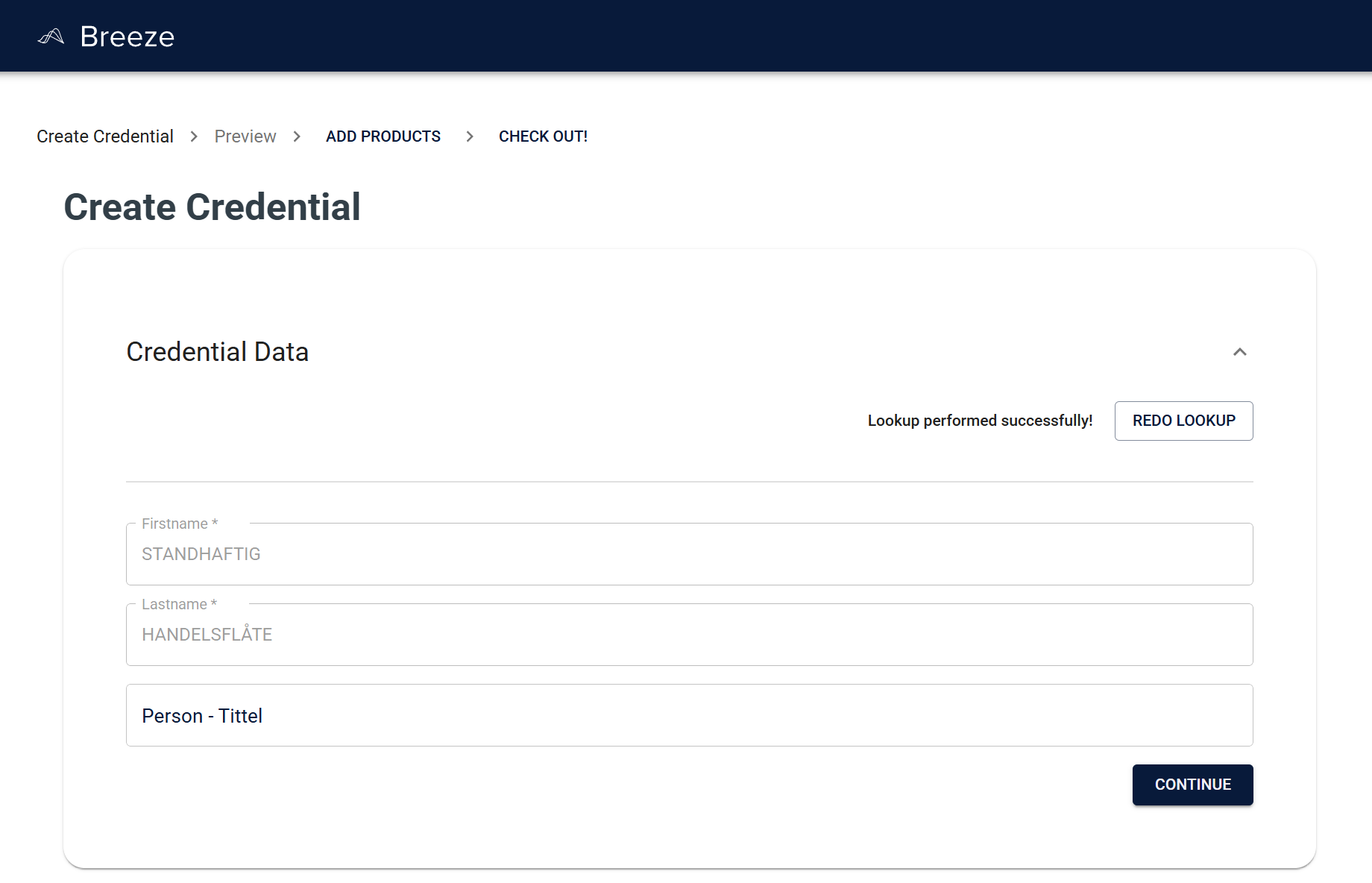
- If the lookup is successful, you'll see a "Lookup performed successfully!" message
- Credential fields are automatically populated with data from the external system, for example:
- Firstname — Automatically filled from external data source
- Lastname — Automatically filled from external data source
- Other mapped fields — Populated according to template configuration
- Fields populated from external data are typically locked (disabled) to prevent accidental changes
- Review the populated data to ensure it's correct
Step 4: Complete Credential information
- Fill in any remaining Credential fields that weren't populated by the lookup
- Upload or provide a photo if required
- Review all information before submitting
- Submit the Credential for ordering
Step 5: Redo lookup (if needed)
If you need to perform a new lookup with a different search identifier:
- Click "Redo lookup" to clear the current lookup results
- Enter a new search identifier
- Click "Search" again
Handling errors
Invalid search identifier format
Applies to: FREG, SPAR (and other sources with strict format requirements)
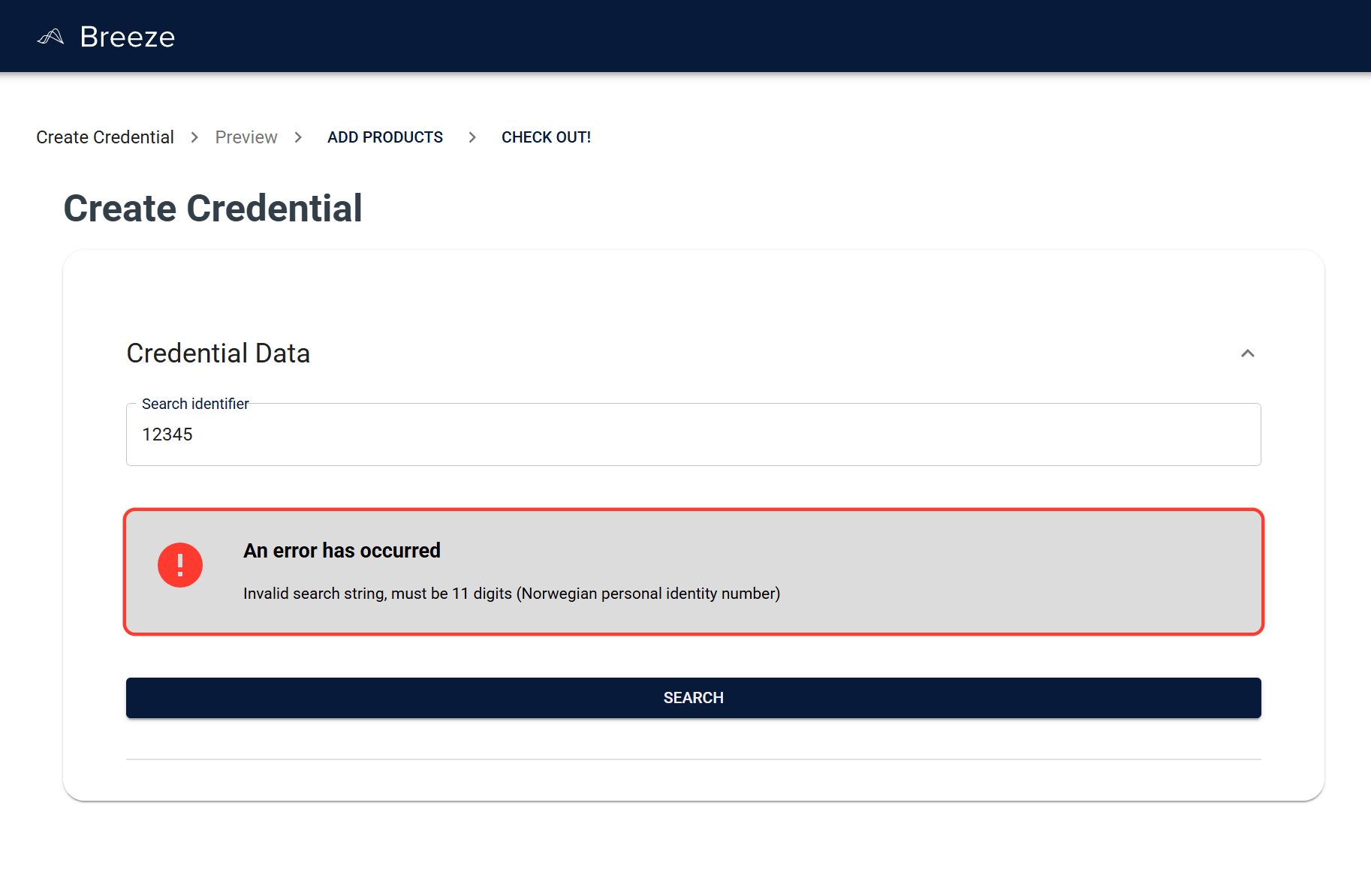
If you enter an incorrectly formatted search identifier, you'll see an error message:
- For FREG: "Invalid search string, must be 11 digits (Norwegian personal identity number)"
- Solution: Enter exactly 11 digits (no spaces, dashes, or other characters)
- For SPAR: "Invalid personal number" (or similar validation error)
- Solution: Enter a Swedish personal number in YYYYMMDDNNNN format (12 digits total, optionally with a dash)
Person not found
Applies to: All external data sources
If the search identifier doesn't match any person in the external system:
- Error message: "Person not found" or "Identifier had no match"
- Solution: Verify the search identifier is correct and try again, or enter person data manually
Authentication required
Applies to: FREG, SPAR (and other sources that require authentication)
Some external data sources require Level 4 authentication (BankID) for natural person lookups:
- FREG: Level 4 authentication (BankID) may be required
- SPAR: Level 4 authentication (BankID) is required
- You'll be prompted to authenticate using BankID
- Complete the authentication process to proceed with the lookup
Manual entry fallback
If external data lookup fails for any reason, you can still enter person data manually to complete the Credential order.
Limitations and considerations
- Format requirements: Each external data source has specific format requirements for search identifiers:
- FREG: Exactly 11 digits (Norwegian personal identity number)
- SPAR: YYYYMMDDNNNN format (12 digits, Swedish personal number)
- Breeze ID Connector: Depends on your organization's external service requirements
- Authentication: Some lookups require Level 4 authentication (BankID) - FREG and SPAR both require this for natural person lookups
- Rate limiting: External data sources may have rate limits that apply to lookups
- Data availability: Person data must exist in the external system for the lookup to succeed
- Field mapping: Only fields configured in the template's field mappings will be populated
- Response format (Breeze ID Connector): The external service must return data in Breeze's expected format
- Configuration: External data sources must be configured by administrators before they can be used - see External Data Sources for setup instructions
Tips for best results
- Verify identifiers: Double-check search identifiers before entering them to avoid errors
- Use official sources: When possible, use identifiers from official documents or systems
- Review populated data: Always review automatically populated data to ensure accuracy
- Manual entry fallback: If lookup fails, you can still enter person data manually
Learn more
- External Data Sources — Configure external data sources in Domain Administration
- Editing Templates — Configure templates with external data source connections
- Mobile Credential Templates — Overview of template management
- Credential Management — Overview of credential management features