Email History
The Email History dialog shows you all emails sent by Breeze for a Credential and their delivery status. This includes emails like Duo ID invites, notifications, and any other Breeze-generated emails related to the Credential.
Important: This dialog only shows emails sent directly by Breeze. Emails sent by third-party services (like Mobile ID issuance emails from the STid provider) are not included here, as Breeze doesn't control or track those.
The dialog is perfect for checking whether emails like Duo ID invites were delivered, seeing when emails were sent, and understanding what happened if an email didn't reach its recipient.
Think of it as your email delivery audit trail—you can see exactly what was sent by Breeze, when it was sent, and whether it successfully reached the recipient.
Required roles: Admin
To perform the following steps, you need to have both roles listed above.
Opening Email History
To view email history for a Credential:
- Navigate to the Credential details page
- Look for the "View Email History" button in the action buttons section
- This button only appears when there are emails associated with the Credential
- If you don't see the button, no emails have been sent for this Credential yet
- Click "View Email History" to open the dialog
- The dialog opens showing all emails sent for this Credential, with the most recent email automatically selected
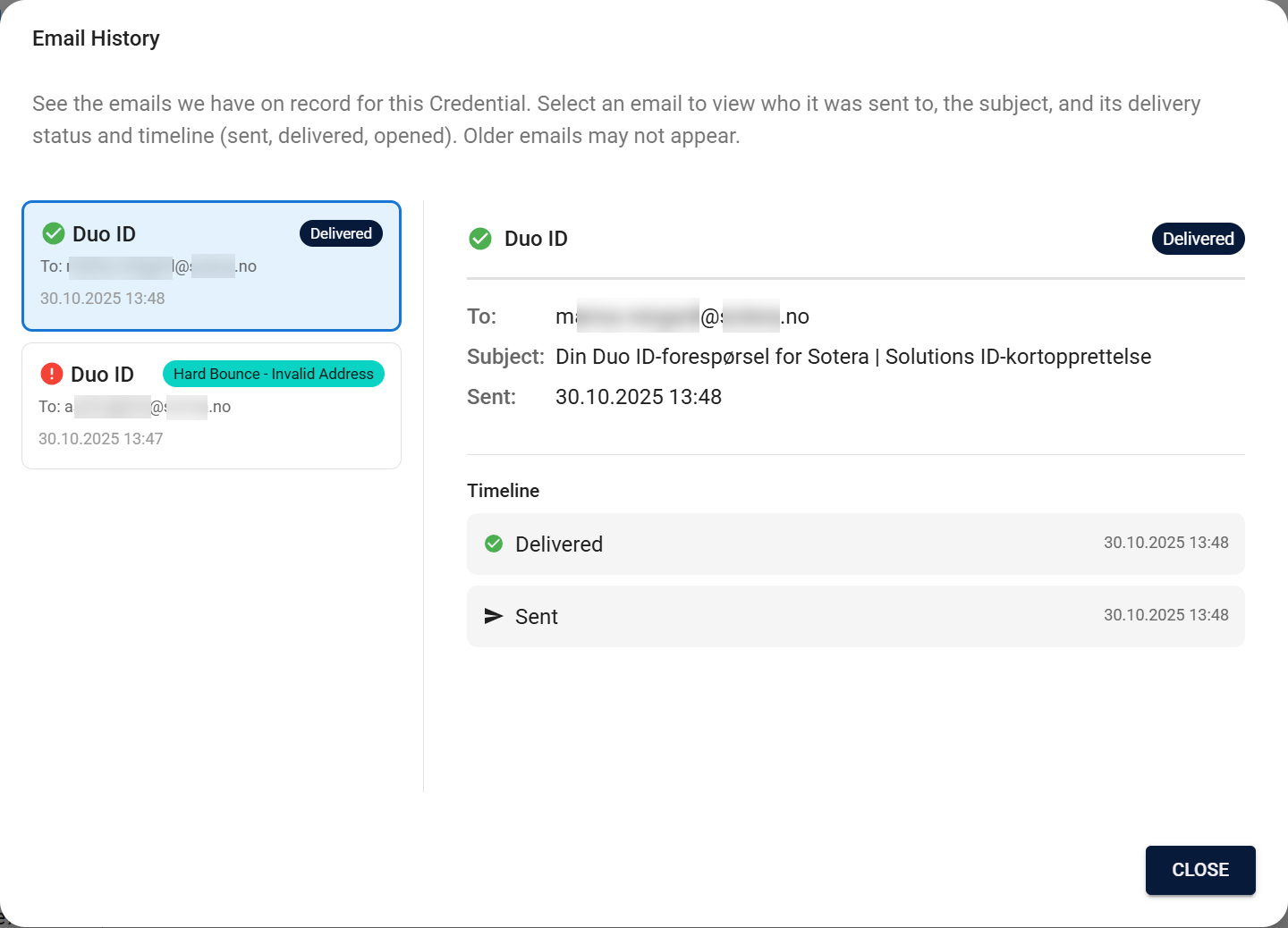
Understanding the Email List
The dialog shows a list of all emails sent by Breeze for the Credential (currently this mainly includes Duo ID invites, but the dialog is designed to show any Breeze-generated emails related to Credentials). The layout is split into two sections:
- Left side: List of all emails (up to 100 most recent)
- Right side: Detailed information for the selected email
When the dialog first opens, the newest email is automatically selected so you can immediately see the latest email details.
Each email in the list shows:
- Email Type — What kind of email it was (e.g., "Duo ID")
- Status — Current delivery status with a visual indicator badge
- Recipient — The email address it was sent to
- Date and Time — When the email was sent
Emails are listed chronologically, with the most recent at the top. Click any email in the list to see its full details on the right.

Viewing Email Details
Click any email in the list to see detailed information about that specific email. The details panel shows:
Email Information
- Email Type — The type of email (e.g., Duo ID invite)
- Status — Current delivery status with visual indicator
- To — Recipient email address
- Subject — The email subject line
- Sent — Exact date and time when the email was sent
Timeline
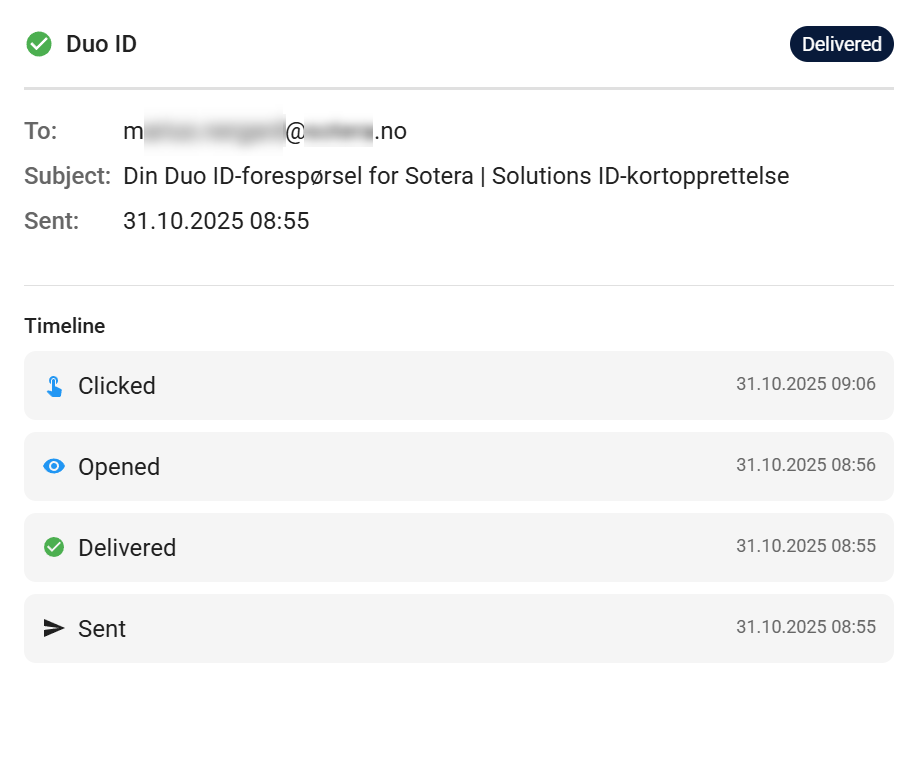
The Timeline section shows the email's complete journey with event progression in reverse chronological order (most recent first). Here's what you'll see:
Successful email flow:
- Sent — When Breeze sent the email to the email provider
- Delivered — When the email successfully reached the recipient's mailbox
- Opened — When the recipient opened the email (if tracking is available)
- Clicked — When the recipient clicked a link in the email (if tracking is available)
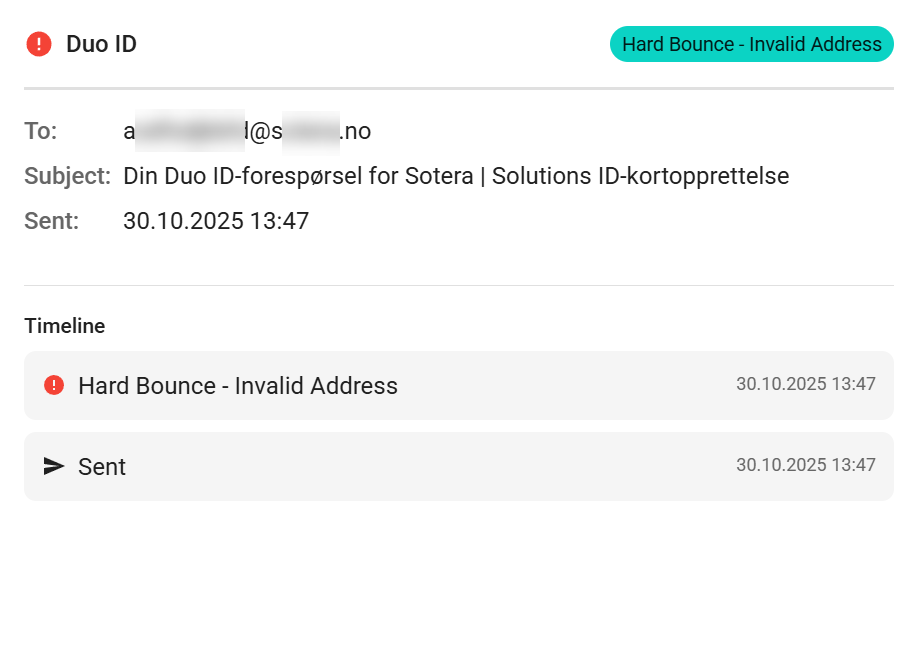
Failed email flow:
- Soft Bounce - Temporary Issue — Email couldn't be delivered temporarily (e.g., inbox full, server unavailable). The provider may retry.
- Hard Bounce - Invalid Address — Email couldn't be delivered permanently (invalid address, domain doesn't exist). This is a permanent failure.
- Marked as Spam — Recipient marked the email as spam (Note that emails might have been delivered to the recipient's spam folder even though it is not marked as spam here)
- Blocked — Email was blocked before delivery
- Delivery Failed — Generic failure status for various errors
The timeline shows exactly what happened and when, giving you a complete picture of the email's lifecycle from sending through delivery and (if applicable) being opened or clicked.
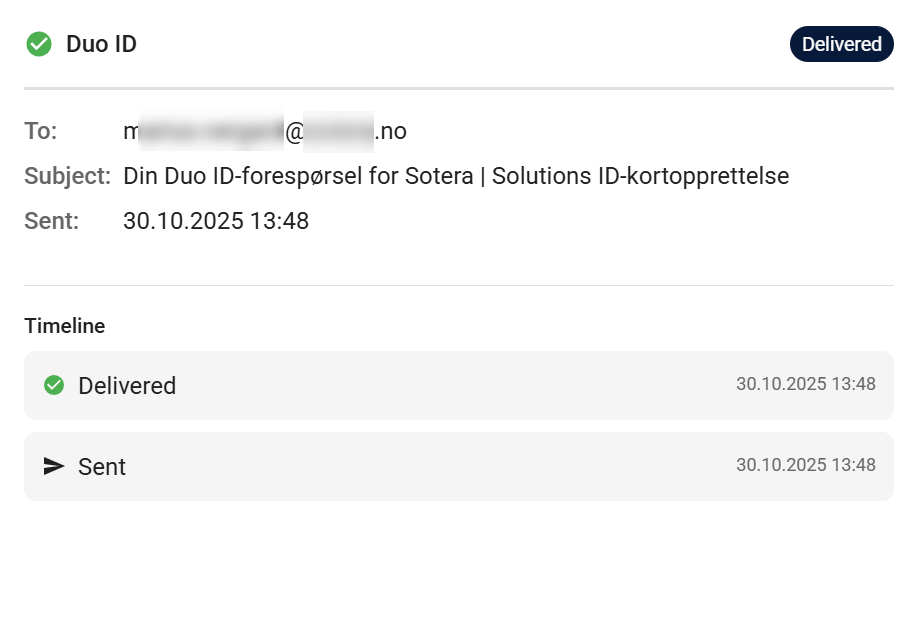
Here's an example of a complete successful email timeline showing all stages:
Email Statuses Explained
Each email has a status (final delivery state) and a timeline (history of events). The status shows the final delivery outcome (like "Delivered" or "Hard Bounce"), while the timeline shows the complete journey including engagement events like "Opened" and "Clicked" that don't change the status.
Active Statuses (Can Change)
These statuses can change as the email progresses:
-
Queued — Email is waiting to be sent (you'll rarely see this)
-
Sent — Email was successfully sent from Breeze to the email provider. The email is now in transit, but we don't yet know if it reached the recipient's inbox.
-
Soft Bounce - Temporary Issue — Email couldn't be delivered temporarily (e.g., recipient's inbox is full, server temporarily unavailable). The provider may retry automatically. This is usually not permanent.
Terminal Statuses (Final State)
These statuses are final—the email won't progress beyond these. Once an email reaches a terminal status, that's where it stays:
-
Delivered — Email successfully reached the recipient's inbox. This is the best outcome! Once delivered, the status stops updating. However, you'll still see additional events in the timeline (like "Opened" or "Clicked") that show engagement, but these don't change the status from "Delivered."
-
Hard Bounce - Invalid Address — Email couldn't be delivered permanently because:
- The email address was typed incorrectly
- The domain doesn't exist
- The mailbox has been deleted
If you see this, verify and correct the email address on the Credential, then resend the email.
-
Marked as Spam — Recipient marked the email as spam. The email was likely delivered but moved to spam folder. Note that emails might have been delivered to the recipient's spam folder even though it is not marked as spam here.
-
Blocked — Email was blocked before delivery (e.g., recipient's email server blocked it, or email address is on a blocklist).
-
Invalid Email Address — Email address is invalid or malformed. The email cannot be sent.
-
Delivery Failed — Generic failure status that can appear for various errors including:
- System errors
- Provider errors
- Temporary server issues
- Unsubscribe status
Check the timeline for more specific error details.
Note about engagement events: While "Opened" and "Clicked" appear in the timeline (and are great for seeing if recipients engaged with e.g. Duo ID invites), these are events, not statuses. The email status will remain "Delivered" even when these engagement events are logged.
Common Use Cases
Checking Email Delivery Status
When Breeze sends an email for a Credential (like a Duo ID invite), check the Email History to confirm it was delivered and opened:
- Look for the email in the list — it should show "Delivered" status
- Click it to see the timeline
- Check if there's an "Opened" event — this confirms the recipient actually viewed the email
- For the best engagement, look for a "Clicked" event, which means they interacted with links in the email
If you see a bounce or error status, verify the email address is correct and resend the email.
Note: If you're looking for Mobile ID issuance emails (sent by the STid provider), those won't appear here. This dialog only shows emails sent directly by Breeze.
Troubleshooting Missing Emails
If someone says they didn't receive an email, open Email History to see:
- Was the email actually sent?
- What was the delivery status?
- When was it sent?
This helps you determine if the issue is on your side (wrong email address, bounce) or if the email was delivered but the recipient didn't see it (spam folder, etc.).
Why Aren't Mobile ID Issuance Emails Shown Here?
If you're looking for emails sent when a Mobile ID Credential is issued (like activation emails from STid), you won't find them in this dialog.
Reason: Mobile ID issuance emails are sent directly by the STid provider service, not by Breeze. Since Breeze doesn't control or have visibility into those third-party email services, those emails can't be tracked here.
What you'll see instead: This dialog only shows emails sent directly by Breeze, such as Duo ID invites and other Breeze-generated notifications. For Mobile ID issuance emails, you'd need to check with the STid provider directly or consult their documentation for email delivery tracking.
Verifying Email Timestamps
The timeline shows exact timestamps for each stage of email delivery, which can be useful for:
- Understanding delivery delays
- Documenting when emails were sent for audit purposes
- Troubleshooting time-sensitive communications
Important Notes
- Breeze emails only — This dialog only shows emails sent directly by Breeze. Emails from third-party services (like Mobile ID issuance emails from STid provider) are not tracked here, as Breeze doesn't control those email services.
- All Credential-related emails — The dialog displays all Breeze-generated emails for the Credential. Currently, this primarily includes Duo ID invites, but the dialog is designed to show any emails Breeze sends related to Credentials.
- Most recent emails only — The dialog shows up to the 100 most recent emails for the Credential. Older emails beyond this limit won't appear.
- Email retention — Emails are retained for 365 days. After this period, older emails will automatically be deleted.
- Feature introduction date — This feature was introduced on November 3, 2025. No emails were logged or tracked prior to this date, so you won't see any email history for emails sent before then.
- Button visibility — The "View Email History" button only appears when there are Breeze emails associated with the Credential. If you don't see it, no Breeze emails have been sent yet.
- Email content privacy — Email History shows email metadata (who, when, subject, status) but never shows the actual email body or content for privacy reasons. Emails are deleted after 365 days.
- Status updates — Delivery statuses reflect the most current information from the email delivery service. Some statuses like "Delivered" or "Opened" may take a few moments to update after the email is sent.
- Automatic selection — When you open the dialog, the newest email is automatically selected so you can immediately see the latest activity.
Closing the Dialog
Click "Close" or press ESC to dismiss the Email History dialog and return to the Credential details page.
Related Documentation
- Mobile Credential Lifecycle — Understand Credential states and transitions
- Credential Statuses — Learn about different Credential statuses
- Using List View — Manage Credentials from the list view