Mobile Credential Lifecycle
Mobile Credentials follow a structured lifecycle from creation to activation and eventual deactivation or deletion. Understanding this lifecycle helps you manage Credentials effectively and know what to expect at each stage.
Lifecycle Overview
Mobile Credentials move through three main states during their operational life: Inactive, Active, and Deactivated. Each state represents a specific phase in the Credential's lifecycle and determines what the Credential can do and what actions you can take.
Think of it like this:
- Inactive: The Credential is created but not yet provisioned to the mobile ID provider
- Active: The Credential is live and working — the person can use their mobile ID to access doors and services
- Deactivated: The Credential is temporarily turned off — useful when someone is on leave or has lost their phone temporarily
Provision Methods
How a Mobile Credential moves from creation to active depends on the Provision Method setting in the Mobile Credential Template:
- Automatic: The Credential skips the Inactive state and goes directly to Active. It's automatically provisioned (sent to the mobile ID provider and the person's device) without manual intervention.
- Manual: The Credential starts in the Inactive state. An administrator must manually activate it to move it to Active and provision it.
Note: The Inactive state may be skipped entirely if your template uses Automatic provisioning. Check your Mobile Credential Template settings to see which method is configured.
Knowing which state a Credential is in helps you understand whether it will work for access control and what you need to do next.
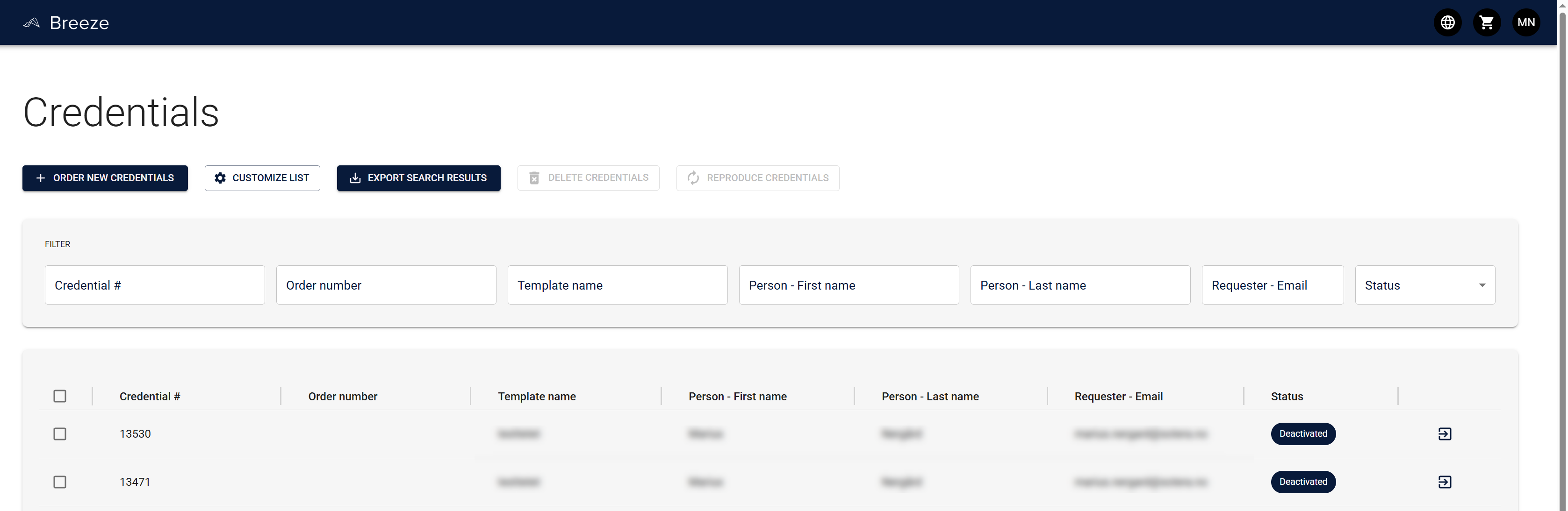
The Credentials list shows the current status of each Credential, making it easy to see which ones are Active, Deactivated, or in other states.
Lifecycle States
1. Inactive State
Description: The Credential has been created but is not yet active for use.
This is the initial state after a Mobile Credential is created when using Manual provisioning. At this stage, the Credential exists in Breeze but hasn't been synchronized with the mobile ID provider (like STid Mobile ID), so it won't work for access control yet.
When you'll see this:
- Only when using Manual provision method in your template
- Right after creating a new Mobile Credential (if Manual provisioning is configured)
- When a Credential is first created from a template with Manual provisioning
- Before the Credential has been synchronized with the provider
Note: If your template uses Automatic provisioning, the Credential skips this state and goes directly to Active.
What this means:
- The Credential exists in your system with all the person's information
- It hasn't been sent to the mobile ID provider yet, so the person can't use it
- The mobile ID (vCard) is not on the person's phone
- An administrator needs to manually activate it before it becomes usable
Visual Indicator: Yellow status indicator (shows it's pending)
What you can do: Activate it to make it usable (moves to Active), or delete it if it was created by mistake
Next Possible States: Active (when manually activated), Deleted (if removed)
2. Active State
Description: The Credential is fully operational and can be used for access control.
This is the "working" state. When a Mobile Credential is active, the person can use their mobile ID to access doors, services, and systems. The Credential has been synchronized with the mobile ID provider, and the mobile ID (vCard) is available on their phone.
What this means:
- The Credential is synchronized with the mobile ID provider (like STid Mobile ID)
- The mobile ID (vCard) has been sent to and/or created on the person's device
- The person can use their phone to access doors and services
- The Credential is fully functional and working as expected
When you'll see this:
- With Automatic provisioning: Immediately after creating the Credential (it skips Inactive and goes straight to Active)
- With Manual provisioning: After successfully activating an Inactive Credential
- When a deactivated Credential is reactivated
- During normal day-to-day operation
Visual Indicator: Green status indicator (shows it's working)
What you can do: This is the normal operational state. You can deactivate it if needed (e.g., lost phone, temporary leave), or delete it if it's no longer needed
Common use cases:
- Regular staff members with active access
- Visitors who need temporary access
- Contractors working on-site
Next Possible States: Deactivated (if temporarily disabled), Deleted (if permanently removed)
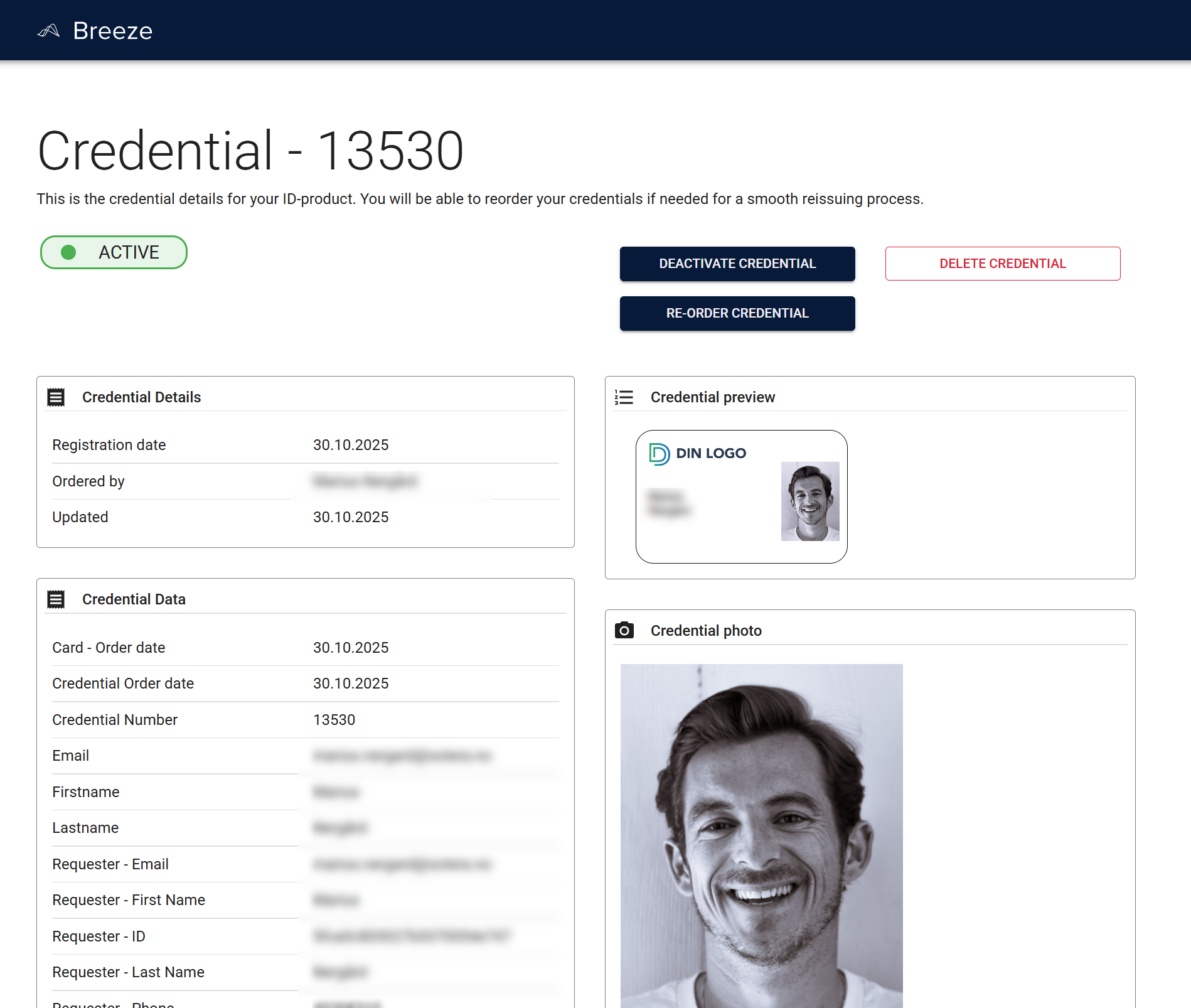
An Active Credential shows a green status indicator and provides options to deactivate, delete, or re-order.
3. Deactivated State
Description: The Credential is temporarily disabled but can be reactivated.
This state is useful when you need to temporarily disable access without permanently removing the Credential. When deactivated, the mobile ID (vCard) is removed from both the provider and the person's device, so they can't use it for access control.
What this means:
- The Credential is temporarily turned off — it won't work for access control
- The mobile ID (vCard) has been removed from the provider and the person's phone
- The Credential remains in your system with all its information
- You can reactivate it later when needed — no need to recreate it
When you'll see this:
- After you deactivate an active Credential
- When someone loses their phone temporarily
- During a leave of absence or temporary suspension
- When investigating security concerns
Visual Indicator: Yellow status indicator (shows it's temporarily disabled)
What you can do: Reactivate it when ready, or delete it if it's no longer needed permanently
Common use cases:
- Lost or stolen phones (until recovered or replaced)
- Temporary leave or suspension
- Security investigations
- Temporary access revocation
Important: Deactivation is temporary. If you need to permanently remove a Credential, use Delete instead.
Next Possible States: Active (if reactivated), Deleted (if permanently removed)
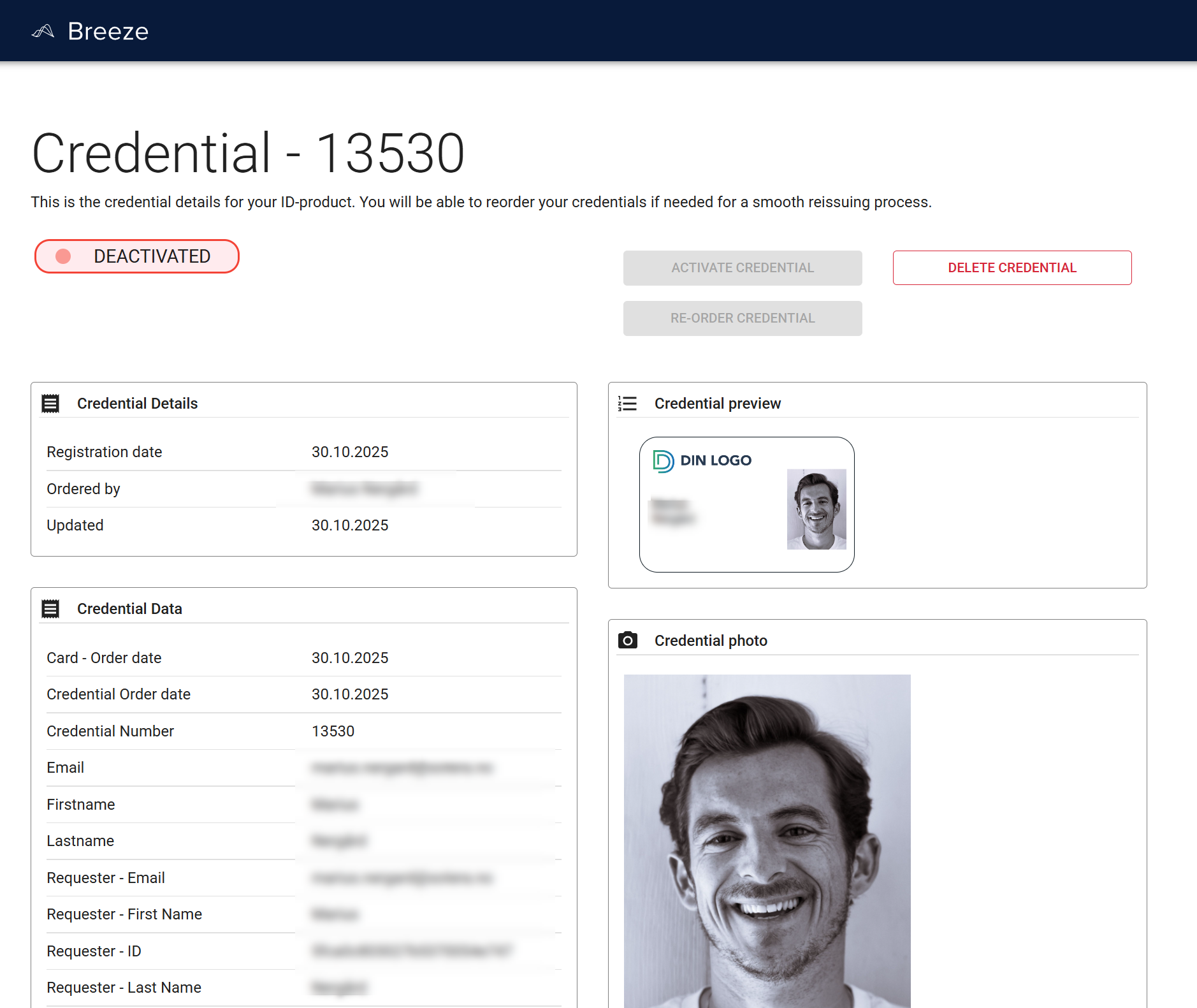
A Deactivated Credential shows a yellow status indicator. Notice the "Activate Credential" button is available to restore access.
State Transitions
Understanding how Credentials move between states helps you know what to expect and troubleshoot issues.
Creation → Active (Automatic Provisioning)
When this happens: A Credential is created using a template with Automatic provision method
What triggers it: Creating a new Mobile Credential automatically triggers provisioning
What happens during automatic provisioning:
- The Credential is created in Breeze
- Breeze immediately connects to your mobile ID provider (currently STid Mobile ID)
- The Credential is synchronized — all the person's information is sent to the provider
- The provider sends an email to the person with a link to activate their mobile ID
- The status is set to Active in Breeze (skipping Inactive)
Important — How STid Mobile ID works:
- The person receives an email with a link
- They must click the link on the device they'll be using (the same device where they'll install the Mobile ID)
- The Mobile ID app must already be installed on that device before they click the link
- Once they click the link on the correct device, the vCard is installed and they can use their mobile ID
Note: With Automatic provisioning, you won't see the Inactive state. The Credential goes directly to Active. However, the person must complete the email link process before they can actually use it.
Note for future providers: Other mobile ID providers may work differently. Currently, Breeze supports STid Mobile ID.
Creation → Inactive (Manual Provisioning)
When this happens: A Credential is created using a template with Manual provision method
What triggers it: Creating a new Mobile Credential with a template configured for Manual provisioning
What happens during creation:
- The Credential is created in Breeze with all the person's information
- The Credential is set to Inactive state
- No synchronization with the mobile ID provider happens yet
- The mobile ID (vCard) is not sent to the person's device
- The Credential remains in Inactive until manually activated
Why this happens: With Manual provisioning, you control when the Credential becomes active. This allows you to:
- Review Credentials before they go live
- Batch activate multiple Credentials at once
- Control the timing of access provision
What this means:
- The Credential exists in your system but won't work for access control yet
- The person cannot use their mobile ID until you activate it
- An administrator must manually activate it to move it to Active
Next step: Activate the Credential to move it from Inactive to Active (see next section)
Inactive → Active (Manual Provisioning)
When this happens: You manually activate a Credential that's in the Inactive state
What triggers it: An administrator activates the Credential from the Credential page
What happens during manual activation:
- Breeze connects to your mobile ID provider (currently STid Mobile ID)
- The Credential is synchronized — all the person's information is sent to the provider
- The provider sends an email to the person with a link to activate their mobile ID
- The status is updated to Active in Breeze
Important — How STid Mobile ID works:
- The person receives an email with a link
- They must click the link on the device they'll be using (the same device where they'll install the Mobile ID)
- The Mobile ID app must already be installed on that device before they click the link
- Once they click the link on the correct device, the vCard is installed and they can use their mobile ID
What you need:
- Valid mobile ID provider connection (check your template configuration)
- Successful synchronization (no network or provider errors)
- No configuration errors in the Credential template
- Template must be configured with Manual provision method
How long it takes: The activation in Breeze happens immediately (usually just a few seconds). However, the person must complete the email link process before they can actually use their mobile ID.
What to check if it fails:
- Mobile ID provider connection status
- Template configuration (especially provider settings)
- Network connectivity
- Credential information is complete (especially email address)
After activation: The Credential shows as Active (green indicator) in Breeze. The person must check their email and click the link on their device to complete setup.
Note for future providers: Other mobile ID providers may work differently. Currently, Breeze supports STid Mobile ID.
Active → Deactivated
When this happens: You need to temporarily disable access for someone
What triggers it: An administrator deactivates the Credential from the Credential page
What happens during deactivation:
- Breeze connects to the mobile ID provider
- The mobile ID (vCard) is removed from the provider
- The mobile ID is removed from the person's device (if possible)
- The status is updated to Deactivated in Breeze
- The person can no longer use their mobile ID for access control
Why you might do this:
- Someone lost their phone and you want to prevent unauthorized access
- Temporary leave or suspension
- Security investigation
- Testing or troubleshooting
What you need:
- Administrator permissions
- The Credential must be in Active state (you can't deactivate an Inactive Credential — just activate it instead)
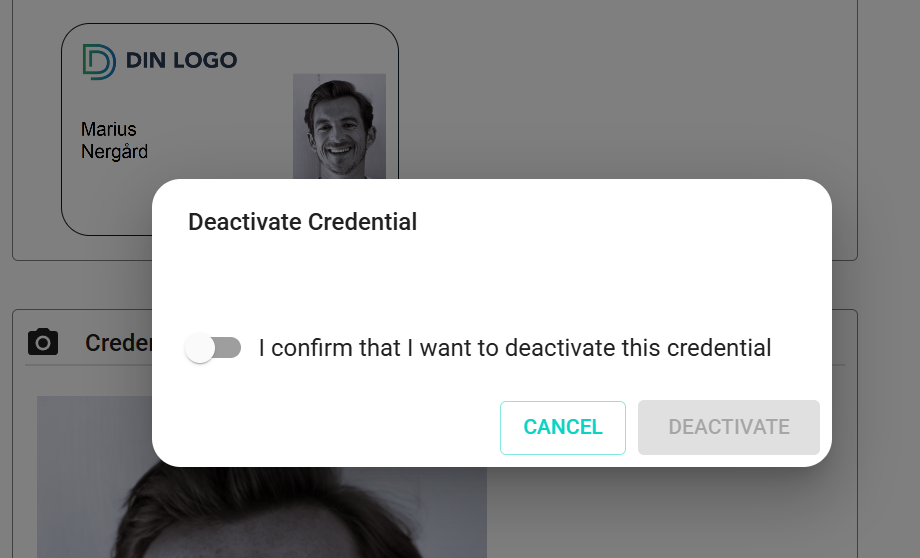
When deactivating a Credential, you'll need to confirm by checking the checkbox before the Deactivate button becomes enabled.
Important notes:
- This is temporary — you can reactivate it later without recreating it
- The Credential information stays in your system
- If you need to permanently remove it, use Delete instead
After deactivation: The Credential shows as Deactivated (yellow indicator), and access is immediately revoked.
Deactivated → Active
When this happens: You want to restore access for someone who had their Credential deactivated
What triggers it: An administrator reactivates the Credential from the Credential page
What happens during reactivation:
- Breeze connects to the mobile ID provider (currently STid Mobile ID)
- The Credential is re-synchronized with the provider
- The provider sends an email to the person with a link to reactivate their mobile ID
- The status is updated to Active in Breeze
Important — How STid Mobile ID works:
- The person receives a new email with a link
- They must click the link on the device they'll be using
- The Mobile ID app must already be installed on that device
- Once they click the link, the vCard is installed again and they can use their mobile ID
Why you might do this:
- Someone recovered their lost phone
- A temporary leave or suspension has ended
- A security investigation is complete
- You want to restore normal access
What you need:
- Administrator permissions
- The Credential must be in Deactivated state
- Valid Credential configuration (same requirements as initial activation)
Benefits of reactivation:
- No need to create a new Credential — all the original information is preserved
- Quick and simple process
- Maintains Credential history
After reactivation: The Credential shows as Active (green indicator), and the person can use it immediately.
Any State → Deleted
When this happens: You need to permanently remove a Credential from the system
What triggers it: An administrator deletes the Credential from the Credential page
What happens during deletion:
- Breeze connects to the mobile ID provider
- The mobile ID (vCard) is removed from the provider
- The mobile ID is removed from the person's device (if possible)
- Personal details are anonymized in Breeze
- The status is updated to Deleted
- The Credential is permanently removed (cannot be recovered)
Why you might do this:
- Someone has left the organization permanently
- The Credential was created by mistake
- Compliance or data retention requirements
- Cleanup of old or unused Credentials
Important warnings:
- ⚠️ This is permanent — you cannot undo deletion
- ⚠️ The Credential cannot be reactivated — you'll need to create a new one if needed later
- ⚠️ Personal details are anonymized — but the Credential record may remain for audit purposes
When to use Delete vs. Deactivate:
- Use Deactivate when you might need the Credential again (temporary leave, lost phone, etc.)
- Use Delete when you're certain the Credential is no longer needed (person left, mistake, etc.)
What you need:
- Administrator permissions
- Confirmation that you want to permanently remove it (you'll be asked to confirm)
After deletion: The Credential is removed from active lists, though it may appear in audit logs with anonymized data.
Common Scenarios
New Employee Onboarding
With Automatic Provisioning:
- Create the Mobile Credential → goes directly to Active state
- STid sends an email to the employee with a link
- Employee clicks the link on their device (where Mobile ID app is installed)
- Employee can now use their mobile ID
With Manual Provisioning:
- Create the Mobile Credential → Inactive state
- Activate it → Active state
- STid sends an email to the employee with a link
- Employee clicks the link on their device (where Mobile ID app is installed)
- Employee can now use their mobile ID
Important: Make sure the employee has the Mobile ID app installed on their device before they click the email link. They must click the link on the device they'll be using for access.
Employee on Temporary Leave
- Credential is Active
- Deactivate it → Deactivated state (removes access)
- When they return, reactivate → Active state again
- STid sends a new email with a link
- Employee clicks the link on their device
- Access is restored
Lost or Stolen Phone
- Credential is Active
- Immediately deactivate → Deactivated state (removes access immediately)
- If phone is recovered, reactivate → Active state
- STid sends a new email with a link
- Person clicks the link on their recovered device
- Mobile ID is restored
- If phone is not recovered, issue a new Credential and delete the old one
- New Credential will send a new email link
- Person uses their new device to click the link
Employee Leaves Organization
- Credential is Active
- Delete it → Deleted state (permanent removal)
Credential Created by Mistake
- Credential is in Inactive (Manual) or Active (Automatic) state
- Delete it → Deleted state
Troubleshooting
Credential Won't Activate (Manual Provisioning)
If a Credential stays in the Inactive state after you try to activate it:
- Check your mobile ID provider connection in the template settings
- Verify network connectivity
- Check for error messages in the Credential details
- Ensure all required Credential information is complete
- Review template configuration for any issues
Credential Shows as Active But Doesn't Work
If a Credential is Active but the person can't use it:
- Verify the mobile ID (vCard) is actually on their device
- Check if there are sync issues with the provider
- Confirm the Credential is properly configured in the access control system
- Try deactivating and reactivating to re-sync
Credential was activated, but no vCard was sent to the person's device
This is normal and expected. With STid Mobile ID (the current provider), the person receives an email with a link and must complete a process before the vCard appears on their device.
How STid Mobile ID works:
- When you activate a Credential, STid sends an email to the person's email address
- The person must click the email link on the device they'll be using (this is important — they must use the correct device)
- The Mobile ID app must already be installed on that device before clicking the link
- Once they click the link, the vCard is installed and they can use their mobile ID
Normal delays:
- Email delivery: Usually just a few minutes, but can vary depending on email delivery times
- For new Credentials: After clicking the link, the vCard typically installs within a few minutes
- Replacing existing vCards: If the person already has a vCard from STid:
- The old vCard must be removed first, which can take up to 15 minutes
- Only after the old vCard is removed will the new email be sent
- Then they must click the new link on their device
- This is a safety feature to prevent conflicts between old and new Credentials
What to expect:
- For new Credentials:
- Wait a few minutes for the email to arrive
- The person must check their email and click the link on their device
- Make sure they click it on the device where they have the Mobile ID app installed
- For replacements with STid:
- Wait up to 15 minutes for the old vCard to be removed
- Then the person will receive a new email with a link
- They must click the new link on their device
- The Credential status will show as Active in Breeze even while waiting for the person to complete the email link process
Common issues:
- Person didn't receive email: Check their spam folder, verify the email address in the Credential is correct
- Person clicked link on wrong device: They must click the link on the device where the Mobile ID app is installed
- Mobile ID app not installed: The app must be installed before clicking the email link
- Person clicked link before app was installed: They may need to contact support or request a new email link
When to be concerned:
- If the person hasn't received the email after 10-15 minutes
- If more than 15-20 minutes have passed (for STid replacements) and no email has arrived
- If the Credential status shows an error in Breeze
- If there are error messages in the Credential details
What to check:
- Verify the person's email address is correct in the Credential
- Confirm the person checked their spam/junk folder
- Ensure the person clicks the link on the correct device (where Mobile ID app is installed)
- Verify the Mobile ID app is installed on their device
- Check the Credential status in Breeze for any error indicators
- Review the Credential details for any sync errors
Quick Reference
| State | What It Means | Can Person Use It? | Can You Reactivate? |
|---|---|---|---|
| Inactive | Created but not activated (Manual only) | ❌ No | N/A — activate it first |
| Active | Working and usable | ✅ Yes | N/A — already active |
| Deactivated | Temporarily disabled | ❌ No | ✅ Yes — can reactivate |
| Deleted | Permanently removed | ❌ No | ❌ No — must create new one |
Note: Inactive state only appears with Manual provisioning. With Automatic provisioning, Credentials go directly to Active.
Related Documentation
- Credential Management Overview — Learn about Credentials and what you can do with them
- Credential Statuses — Detailed explanation of all Credential statuses (including cards)
- Mobile Credential Templates — Configure how mobile IDs are issued