Exporting Credential Data
Overview
The credential data export feature allows authorized users to download credential data in Excel format. This functionality is designed for reporting, analysis, and backup purposes, with built-in controls to ensure data security and proper handling.
Required Roles
Required roles: Super Admin AND Data Exporter
To perform the following steps, you need to have both roles listed above.
Export Features
Data Format
- Files are exported in Excel (.xlsx) format
- File naming convention:
Credentials-[TenantName]_[Date] - All available credential fields are included
- Data is properly formatted based on field types (dates, numbers, text)
Export Scope
- Export all credentials matching your current filters
- Option to export complete credential database
- Large exports can be broken down using filters
- Real-time data export (reflects current state at export time)
Export Process
1. Prepare Your Export
- Navigate to the credentials list view
- Apply desired filters to select specific data
- Verify the filtered results match your needs
2. Initiate Export
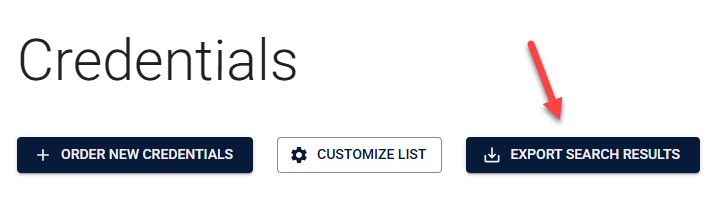
- Click the "Export Search Results" button in the action bar
- Wait for the export generation (indicated by a progress indicator)
- Download will start automatically when ready
- Files are not stored on the server after download completes
3. Working with Export Files
- Open the Excel file in your preferred spreadsheet application
- Data is organized by columns matching credential fields
- All data is formatted appropriately for its type
- Column headers match the field names in the Breeze platform
Best Practices
Data Selection
- Use filters to export specific subsets of data
- Consider breaking large exports into smaller chunks by:
- Filtering by date ranges
- Filtering by status types
- Filtering by template types
- Verify filter criteria before exporting
- Clear filters if you need the complete dataset
File Management
- Save exports with meaningful names (e.g.,
Active-Credentials-Q2-2023.xlsx) - Store exports securely according to your data classification policies
- Delete old exports when no longer needed
- Consider compression for large files to save storage space
Performance Considerations
- Large exports (>10,000 records) may take longer to generate
- Filter data before export when possible
- Avoid exporting during peak usage times (typically business hours)
- Consider scheduling large exports during off-hours
Security and Compliance
warning
Exported data may contain sensitive information. Always follow your organization's security policies when handling exported files.
Access Control
- Role-based access control ensures only authorized users can export
- Audit logging of all exports (who, when, how many records)
- Downloads are tracked and logged for compliance purposes
Data Protection
- Exports contain sensitive information that requires protection
- Handle exported files according to your security policies
- Consider encryption for stored export files
- Limit distribution of exported data to authorized personnel only
Troubleshooting
Common Issues
| Issue | Possible Causes | Solutions |
|---|---|---|
| Export Button Not Visible | Missing required roles Incorrect navigation | Verify you have both required roles Check with your administrator Ensure you're in the credentials list view |
| Export Taking Too Long | Large data set Network issues Server load | Reduce the amount of data using filters Try during off-peak hours Check your network connection |
| File Format Issues | Software compatibility File corruption | Ensure you have compatible spreadsheet software Try re-downloading the file Use a different browser |
Getting Help
If you encounter issues:
- Verify your roles and permissions
- Contact your system administrator with the following details:
- The specific action you were attempting
- Number of records you were trying to export
- Any error messages displayed
- Reach out to support if needed