Using the Credentials List View
Imagine you're managing 300 Credentials and need to quickly find those that expired last week, or you've just onboarded 50 new employees and want to export their Credential data for your records. The Credentials list view is your command center for all of this—and more.
This guide shows you how to make the list view work for you, with practical examples and tips you can use right away.
Required role: Admin
To use the features in this guide, you need to have the Admin role.
Domain View: If you're working in a domain's main Tenant, you can also use Domain View to see Credentials across all sub-Tenants in your domain. Domain View requires Admin access on the main Tenant.
Why the List View Matters
The list view isn't just a table of Credentials—it's your main tool for:
- Finding what you need quickly: Instead of scrolling through pages, use filters to jump straight to the Credentials you're looking for
- Getting the big picture: See status, creation dates, and key info at a glance
- Working efficiently: Bulk actions let you manage dozens of Credentials in seconds instead of clicking through them one by one
When to use this view: Pretty much always! It's the default view when you open "Manage Credentials," and it's designed to be your starting point for most Credential management tasks.
Getting Started: Understanding the Interface
Each row in the list represents one Credential. Here's what you need to know:
- Double-click a row or click the arrow icon to open the full Credential details
- Hold Ctrl and click to open Credentials in a new tab (handy when you're comparing multiple Credentials)
Use Ctrl+Click on the arrow icon when you want to keep your place in the list while checking Credential details. It's perfect when you're reviewing multiple Credentials in sequence.
Viewing Credentials: Tenant View vs Domain View
If you're working in a domain's main Tenant, you'll see a view toggle in the top-right of the Manage Credentials page with two options:
- Tenant View: Shows only Credentials from your current Tenant (default behavior)
- Domain View: Shows Credentials from all sub-Tenants in your domain
When to use Domain View: Use Domain View when you need to find a Credential but don't know which sub-Tenant owns it. For example, if someone asks you to find "John Smith's Credential" but you're not sure which department (Tenant) he belongs to, Domain View lets you search across the entire domain.
What you'll see in Domain View:
- A "Tenant - Name" column appears in the list, showing which Tenant each Credential belongs to
- All existing filters and sorting work the same way
- You can filter by Tenant name to narrow down results
- Export is not available in Domain View (use Tenant View if you need to export)
Setting your default view: If you're an Admin with User Administration permissions on the main Tenant, you can click "Save as Default" next to the view toggle to make Domain View (or Tenant View) your default. The list will automatically open in your preferred view the next time you access it.
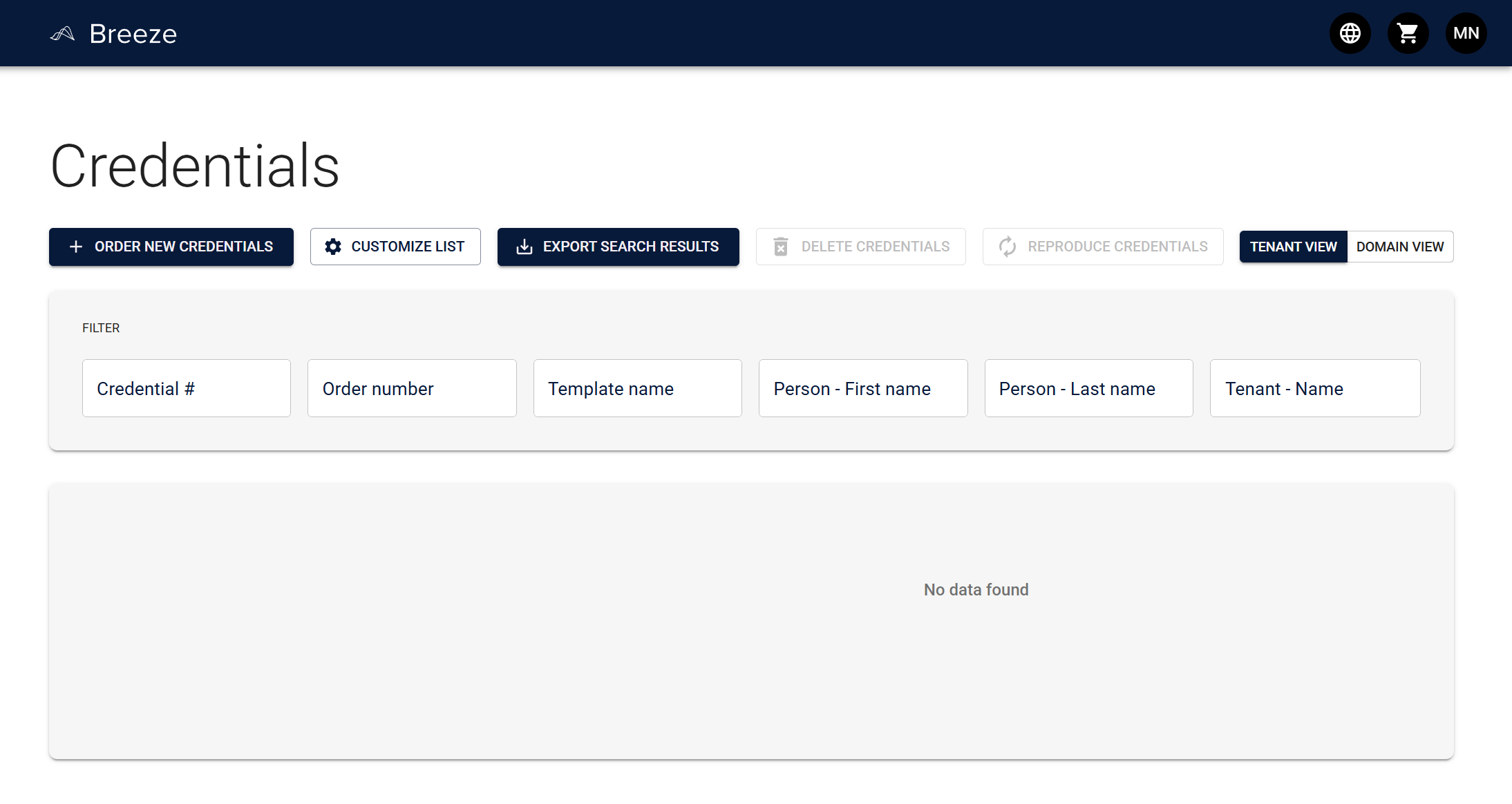
Caption: The Tenant View / Domain View toggle appears in the top-right of the Manage Credentials page for main Tenants.
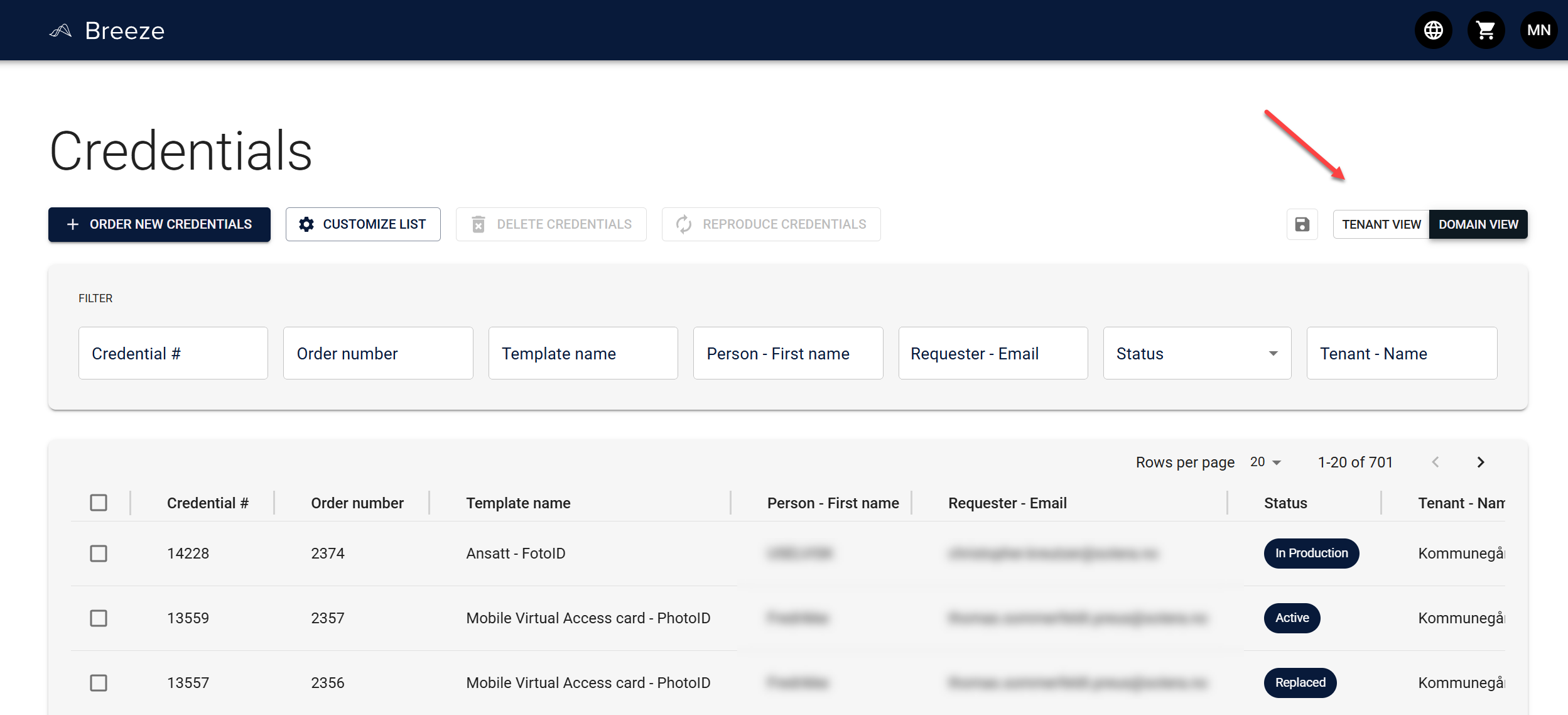
Caption: When Domain View is active, the list shows Credentials from all sub-Tenants in the domain, with a "Tenant - Name" column indicating which Tenant each Credential belongs to.
Make It Fit: Customizing Your View
Ever wish you could see more of that "Requester Email" column, or make the status badges wider? You're in luck.
Resize columns by dragging the divider between column headers. Your preferences are saved automatically in your browser, so they'll stay exactly how you like them. Don't worry—these settings are specific to your browser, so other team members won't see your layout changes.
Find Credentials Fast (Filtering)
Here's where the list view really shines. Let's say you need to find all Credentials for people with "Smith" in their name.
Here's how you'd do it:
- Look for the filter icon in the "Person - Last name" column header
- Click it and type "Smith" in the search box
- The list updates instantly to show only Credentials matching your search
But filters can do so much more than that. Let's look at what each field type can do:
| Field Type | What You Can Do | Real Example |
|---|---|---|
| Text | Contains | "Type 'John' to find all Johns, Johnathans, and Johnson Credentials" |
| Numbers | Equals, Greater than, Less than | "Find Credential #13530 exactly, or all Credentials numbered above 10000" |
| Dates | Before, After, Between, On | "Show me all Credentials created after January 1, 2024" or "Credentials created between March and April 2024" |
| Status | Multi-select dropdown | "Show only Active and Deactivated Credentials" (perfect for excluding old test data) |

Here's a powerful tip: You can combine multiple filters to create very specific searches. For example:
- Find Credentials created in the last 30 days and with status "Active"
- Show Credentials for people with "Martinez" in their name and created before a specific date
Start broad, then narrow down. If you're looking for something specific, add one filter at a time and watch the results shrink. This helps you understand which filters are actually helping you find what you need.
Don't forget: When you're done filtering, use the reset button in the top filter bar to clear all filters and see your full list again.
Sort It Your Way
Want to see the newest Credentials first? Or maybe you need to find Credentials in alphabetical order by name?
Here's how sorting works:
- Click any column header (like "Order date" or "Person - First name")
- The list sorts immediately—look for the ↑ or ↓ arrow in the column header
- Click again to reverse the order
Example: Click "Order date" once to see newest first (↓), click again to see oldest first (↑). Perfect for finding that Credential you know was created last week but can't remember the exact details.
At the moment, you can only sort by one column at a time. Multiple column sorting isn't available yet, but it's on the roadmap!
Work Smarter with Bulk Actions
Managing Credentials one at a time works fine for small tasks, but when you need to handle many at once, bulk actions save you time and clicks.
How It Works
- Select Credentials using the checkboxes in the first column
- Watch the action buttons update—they'll show how many items you've selected (e.g., "Delete 5 Credentials")
- Choose your action from the available buttons
Available bulk actions (what you see depends on your role):
| Action | Required Role | What It Does |
|---|---|---|
| Delete Credentials | Admin | Permanently remove selected Credentials from the system |
| Reproduce Credentials | System Admin | Create new versions of selected Credentials (useful for reissuing) |
| Export Search Results | Super Admin and Data Exporter | Download the selected Credentials as a file for reporting or backup (not available in Domain View) |
Deleting Credentials is permanent! The system will ask you to confirm before anything is deleted, but make sure you've selected the right Credentials. When in doubt, export them first as a backup.
For large selections (more than 100 items), you'll see helpful options:
- Select just the first 100 items (if that's all you need)
- Select the first 300 items
- Clear your selection and start over
These options help you avoid accidentally selecting thousands of Credentials when you only need a subset.
Common Scenarios
Here are real-world situations where the list view features really come in handy:
Scenario 1: Finding Expired Credentials
The situation: Your security policy requires reviewing all Credentials that expired in the last month.
How to do it:
- Filter by "Card valid until date" and set the date you want to filter by
- Sort by date to see the most recently expired first
- Review or export as needed
Scenario 2: Bulk Export After Onboarding
The situation: You've just onboarded 50 new employees and need to export their Credential data for HR records.
How to do it:
- Filter by "Order date" to show Credentials created in the last week
- Select all the new employee Credentials using the checkbox in the header (selects all on the current page)
- Click "Export Search Results"
- Download your file with all the Credential data
Scenario 3: Cleanup After Employee Departure
The situation: Ten employees left last month, and you need to deactivate or delete their Credentials.
How to do it:
- Filter by their names or email addresses
- Select all their Credentials
- Use bulk delete (if permanent removal) or manually deactivate them individually
If you're doing regular cleanup, create a filter for "Status: Deactivated" and sort by date. This helps you find old deactivated Credentials that might need permanent deletion.
Scenario 4: Finding a Specific Credential When You Only Know Partial Info
The situation: Someone says "I think the employee number starts with 13..." or "It's for someone named Maria, but I'm not sure of the last name."
How to do it:
- Use the "Personnel number" filter and type "13" to see all Credentials where the personnel number starts with 13
- Or filter "Person - First name" with "Maria" to narrow it down
- Browse the filtered results—much faster than scrolling through everything!
Scenario 5: Finding a Credential When You Don't Know Which Tenant Owns It
The situation: You're working in a domain's main Tenant and need to find a Credential, but you don't know which sub-Tenant it belongs to.
How to do it:
- Switch to Domain View using the toggle in the top-right
- Use filters (name, Credential number, status, or Tenant name) to narrow down results
- The "Tenant - Name" column shows which Tenant each Credential belongs to
- Open the relevant Credential from the list (double-click or use the row action)
Expected result: You can search across all sub-Tenants in your domain without needing to know the specific Tenant ownership.
Tips for Smooth Navigation
Here are some quick tips to make your life easier:
Keyboard Shortcuts
- Ctrl+Click on any Credential to open it in a new tab (keep your place in the list!)
- Esc to close side panels and dialogs
- Tab to move between interactive elements
Working with Large Lists
- Use filters, don't scroll: If you have 500+ Credentials, scrolling through pages takes forever. A quick filter gets you there in seconds.
- Adjust page size: Change how many rows show per page (10, 25, 50, 100) based on what you're doing. Viewing details? Smaller page size. Bulk selecting? Larger page size.
- Clear filters between searches: Don't forget to reset filters when starting a new task—nothing's more confusing than wondering why your list is empty when you know you have 300 Credentials!
Performance Tips
- Be specific with filters: "Created in the last week" is better than "All Credentials"
- Avoid selecting 1000+ items: If you need to work with that many, break it into smaller batches or use more specific filters
- Close detailed views when done: Side panels are great, but closing them when you're finished keeps the interface snappy
Safety Features
We've built in several safeguards to prevent accidents:
Confirmation Dialogs
- Destructive actions require confirmation: When you delete Credentials, you'll see a confirmation dialog before anything happens
- Clear warnings: The system tells you exactly what will happen before you commit
Smart Selection Limits
- Large selection warnings: If you try to select 100+ items, you'll see options to limit your selection or work with batches
- Clear selection option: Always available if you change your mind
Role-Based Protection
- Some actions are role-restricted: You can only do what your role allows. If you don't see an action button, it's likely a permissions issue—check with your administrator
Troubleshooting Common Issues
Sometimes things don't work as expected. Here's how to solve the most common problems:
| What's Happening | Likely Cause | What to Try |
|---|---|---|
| List won't load or shows an error | Network connectivity issue | Check your internet connection and refresh the page |
| Everything feels slow | Too many results showing | Add a filter to narrow down the results |
| Columns look wrong or are missing | Custom view settings | Check with your administrator—someone might have customized the list view |
| Action buttons are grayed out or missing | You don't have permission | Verify your role assignments with your administrator |
Getting Help
If you're stuck:
- Check your role permissions first—many "missing features" are actually permission-based
- Contact your tenant administrator—they can check your access levels
- Reach out to support if needed, and include:
- Screenshots of what you're seeing
- What you were trying to do (step by step)
- Your browser and version (Chrome, Firefox, etc.)
Related Documentation
Now that you're comfortable with the list view:
- Customizing the List View — Configure which columns appear and how they're arranged
- Data Export — Learn more about exporting Credential data for reporting and backups