External Data Sources
External Data Sources allow you to automatically retrieve person data from external systems during Credential ordering. When a Mobile Credential Template is configured with an external data source, operators can enter a search identifier (such as a personal identity number) to automatically populate Credential fields with data from the external system.
Overview
External Data Sources integrate Breeze with external person lookup services, such as:
- Norwegian Folkeregisteret (FREG) — Norwegian National Registry for person data lookup
- SPAR — Swedish population register (if configured)
- Breeze ID Connector — A generic connector for your own OAuth-protected person lookup API
When operators order Credentials using a template configured with an external data source, they can enter a search identifier to automatically retrieve and populate person information, reducing manual data entry and improving accuracy.
What external data sources do
External Data Sources:
- Automate data entry — Retrieve person data automatically during Credential ordering
- Improve accuracy — Reduce manual input errors by pulling data directly from authoritative sources
- Streamline workflows — Speed up Credential ordering by pre-filling fields
- Support multiple sources — Configure different data sources for different templates or use cases
Who can configure external data sources
Required roles: System Administrator, Domain Administrator
To create or configure external data sources, you need one of the roles listed above.
How it works
- Administrator configures data source — Create and configure an external data source in Domain Administration with the required credentials and settings
- Template connection — Link the external data source to a Mobile Credential Template and configure field mappings
- Operator uses lookup — When ordering a Credential, operators enter a search identifier (e.g., 11-digit Norwegian personal identity number)
- Automatic population — System retrieves person data from the external source and populates Credential fields automatically
- Review and complete — Operator reviews the populated data and completes any remaining Credential information
Where to find it
Navigate to Domain Administration → Select your domain → External data sources section.
Configuring External Data Sources
Creating a Norwegian Folkeregisteret (FREG) Data Source
- Navigate to Domain Administration → Select your domain
- Scroll to the External data sources section
- Click "Add" to create a new external data source
- In the dialog, configure:
- Scope: Automatically set to your domain (read-only)
- Scope type: Automatically set to DOMAIN (read-only)
- Data source type: Select "Norwegian Folkeregister" (freg)
- Name: Enter a descriptive name (e.g., "BLK FREG Oppslag")
- Client ID: Enter your client ID (obtained from Sotera)
- Client secret: Click "Change client secret" and enter your client secret
- Click "Test connection" to verify your credentials are valid
- Click "Save" to create the external data source
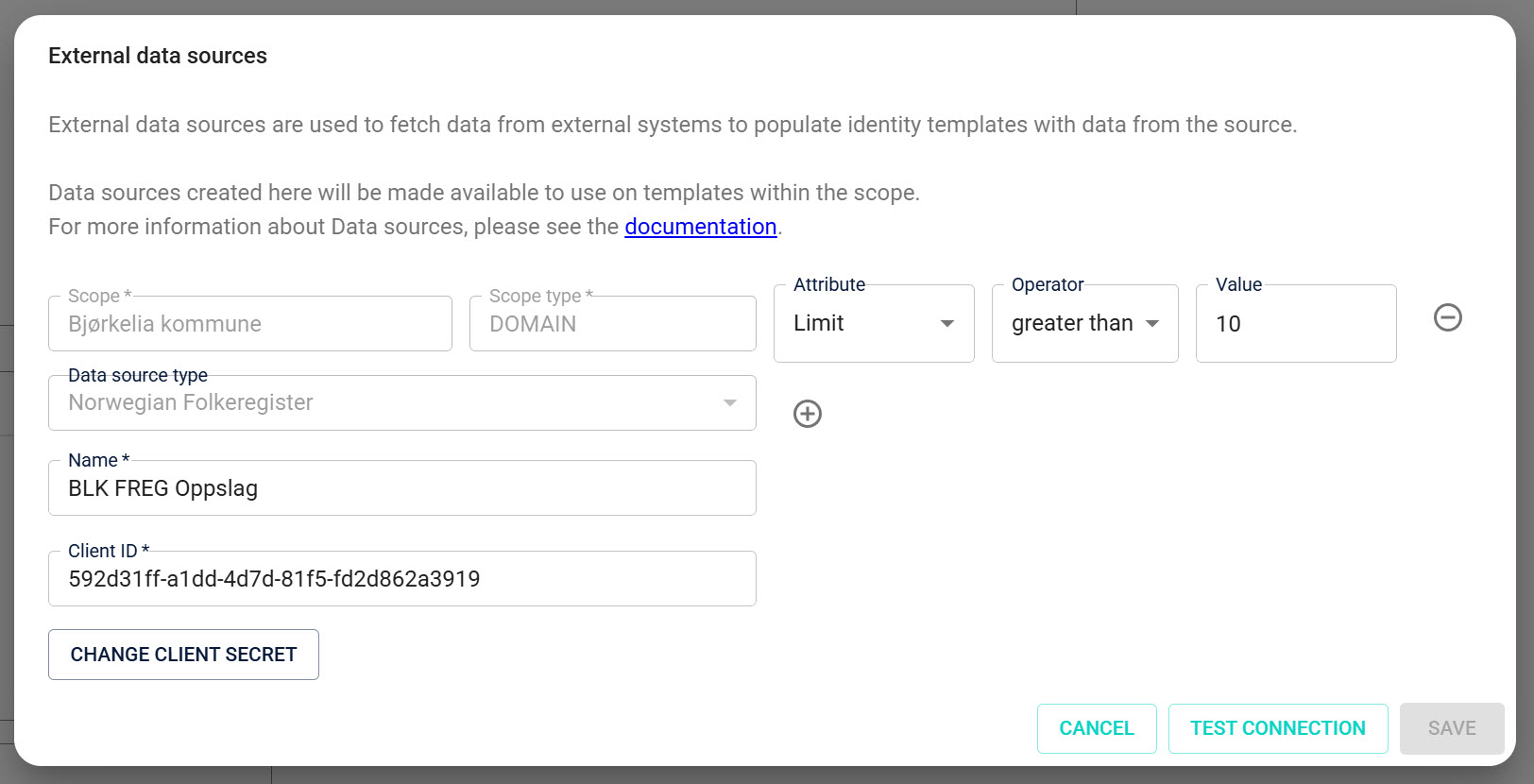
You need valid Sotera credentials to use Norwegian Folkeregisteret as an external data source. Contact Sotera to obtain your client ID and client secret.
Creating a Breeze ID Connector Data Source
Use Breeze ID Connector when you want Breeze to retrieve person data from your own external API protected by OAuth 2.0 client credentials.
What is Breeze ID Connector?
Breeze ID Connector is a generic external data source type. It doesn’t connect to a specific national registry like FREG—instead, it lets Breeze call your organization’s person lookup API.
You typically use it when you already have an internal or partner-provided service that can look up a person (for example, from HR, student records, or a national registry gateway), and you want Breeze to reuse that service during Credential ordering.
How it works (high level)
When an operator performs a lookup during Credential ordering:
- Breeze requests an access token from your OAuth token endpoint (using the Client ID + Client secret you configure here).
- Breeze calls your Client URL (your lookup API) and sends the operator’s search input.
- Your API returns person data.
- Breeze maps the returned data into Credential fields based on the template’s field mappings.
What your organization must provide
To use Breeze ID Connector, your organization (or integration partner) must provide:
- A person lookup API endpoint (HTTPS recommended) that Breeze can reach.
- An OAuth 2.0 token endpoint that supports the client credentials flow.
- A client registration (Client ID + Client secret) that Breeze can use.
- A response contract (JSON) that Breeze can understand.
If your API is not publicly reachable, you must provide a network path that allows Breeze to call it (for example, VPN, allowlisting, or a hosted endpoint).
Response format requirements (important)
Breeze ID Connector does not automatically adapt to any API response format.
Your lookup service must return data in Breeze’s person lookup format. At minimum, the response must include an identifier field. Additional fields (such as name, address, department, email, etc.) can be included depending on what you want to map into your Credential Templates.
Reach out to Breeze support—we can provide the expected response format and guidance for mapping.
If you prefer not to build and operate your own connector, Sotera can provide the Breeze ID Connector as a managed service—as long as you can make the required person data available to Breeze in an agreed and secure way.
- Navigate to Domain Administration → Select your domain
- Scroll to the External data sources section
- Click "Add" to create a new external data source
- In the dialog, configure:
- Scope: Automatically set to your domain (read-only)
- Scope type: Automatically set to DOMAIN (read-only)
- Data source type: Select "Breeze ID Connector"
- Name: Enter a descriptive name (e.g., "HR Person Lookup")
- Client ID: The OAuth client ID provided by your identity provider
- Client secret: The OAuth client secret for the client ID
- Client URL: The API endpoint Breeze will call to look up person data
- OAuth token endpoint: The endpoint Breeze uses to request an access token
- Click "Test connection" to verify the credentials work
- Click "Save" to create the external data source
Editing an External Data Source
- Navigate to Domain Administration → Select your domain
- Scroll to the External data sources section
- Click "Edit" next to the external data source you want to modify
- Update the configuration as needed
- Click "Save" to apply changes
Connecting External Data Sources to Templates
After creating an external data source, you need to connect it to a Mobile Credential Template:
- Navigate to Templates → Mobile Credential
- Select or create a template
- In the template editor, configure the external data source connection
- Configure field mappings to map external data source response fields to Credential fields
- Save the template
For detailed instructions, see Editing Templates.
Limitations and Considerations
- Authentication requirements: Some external data sources (like FREG) require Level 4 authentication (BankID) for natural person lookups
- Format requirements: Each data source has specific format requirements for search identifiers (e.g., FREG requires exactly 11 digits)
- Rate limiting: External data sources may have rate limits that apply to lookups
- Configuration scope: External data sources are configured at the Domain level and can be used by templates within that domain
Learn more
- Mobile Credential Templates — Create and manage templates for mobile ID Credentials
- Editing Templates — Edit templates and configure external data source connections
- Credential Management — Overview of credential management features