Customizing the Credentials List
This guide explains how tenant administrators can customize the credentials list view for their organization.
Required Roles
Required roles: Tenant Administrator, User Administration
To customize the credentials list view, you need to have both roles listed above.
Prerequisites
Before you begin, ensure you have:
- Access to the Manage Credentials section
- A web browser with an active Breeze session
Customization Process
1. Access List Settings
- Navigate to the
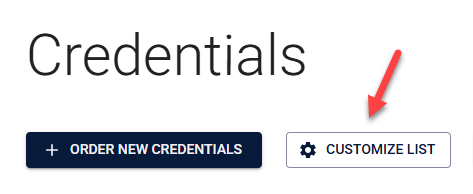
Manage Credentialssection - Click the "Customize List" button in the action bar above the credentials list
- The Customize Credentials List dialog will open
2. Select Fields
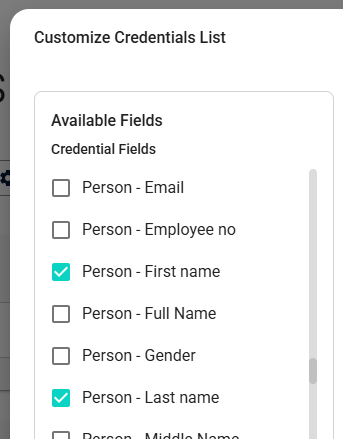
In the left panel, you'll see all available fields grouped into categories. Some examples of fields include:
- Credential Fields
- Credential Number
- Status
- Creation Date
- Other basic credential information
- Template Fields
- Template Name
- Template-specific information
- Order Fields
- Order Number
- Order-related information
- Tenant Fields (useful when using Domain View)
- Tenant ID
- Tenant Name
To select fields:
- Browse through the categories
- Check the boxes next to fields you want to display
- Hover over field names to see descriptions
3. Arrange Fields
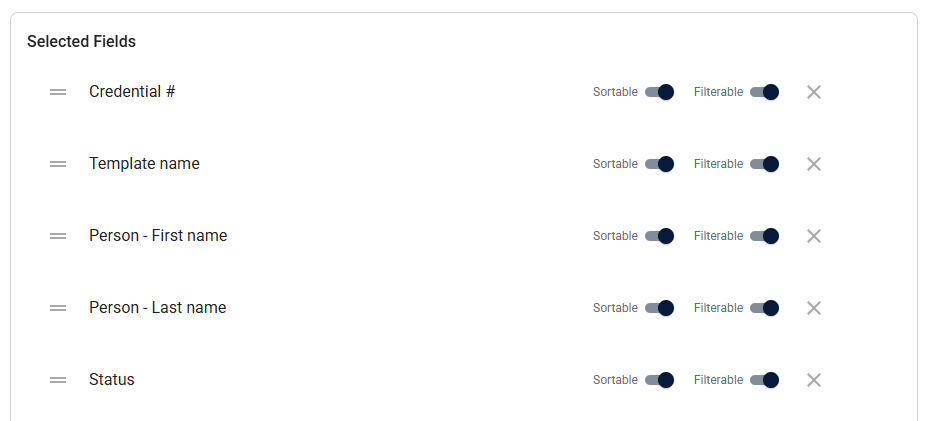
In the right panel, you can organize the selected fields:
- Use the handle icon (≡) on the left of each field to drag
- Drag and drop fields to change their order
- The order here determines how columns appear in the list
4. Configure Field Properties
For each selected field, you can configure:
- Sortable: Allows users to sort the list by this field
- Filterable: Allows users to filter credentials using this field
Use the switches next to each field to enable or disable these features.
5. Save Changes
- Review your configuration
- Click "Save" to apply your changes
- The new configuration will be immediately available to all users
- Click "Cancel" to discard changes
Best Practices
Field Selection
- Choose fields that are most relevant to your users' daily tasks
- Avoid selecting too many fields to prevent information overload (recommended: 8-12 fields)
- Include fields commonly used for sorting and filtering
- Consider the logical grouping of information
- For main Tenants using Domain View: Include "Tenant - Name" or "Tenant ID" fields to help users identify which Tenant each Credential belongs to when viewing domain-wide results
Field Ordering
- Place most frequently used fields on the left
- Group related fields together (e.g., keep all date fields adjacent)
- Consider the natural workflow of your users
- Put optional or less-used fields towards the right
Configuration Management
- Test the configuration with different screen sizes
- Gather feedback from users about field visibility and ordering
- Periodically review and update the configuration (quarterly recommended)
- Document your configuration decisions for future reference
Technical Considerations
Performance
- More visible fields may impact loading performance
- Consider the impact of enabling sorting/filtering on all fields
- Balance between functionality and performance
User Experience
- Changes affect all users in the tenant
- New configurations apply immediately
- Users may need to refresh their browser
- Consider providing user training for significant changes
- Plan communication before making major layout changes
Troubleshooting
Common Issues
| Issue | Possible Cause | Solution |
|---|---|---|
| Changes don't appear | Browser cache | Ask users to refresh their browser |
| Sorting doesn't work | Field not sortable | Verify sortable property is enabled for the field |
| Filtering doesn't work | Field not filterable | Check filterable property is enabled for the field |
| Performance issues | Too many visible fields | Reduce the number of visible fields |
| List appears cluttered | Too many columns | Prioritize essential fields only |
Getting Help
If you encounter issues:
- Check that you have the required roles
- Verify your changes were saved successfully
- Take a screenshot of the issue if possible
- Contact support if problems persist, providing details about:
- The specific action you were taking
- Any error messages displayed
- The browser and version you're using