Editing Card Templates
Card Templates are where you define how physical Credential cards are produced: layouts, fields, encoding, approvals, and optional Duo ID behaviors. The editor is organized into tabs so you can work on one configuration area at a time.
Who this is for
This guide is for administrators who manage Card Templates for a Tenant or production setup (for example: production site operators, template designers, and system operators).
Required roles: System Admin + Production - Create Layouts
To perform the following steps, you need to have the roles listed above.
For an overview of roles in Breeze, see Roles and Permissions.
Open the editor
- Navigate to Templates → Card Templates.
- Find the Card Template you want to update.
- Click Edit Card Template.
The editor opens in a modal dialog with multiple tabs.
Editor tabs
The Card Template editor is organized into the following tabs:
- Production elements — Status, order type, layouts, fields, and general production settings
- Encoding and ranges — CSN readings, encoding files, number ranges, formulas, and manual encoding settings
- Approvals — Approval workflow settings and Duo ID Approval Routing
- Information — Modification history and template metadata
- Access control — AMR Transfer Template connections
- Advanced — Advanced configuration such as background removal settings
Production elements
The Production elements tab contains the core configuration for card production.
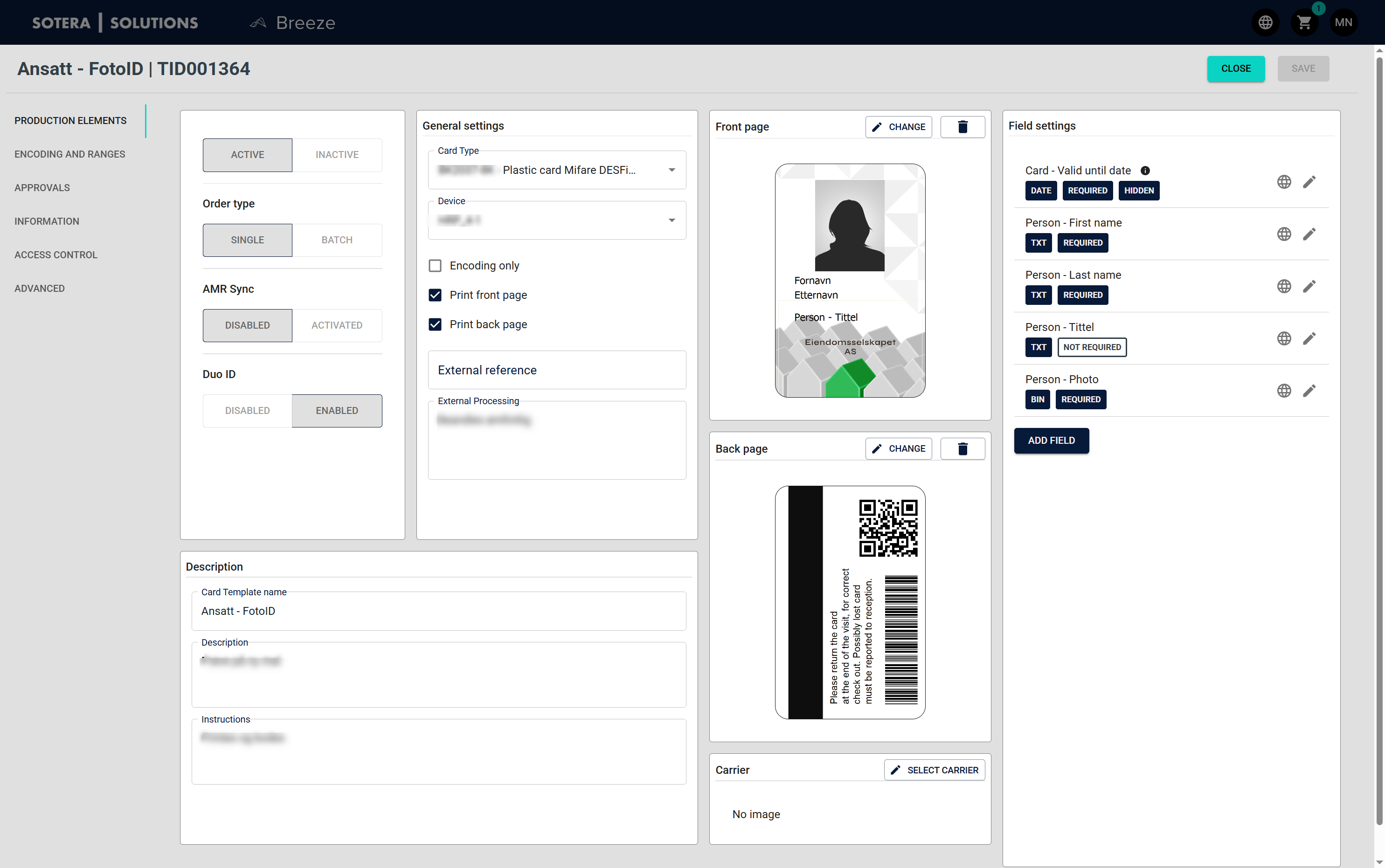
The device picker in General Settings reflects your Tenant's Production Site. Only devices available for that Production Site appear in the list. To manage which devices are available, see Managing Devices.
Field settings
Each field in the template can be configured with rules that control how data is collected and displayed. Some text fields can be marked as sensitive to encrypt their values at rest — only users with the Sensitive Data Viewer role can read the plaintext value. See Configuring Sensitive Fields for setup steps, or Sensitive Fields to understand what users see in Credential records.
Status and order type
- Status: Toggle between Active and Inactive.
- Order type: Choose between Single (individual orders) and Batch (bulk orders).
AMR Sync and Duo ID
- AMR Sync: Toggle between Disabled and Activated.
- Duo ID: Toggle between Disabled and Enabled.
When Enabled, you can configure Duo ID Approval Routing in the Approvals tab.
Approvals
The Approvals tab (also labeled Godkjenninger / Order flow in Norwegian) contains settings for approval workflows and Duo ID Approval Routing.
Approval settings
The Approvals section controls whether Credentials created from this template require approval.
- Enforced Approval activated: When enabled, Credentials require approval before they can be issued.
- Click Change setting to update the approval configuration.
Duo ID Approval Routing
When Duo ID is enabled on your template (in the Production elements tab), you can configure a delegated Tenant for Duo ID approvals. This routes new Duo ID approval requests created from this template to a specific Tenant so you can centralize approvals.
How it works:
- Enable Duo ID in the Production elements tab.
- Open the Approvals tab.
- In Duo ID Approval Routing, select a Tenant in Duo ID Approval Delegated Tenant.
- Click Save.
What happens:
- New Duo ID approval requests created from this template are assigned to the selected delegated Tenant.
- Approvers review the request from the delegated Tenant’s Duo ID requests queue.
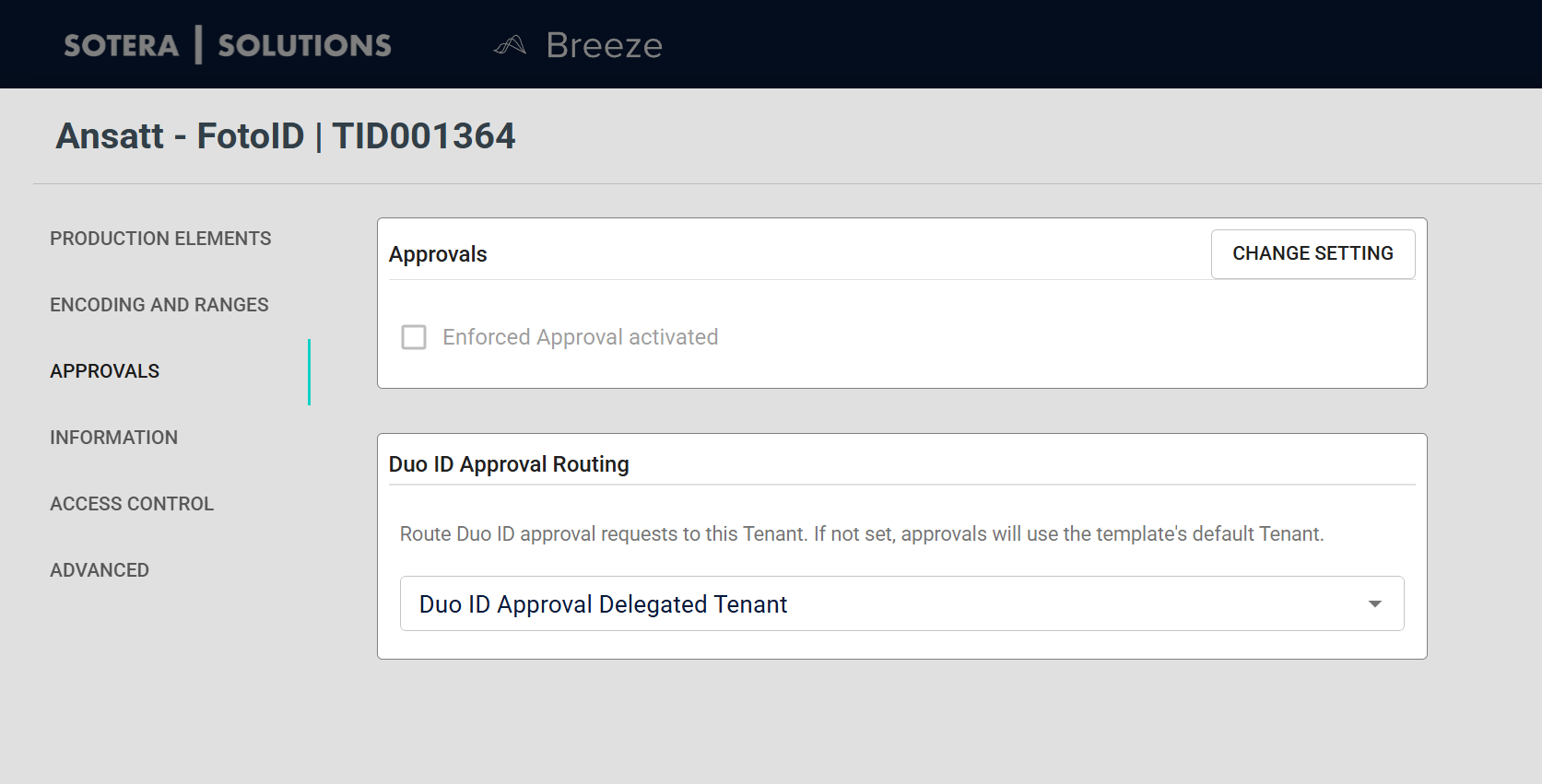
The Duo ID Approval Routing section is always visible:
- When Duo ID is Enabled, the dropdown is available.
- When Duo ID is Disabled, the section shows a Disabled indicator and the dropdown is hidden.
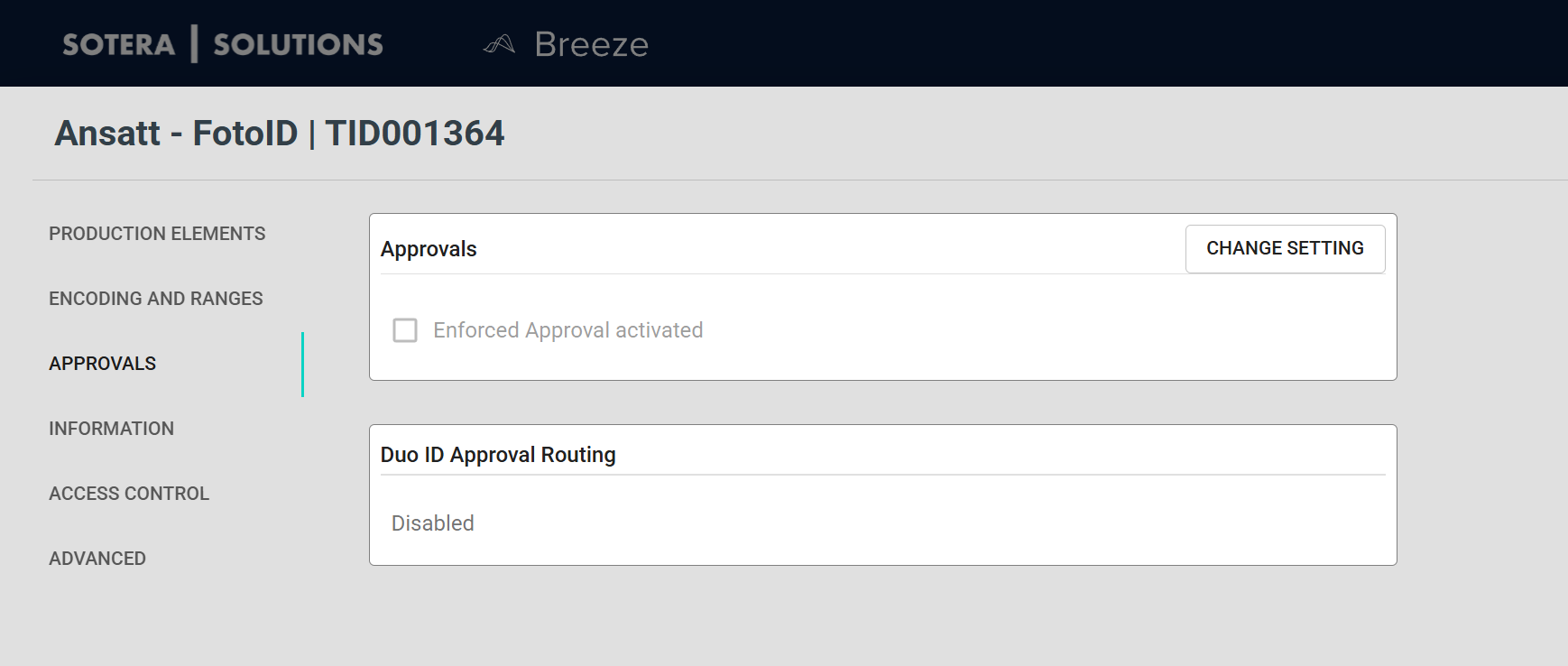
Routing is applied when the Duo ID request is submitted. Changing the delegated Tenant later does not move already-submitted requests.
Automatic Duo ID reminders
When Duo ID is enabled on a Card Template, you can configure automatic reminder emails to reduce expired requests. Collaborators receive two reminders per pending request: one at the halfway point to expiry and one near the expiry date.
See Duo ID Automatic Reminders for setup steps, cleanup period options, and what happens when a request expires.
Encoding and ranges
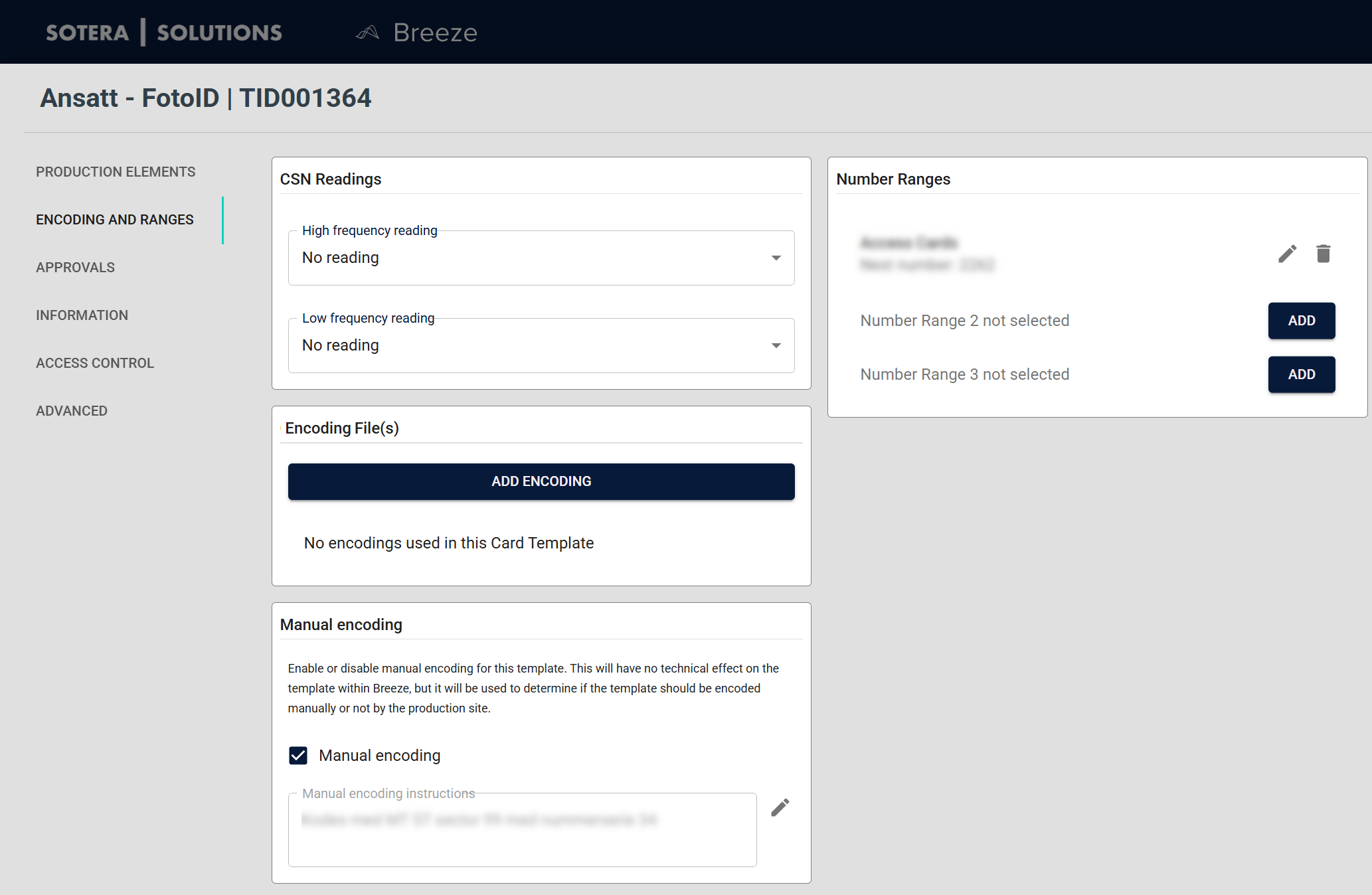
The Encoding and ranges tab contains settings used during RFID encoding and numbering.
This typically includes:
- CSN Readings (high frequency / low frequency)
- CardSDK Encoding DSC File(s) (optional)
- Number Ranges (up to 3)
- Formulas (up to 3)
- Manual encoding and optional production instructions
Information
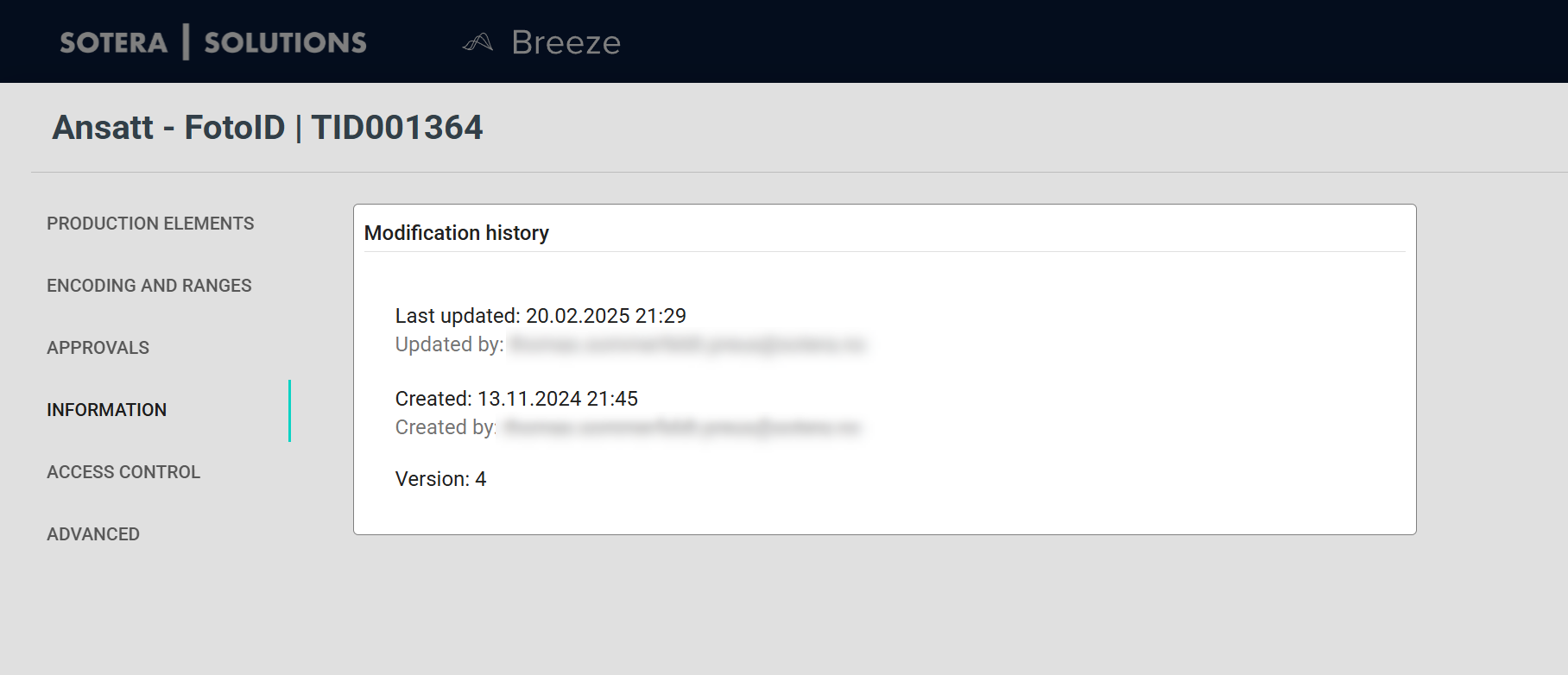
The Information tab shows administrative details, such as when the template was created and last updated.
Access control
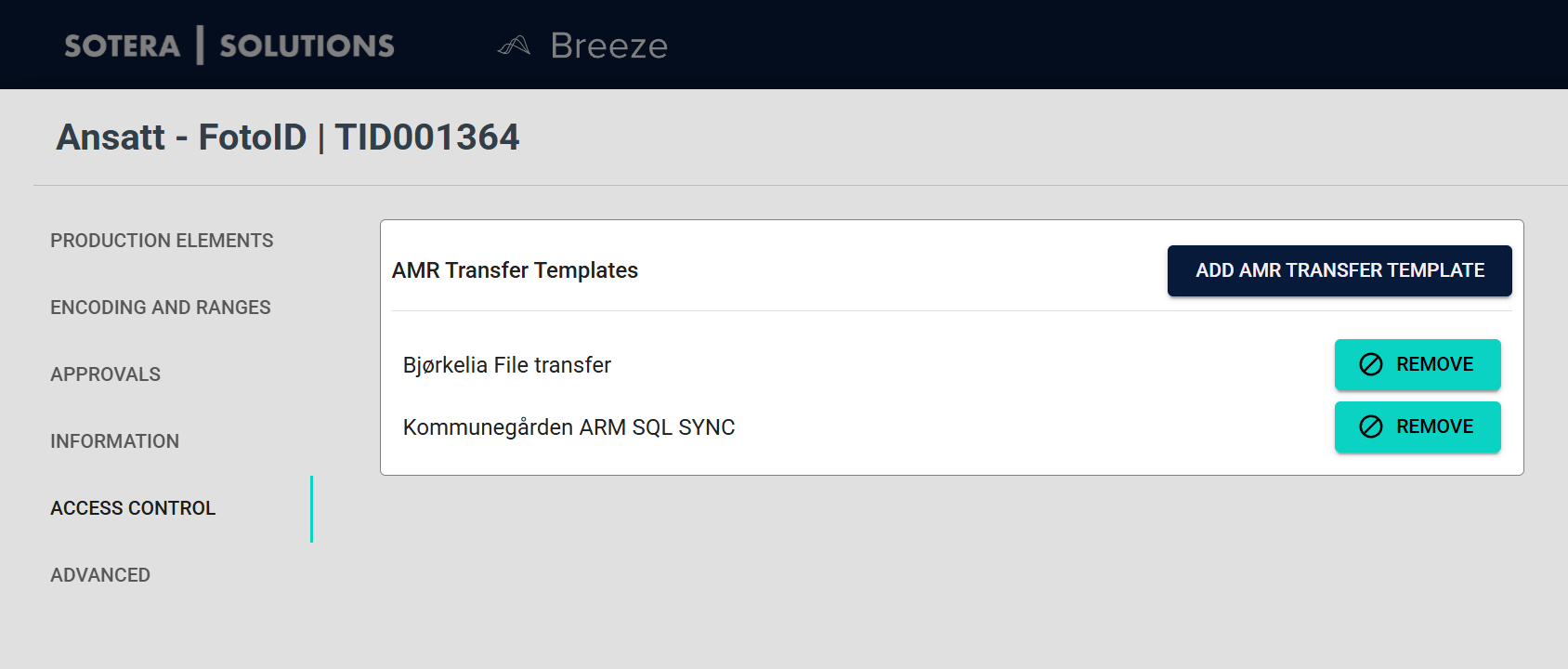
The Access control tab is where you connect AMR Transfer Templates to your Card Template. These templates control what data Breeze sends to access control systems when Credentials are activated.
Learn more: AMR documentation
Advanced
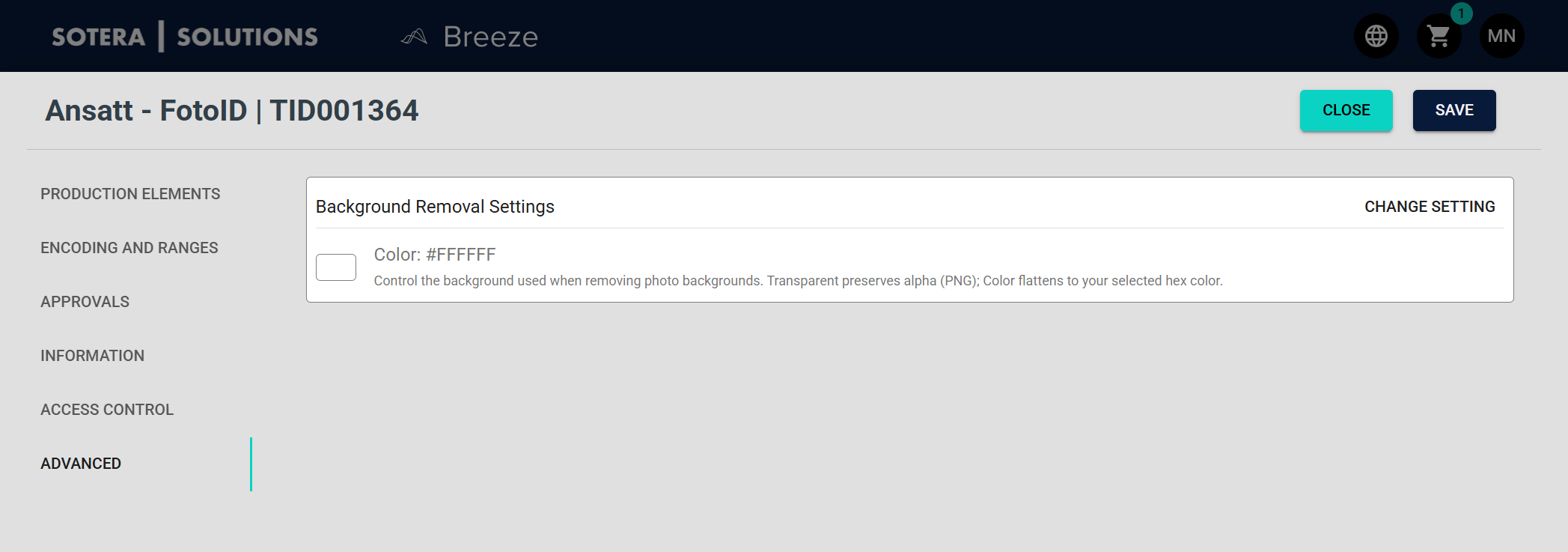
The Advanced tab contains advanced production settings for this Card Template.
Background Removal Settings
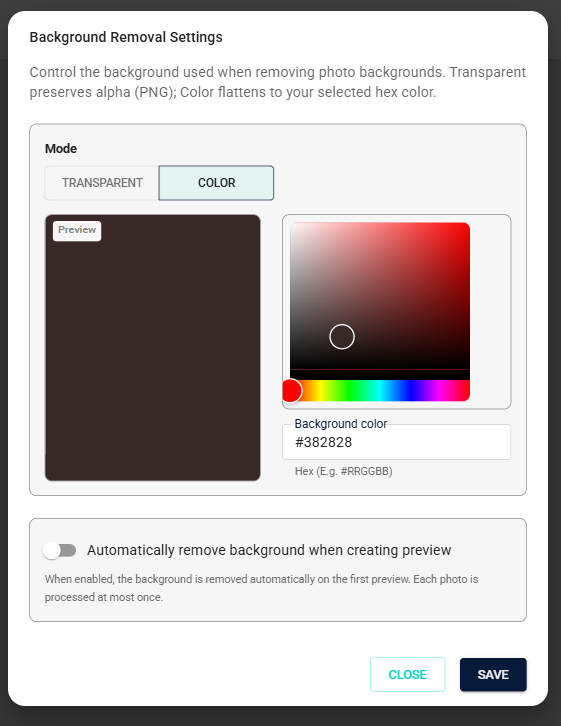
Click Change setting to configure how photo backgrounds are handled for Credentials produced from this template.
Mode — Controls what happens to the background when it is removed:
| Option | Description |
|---|---|
| Solid Color | Replaces the background with a solid color (default: white, #FFFFFF) |
| Transparent | Keeps the alpha channel — requires a card layout that supports PNG with transparency |
Auto-remove — When enabled, Breeze removes the photo background automatically the first time a Credential preview is created from this template. Each photo is processed once; re-creating the preview does not trigger a second removal.
| Option | Description |
|---|---|
| Enabled | Background is removed automatically on first Credential preview creation |
| Disabled | No automatic background removal (default) |
Auto-remove requires Background Removal to be enabled on your Domain. If the service is unavailable when a preview is created, Credential preview creation continues — the background is not removed.
Save or discard changes
- Click Save to apply changes.
- Click Close to exit the editor.
If you made changes and click Close, Breeze may prompt you to discard your unsaved changes.