Configuring Sensitive Fields in Card Templates
Sensitive fields encrypt the stored value of a text field in a Credential Template. Users who open a Credential see a masked value — such as 150288***** or ****** — unless they have the Sensitive Data Viewer role. A lock icon identifies which fields are protected.
Use sensitive fields for data that should not be visible to everyone who can open a Credential, such as personal identification numbers or other regulated data.
Required roles: System Admin + Production - Create Layouts
To configure sensitive fields, you need the roles listed above. To assign the Sensitive Data Viewer role to users, you also need User Management permissions. See Assign the Sensitive Data Viewer role below.
Mark a field as sensitive
- Navigate to Templates → Card Templates and open the template you want to update.
- Click Edit Card Template and go to the Production elements tab.
- Open the field settings for the text field you want to protect.
- Enable the Sensitive (Encrypted) toggle. The Mask Pattern dropdown appears below the toggle.
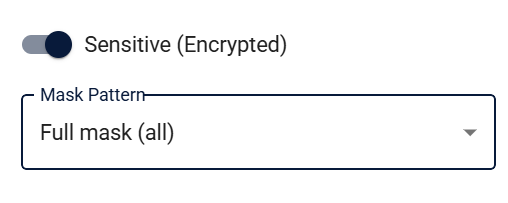
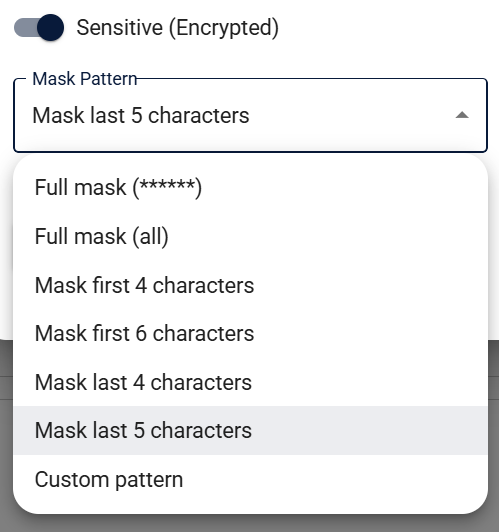
- From the Mask Pattern dropdown, select the preset that fits your requirements. For example, Mask last 5 shows the leading characters and masks the last five:
150288*****.
- Click Save. A SENSITIVE tag appears on the field in the template field list.
New Credentials created from this template have the field value encrypted at rest. Users without the Sensitive Data Viewer role see the masked value; users with the role see the plaintext.
The Sensitive (Encrypted) toggle is only available on text fields. Date, image, and other field types cannot be marked as sensitive.
Mask pattern options
The mask pattern controls which characters are visible to users without the Sensitive Data Viewer role.
| Preset | Effect | Example (input: 150288123456) |
|---|---|---|
Full mask (***) | All characters replaced | ****** |
| Mask first 4 | First 4 characters masked | ****88123456 |
| Mask first 6 | First 6 characters masked | ******123456 |
| Mask last 4 | Last 4 characters masked | 15028812**** |
| Mask last 5 | Last 5 characters masked | 1502881***** |
| Custom | Enter your own pattern | See below |
Custom pattern format: Enter first:N to mask the first N characters, or last:M to mask the last M characters. N and M must be positive integers. Example: first:6 masks the first six characters and shows the rest: ******123456.
Any preset other than Full mask shows some characters to users without the Sensitive Data Viewer role. Choose the exposure level deliberately — partial masks are not suitable for strict compliance requirements without legal and product review.
Assign the Sensitive Data Viewer role
Users need the Sensitive Data Viewer role to read plaintext values in Credentials. Assign it through the standard user role assignment flow.
- Navigate to Users and open the relevant user's profile.
- Go to the Roles tab.
- Add the Sensitive Data Viewer role.
- Click Save.
The user can now open a Credential that contains sensitive fields and see the decrypted plaintext value.
For a full guide to managing roles, see Roles and Permissions.
Production operators and card printing
If a Card Template uses a sensitive field in its card layout or encoding configuration, every production operator who processes those cards must have the Sensitive Data Viewer role. Without it, Breeze cannot decrypt the field value during production and the job will not complete.
Assign the role before deploying templates that include sensitive fields in their layout or encoding.
Known limitations
- Existing data is not encrypted automatically. Marking a field as sensitive encrypts new and updated values going forward. Values already stored for that field remain unencrypted until Sotera support runs a migration for the affected template. Contact Sotera support after enabling the toggle to request this migration.
- Text fields only. The Sensitive (Encrypted) toggle is not available on date, image, or other non-text field types.
- Partial masks expose some characters. Any non-full-mask pattern reveals characters to users without the
Sensitive Data Viewerrole. Review the chosen pattern carefully before deploying.
What's next?
- Sensitive Fields — what users see — how masked and plaintext values appear in a Credential record
- Roles and Permissions — full role model and assignment guide
- Editing Card Templates — other template field and production settings