Production Site
A production site is a Tenant assigned to handle the production of Credentials that need to be printed or encoded. The production site is responsible for the physical production of the Credentials, such as printing, encoding, and personalization.
A "Production" module is available in the Breeze Portal for the production site to manage the production of Credentials. This can be accessed from the menu. Aside from the production module, the production site Tenant can be used like any other Tenant.
The production site is either assigned at the Domain level (most common) or through setting up local production. If set up at the Domain level, all ordered Credentials within the Domain will be produced at the assigned production site.
Production History (Production module)
Production operators can open Production History to review previously produced Credentials for a Tenant. This is useful when you need to look up earlier production events and take follow-up actions like re-production or carrier-only printing.
Required roles: Production Operator (task role)
To use Production History, you need to have the role listed above for the selected Tenant.
Where to find it
- Go to Production.
- Select Production History (top right).
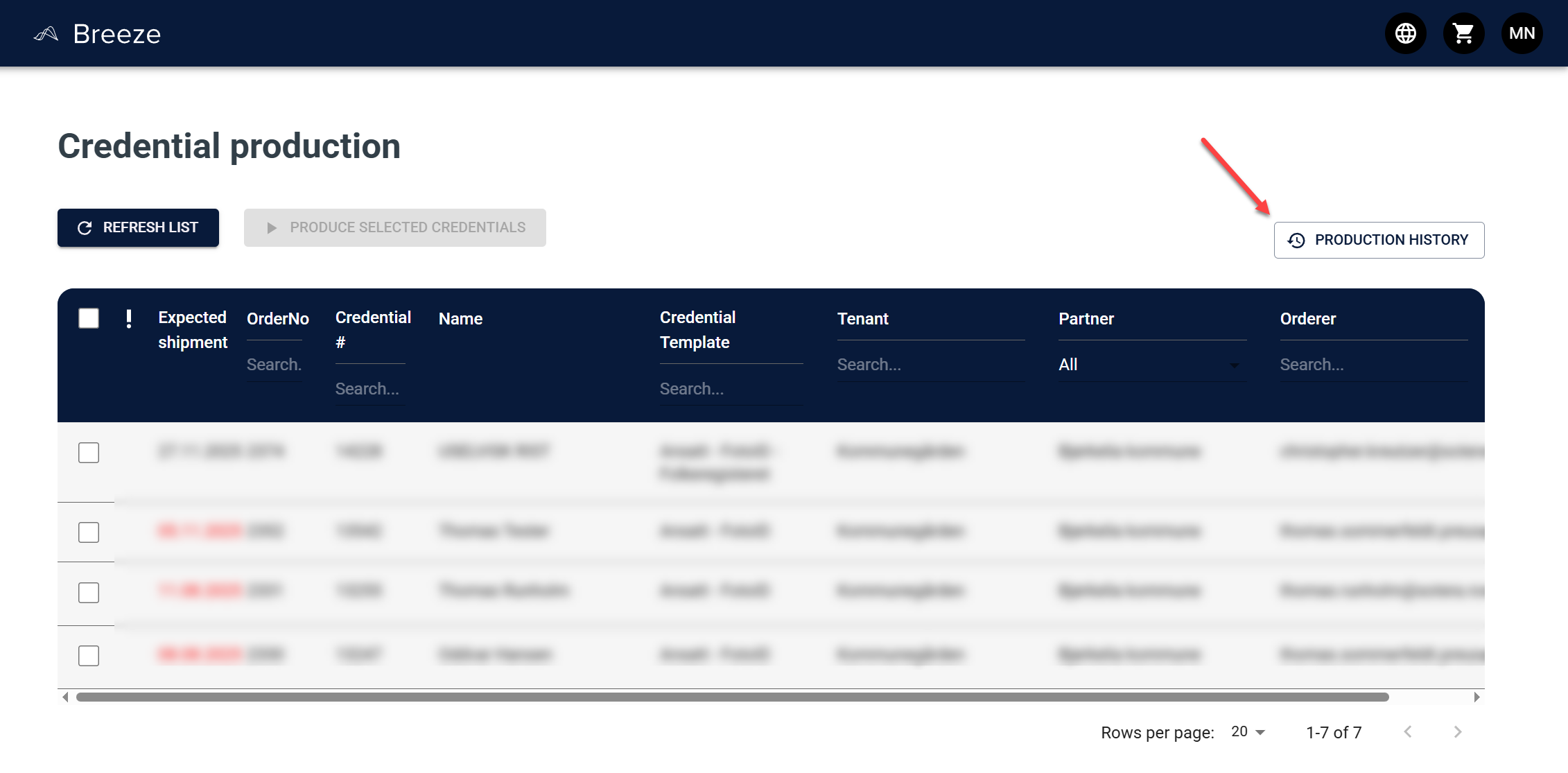
Filter and sort history entries
Production History supports sorting and filtering to help you narrow down results:
- Production date: filter by a date range.
- Credential number: requires an exact match.
- Tenant: filter by Tenant name.
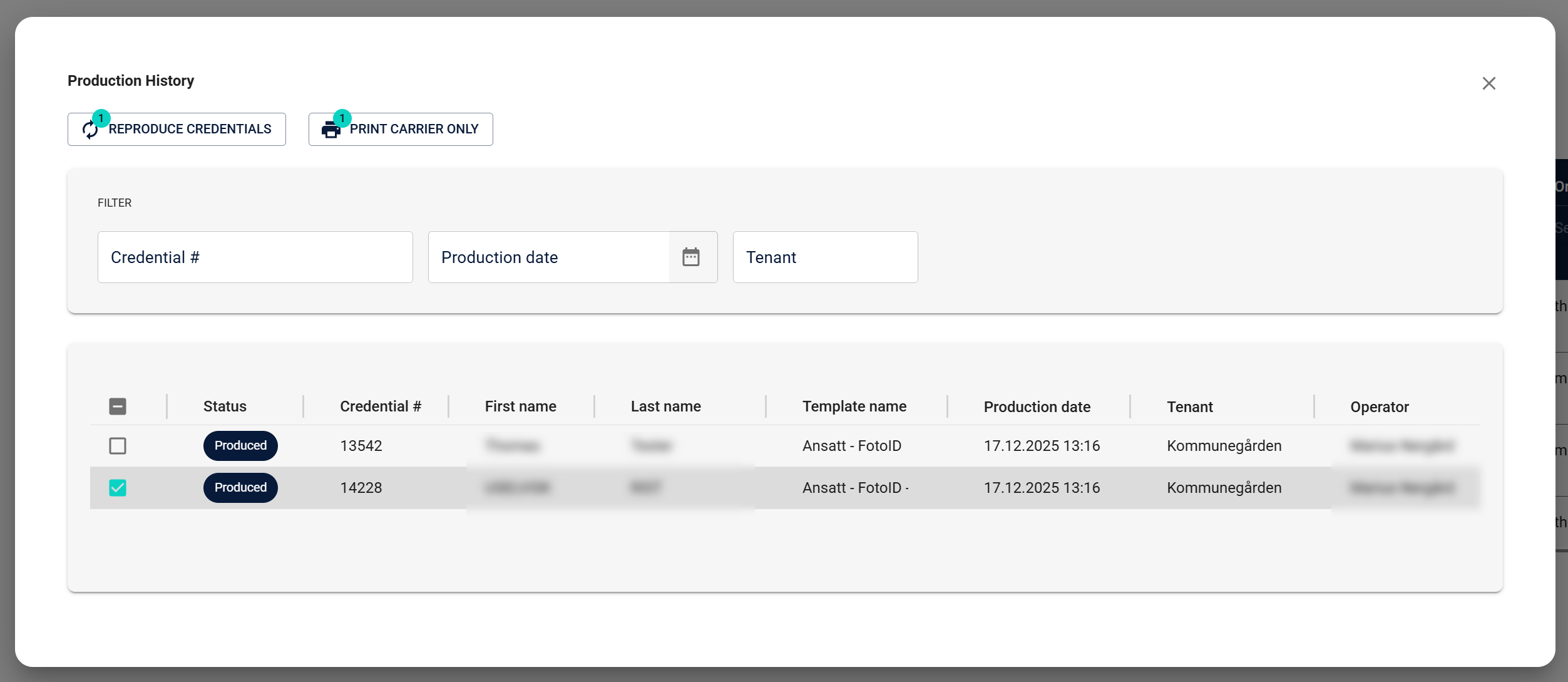
Select Credentials and run follow-up actions
From Production History, you can select one or more entries and start follow-up actions:
- Reproduce Credentials: re-produce the selected Credentials using the standard re-production flow.
- Print Carrier Only: prints carriers for selected Credentials that have carriers (Credentials without carriers are skipped).
Freight Integration
Production Sites that have Axia Frakt configured can create freight consignments directly from orders. Warehouse Operators create consignments from orders in packing, in production, or pending state, and get shipping labels and track-and-trace links without leaving Breeze.
See Axia Frakt Freight Integration for setup instructions and operator guides.
Production Site Settings
There are several options to configure the production site to meet your needs.
Quality Check Step After Production
Required roles: System Administrator
To perform the following steps, you need to have the roles listed above.
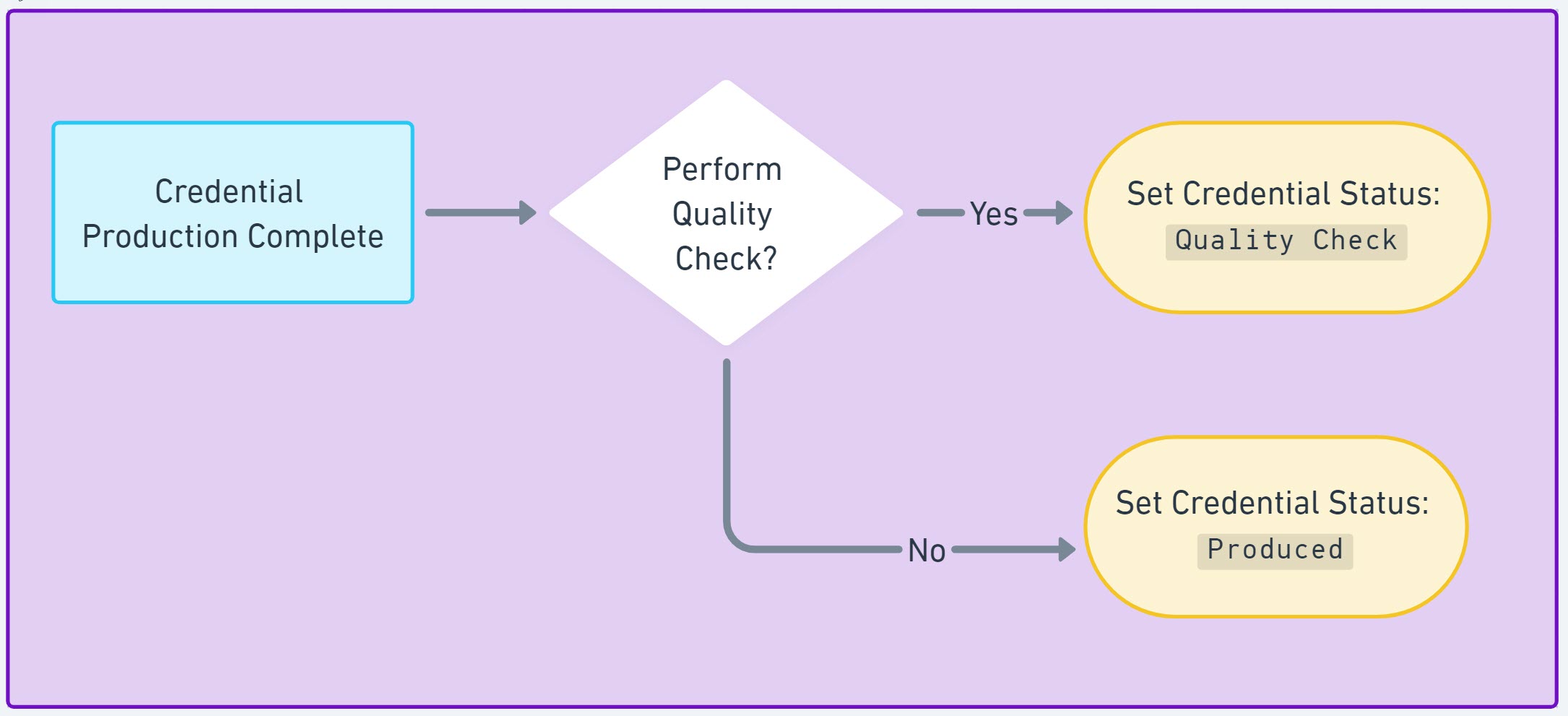
When enabled, a quality check step will be added after the production of the Credential. This step will require a user with the Quality Inspector role to review the Credential before it is marked as Produced. This is the default behavior for all Production Sites but can be disabled if not needed, which is common for small production sites.
To enable or disable the quality check step after production, follow these steps:
- Navigate to the Tenant settings page.
- Find and expand the
Production Settingssection. - Click on the
Edit Production Settingsbutton. - If the Tenant is a Production Site and you have the required roles, you will see the
Production Site Settingssection. Click on theChange Settingsbutton. - Toggle the
Quality Check Step After Productioncheckbox to enable or disable the quality check step. - Click the
Savebutton to save your changes.
Here is a flowchart illustrating the flow when the Quality Check step is enabled or disabled:
Order Lock for New Tenants
Required roles: System Administrator
To perform the following steps, you need to have the roles listed above.
When enabled, new Tenants created belonging to the Production Site will have the order lock enabled by default. This means that the Tenant will not be able to place orders until the order lock is disabled. This is typically used as a QA step to prevent orders from being placed until any issues with the Tenant or Card Template setup that could lead to processing problems are resolved.
To enable or disable the order lock for new Tenants, follow these steps:
- Navigate to the Tenant settings page.
- Find and expand the
Production Settingssection. - Click on the
Edit Production Settingsbutton. - If the Tenant is a Production Site and you have the required roles, you will see the
Production Site Settingssection. Click on theChange Settingsbutton. - Toggle the
Enable Order Lock for New Tenantscheckbox to enable or disable the order lock for new Tenants. - Click the
Savebutton to save your changes.
To disable (or enable) the order lock on a Tenant, a System Administrator must navigate to the Tenant settings and disable the order lock.