AMR SQL Transfer
AMR SQL Transfer lets you perform a one-time transfer of Credential data directly into a Microsoft SQL Server (MSSQL) table. It mirrors the intent of File Transfer but writes to SQL instead of generating a file. Use it when a downstream system expects data to be inserted or upserted into a database once, typically when a Credential is produced.
To explore other AMR methods for moving Credential data to third‑party systems, see the Access Management Router (AMR).
Prerequisites
- Availability: This feature is available for Enterprise plans.
Contact your Breeze representative or dealer for options.
Required roles:
System AdministratorData Exporter
You need these roles to configure and use AMR SQL Transfer.
Before you start:
- Access to the Breeze Admin Portal
- Access to a Microsoft SQL Server instance and credentials
- Know where the data should be stored: database, optional schema, and table name
- Your Domain/Tenant must have the AMR SQL feature enabled
MSSQL requirements and permissions
Have these connection details ready:
- Host (DNS or IP) and Port (default
1433) - Database name
- Username and Password (password is write‑only in the UI)
- TLS encryption (TLS 1.2+ required) using a publicly trusted CA certificate (private CAs and self‑signed certificates are not supported)
Permissions depend on schema management availability for transfer:
none: INSERT/UPDATE on the target tablecreate/create_update(if enabled): permissions to create/alter the target table
Only SQL logins are supported. Windows/AD or certificate‑based authentication methods are not supported.
Available data fields and mapping
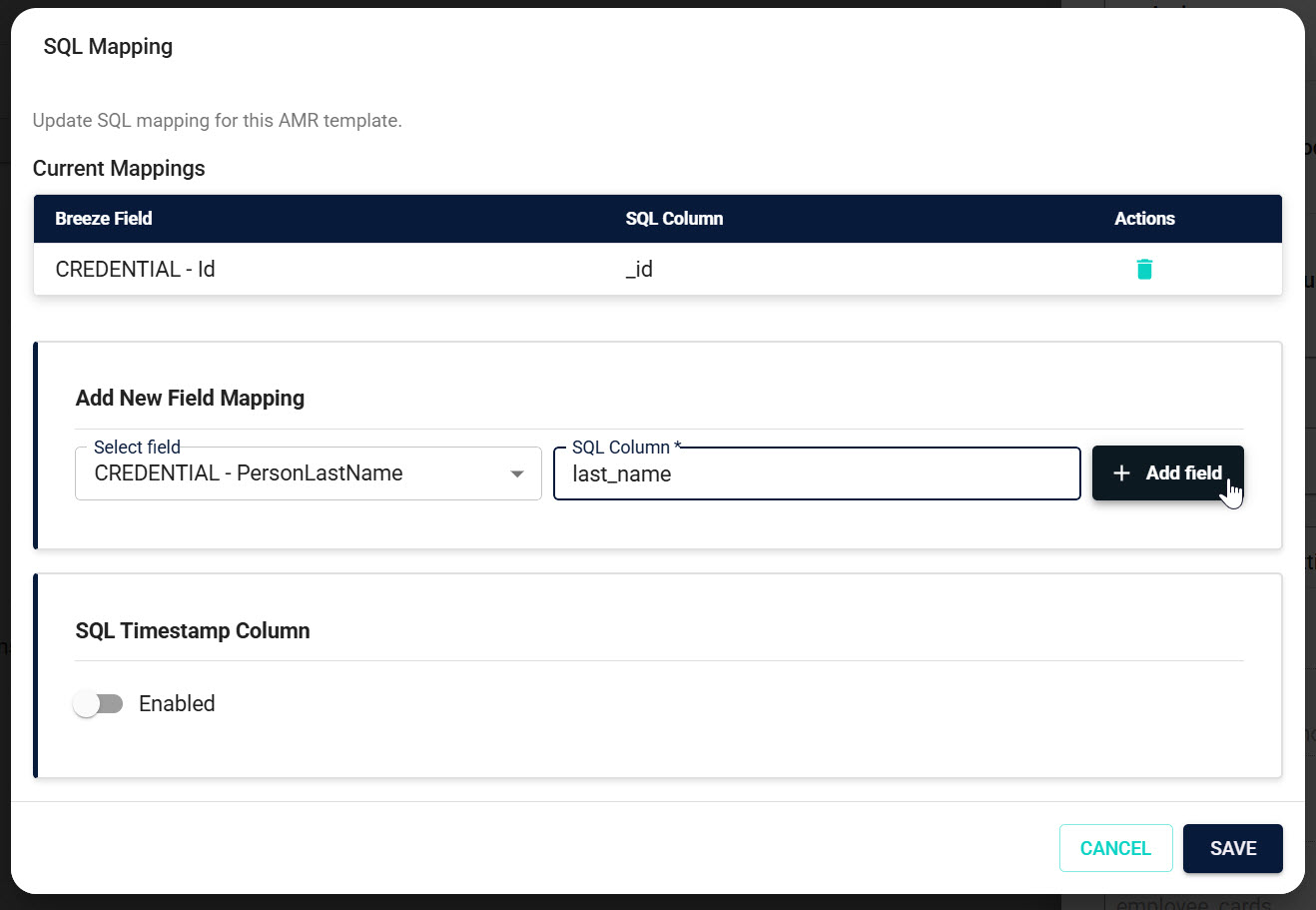
Use the built‑in Mapping editor to choose Breeze fields and assign their destination SQL columns. You do not enter mapping strings manually.
How it works:
- Open the Mapping editor from the template.
- Pick a Breeze field from the dropdown list.
- Type the SQL column name you want to write to, then click Add field.
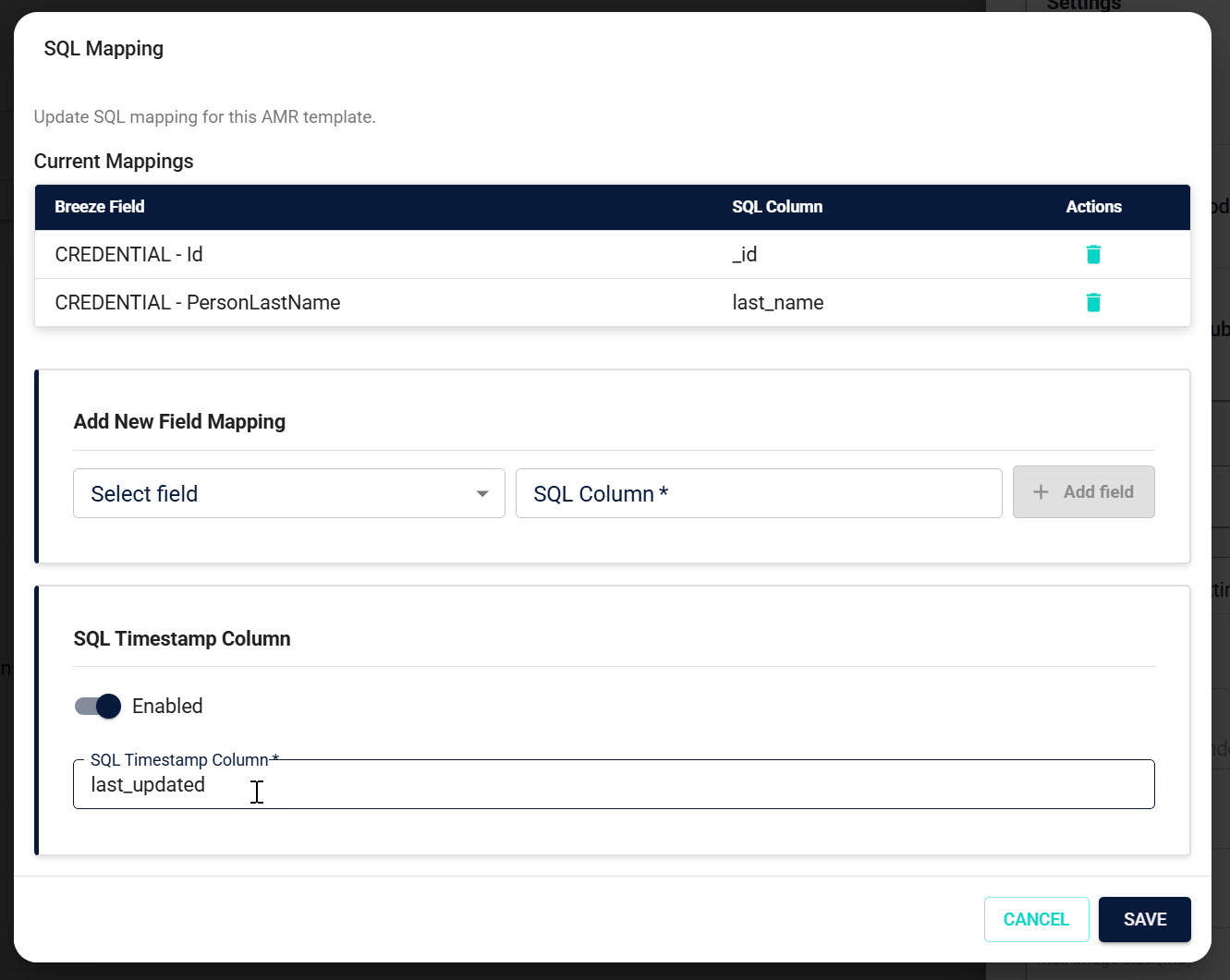
- Repeat for all needed fields. Optionally enable a dedicated SQL timestamp column to store the transfer time.
Guidelines:
- Include only the fields required by the receiving system.
- SQL column names must be valid identifiers (start with a letter/underscore; contain only letters, numbers, underscores; max 128 chars).
- Avoid reserved SQL keywords as column names.
See also: Mapping settings and Available Data Fields.
Transfer trigger
AMR SQL Transfer is a one‑time push that runs immediately after a Credential is produced. There is no manual trigger and no daily fallback. If you need ongoing updates, use SQL Synchronization instead.
Create a new AMR SQL Transfer configuration
- Go to your Tenant in the Breeze Admin Portal
- Open Templates → AMR Transfer Templates
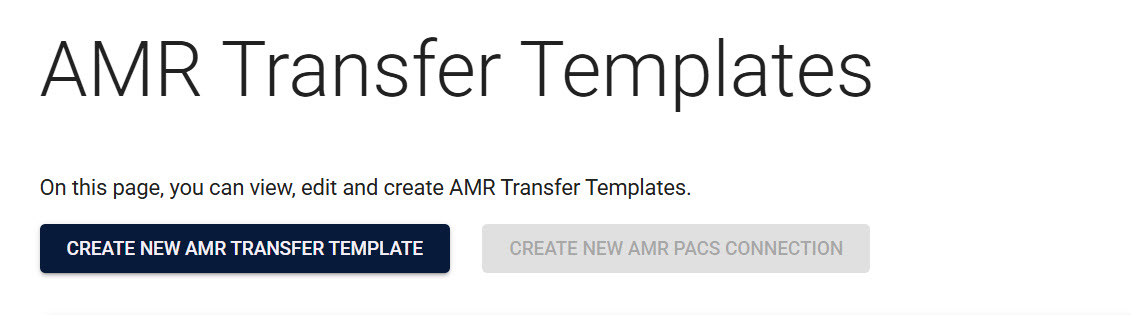
- Click Create New AMR Transfer Template
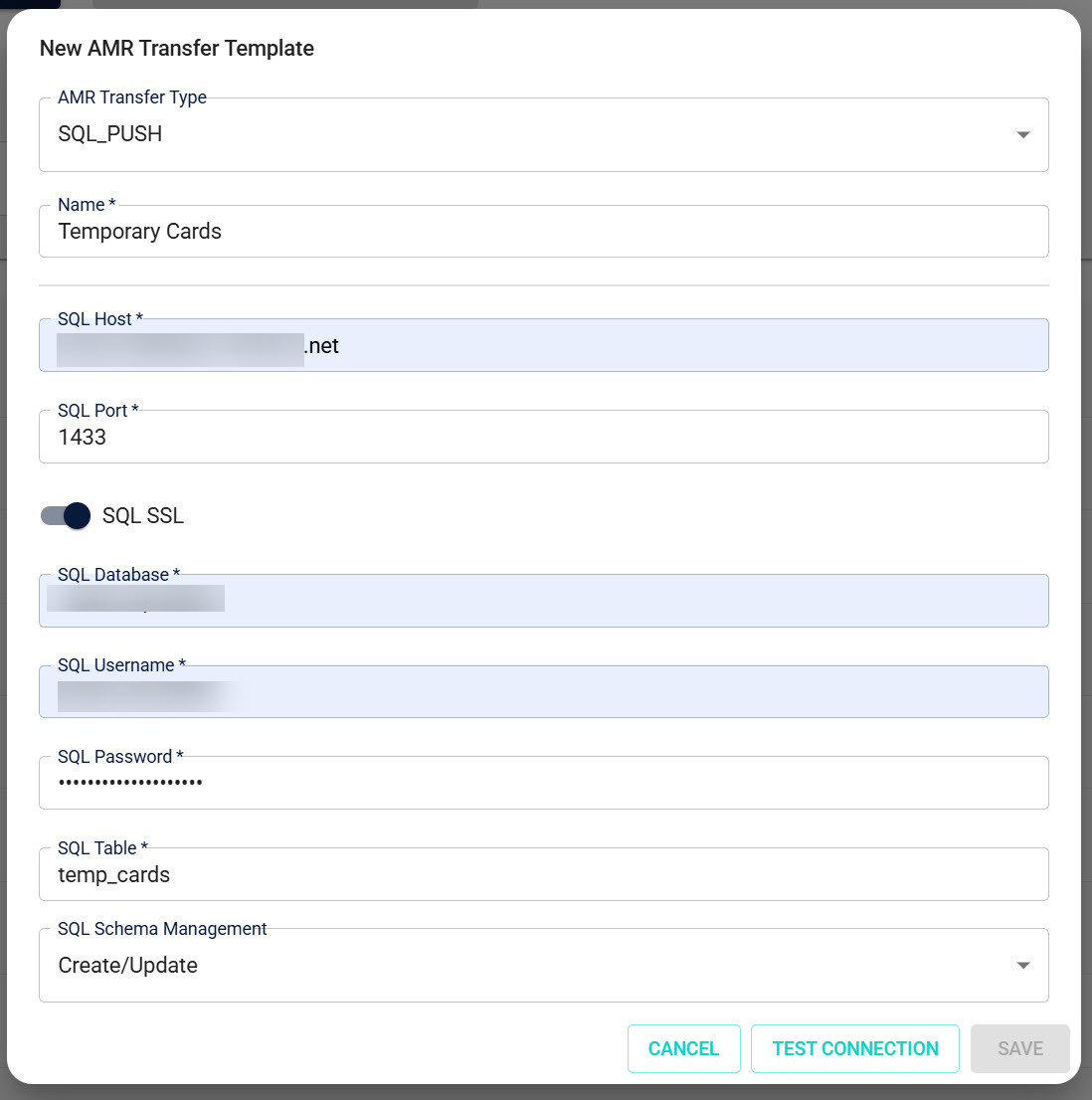
- Select the AMR Transfer Type: SQL_PUSH and fill in the initial SQL settings.
See: SQL connection settings and Target table.
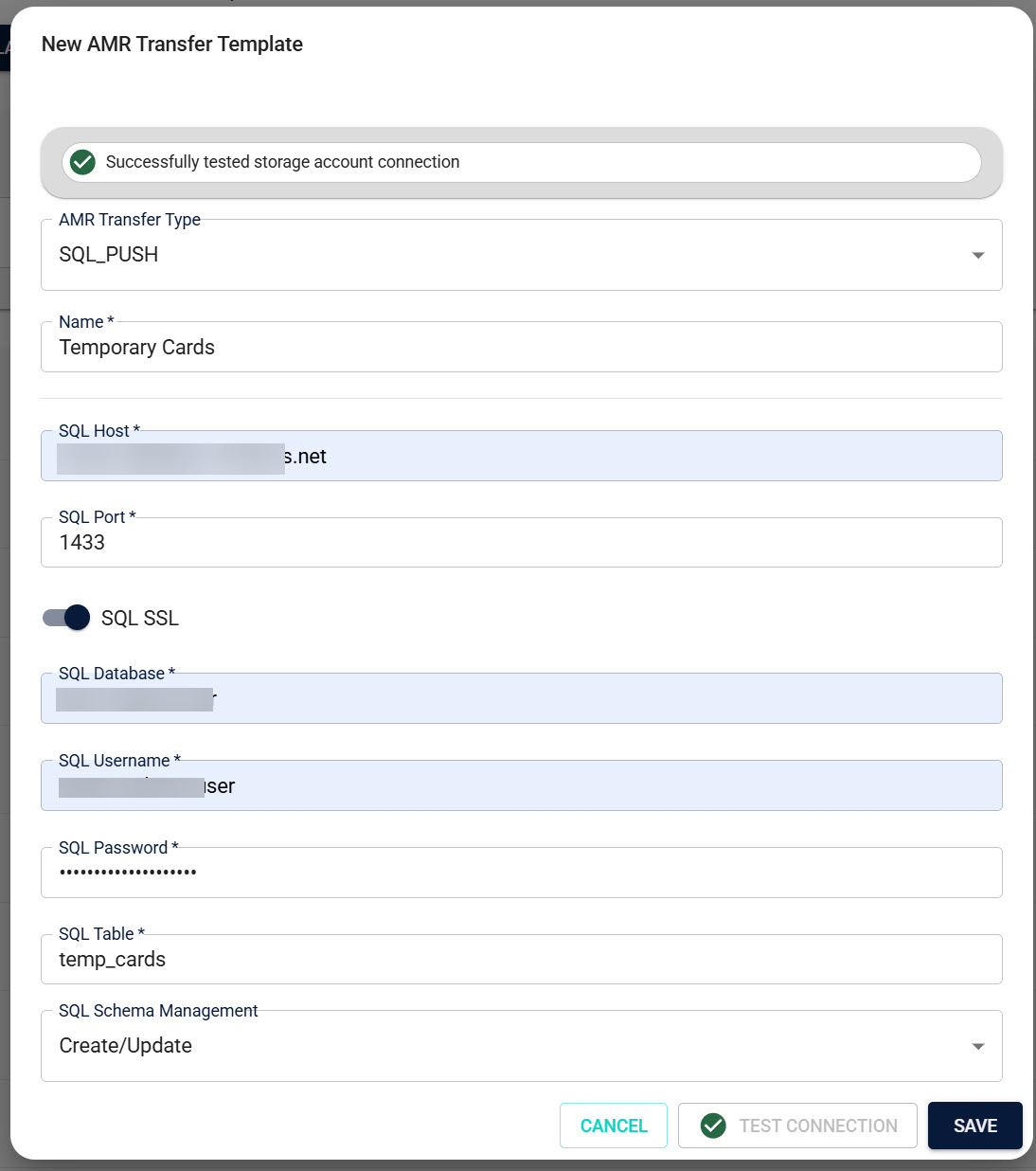
- Click Test Connection. You must get a success message to proceed.
See: Test connection.
- Click Save. The configuration drawer opens for further settings.
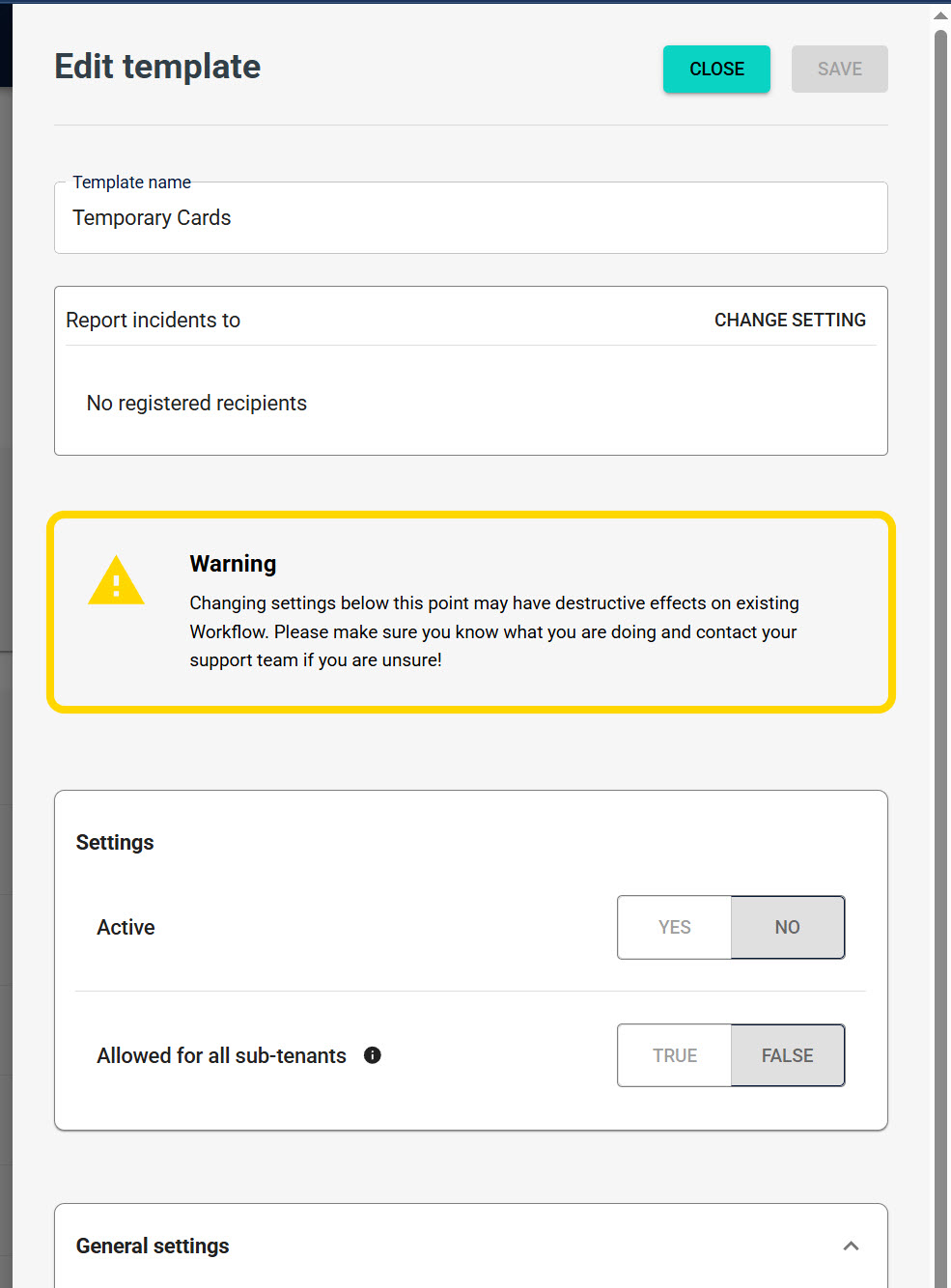
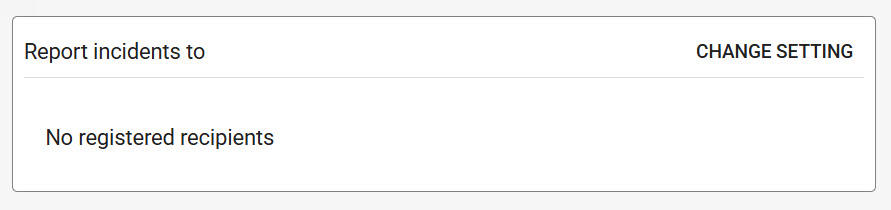
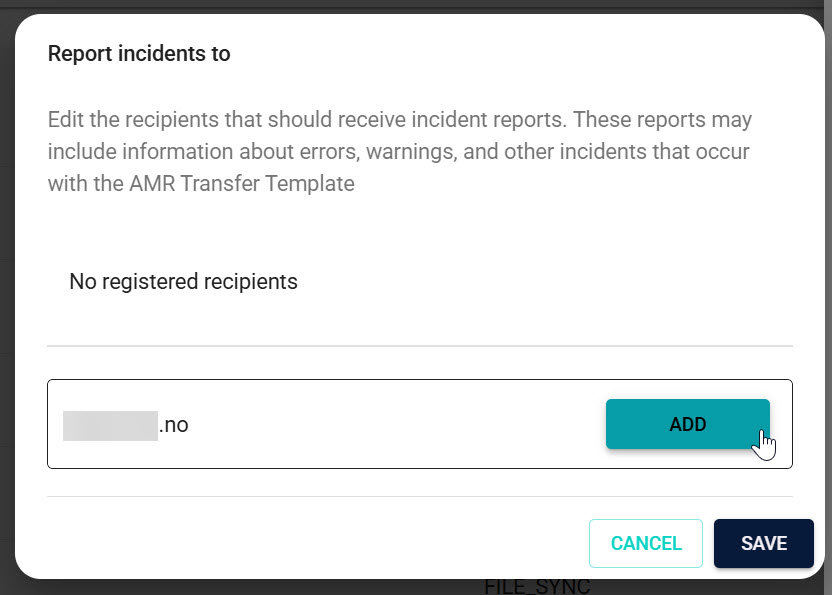
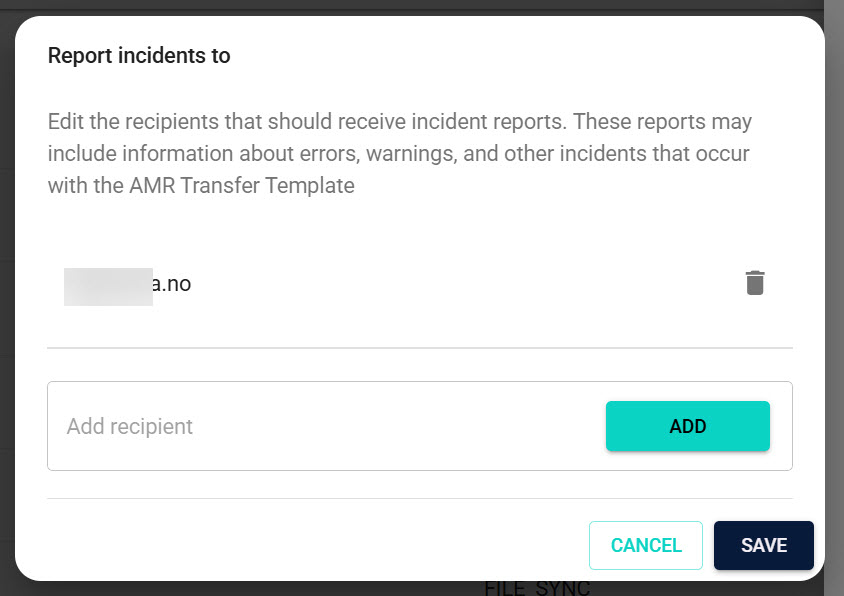
- Add incident recipients (recommended) so you’re notified if something goes wrong.
See: Incident notifications.
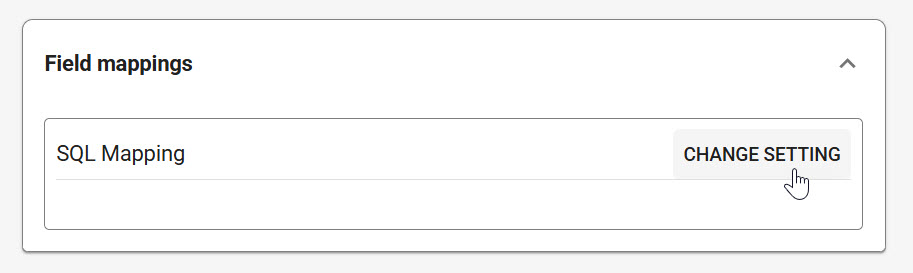
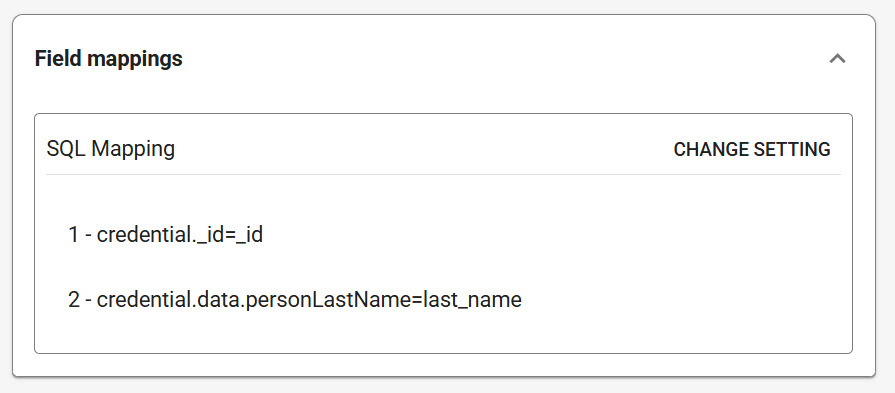
- Configure field mappings: choose Breeze fields and assign SQL columns. Optionally enable a timestamp column.
See: Available data fields and mapping and Mapping settings.
- Set other options, then save.
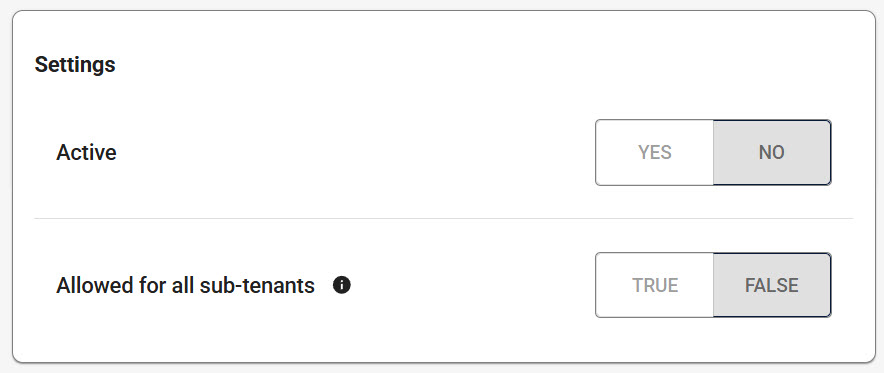
See: Key configuration settings.
- You can change SQL settings later if needed.
See: SQL connection settings.
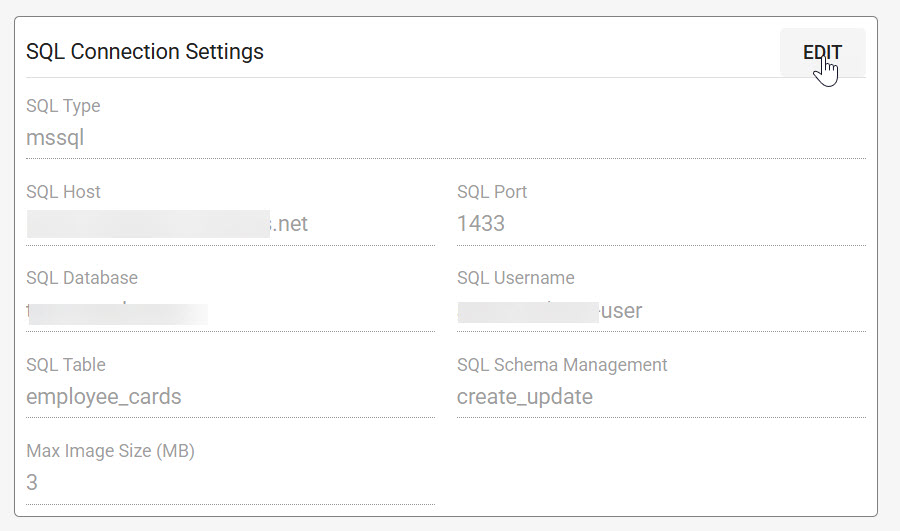
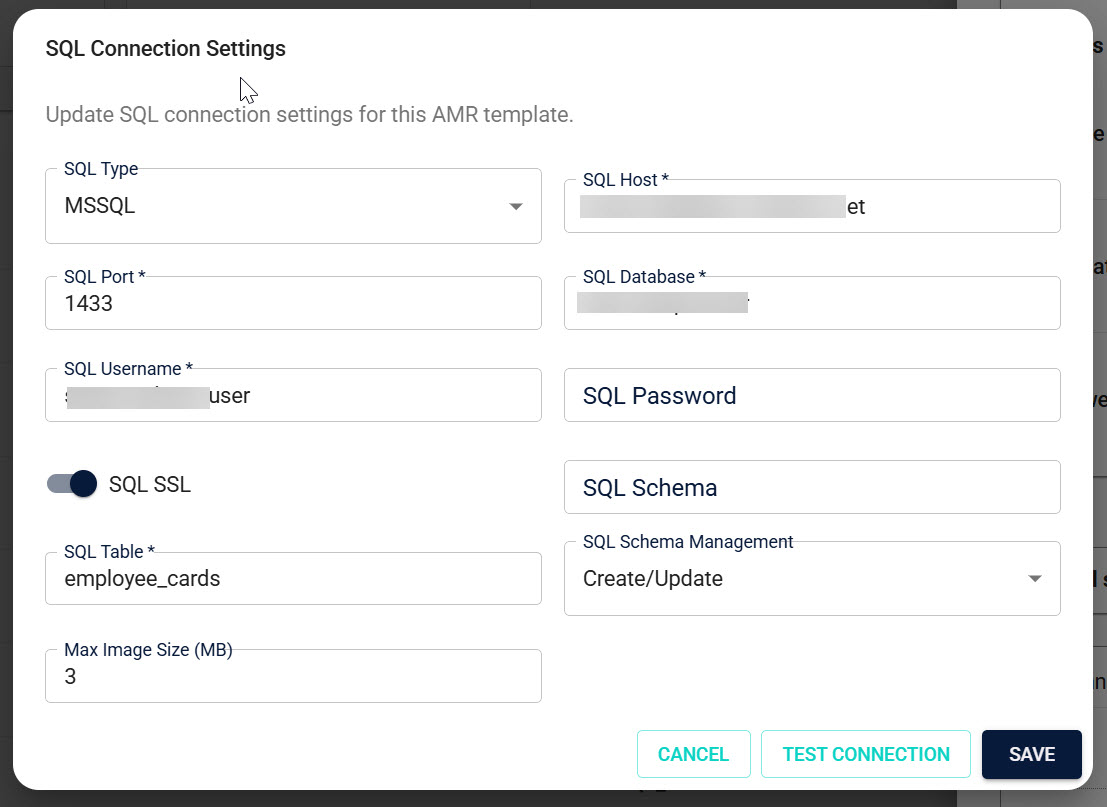
After these steps, your template is ready. Associate it with Credential Templates as needed.
Configuring AMR SQL Transfer
Key configuration settings
| Setting | Description |
|---|---|
| Name | Human‑readable name for the configuration |
| Active | Only active templates can be used by Credential Templates |
| Allowed for sub-tenants | Make available to sub‑tenants on the same System Domain |
SQL connection settings
Same as SQL Synchronization:
| Setting | Description | Example |
|---|---|---|
| SQL Type | RDBMS type | mssql |
| Host | DNS or IP of the SQL Server | sql.mycorp.local |
| Port | TCP port | 1433 |
| Database | Database name | access_integration |
| Username | SQL login user | breeze_writer |
| Password | SQL login password (write‑only in UI) | •••••• |
| SSL | Encrypt connection (true/false) | true |
Target table
| Setting | Description | Example |
|---|---|---|
| Schema (optional) | Schema name | dbo |
| Table | Target table name | amr_credentials |
Mapping settings
- Open the Mapping editor
- Pick Breeze fields and assign SQL columns
- Ensure the target table has keys/columns required by downstream systems
- Save when validation passes
Test connection
Use Test Connection to verify the SQL connectivity (basic health check such as SELECT 1). Fix any errors before activating.
Troubleshooting
- Connection test fails: Check host, port, database, username, password, and SSL settings. Verify the SQL user has permission to connect and write.
- No data appears in SQL: Confirm the mapping is correct and the target table exists (or that schema management allows creating/updating it, if available).
- Incidents and notifications: If errors occur repeatedly, notifications are sent to recipients configured under “Report Incidents To.” Related incidents are batched to reduce noise, and cleared automatically when items recover.
Security and networking
For complete security and connectivity requirements (TLS 1.2+ with publicly trusted CA, SQL logins only, least‑privilege access, and recommended private connectivity), see:
- Connectivity and Security for AMR SQL
- Recommended for customer‑hosted SQL (Option A): Setting up Azure App Service Hybrid Connection to Your SQL Server
When a transfer fails
If the one‑time transfer fails:
- Incident recipients (if configured) are notified by email. Related incidents are batched to avoid spam and are cleared automatically when a later attempt succeeds.
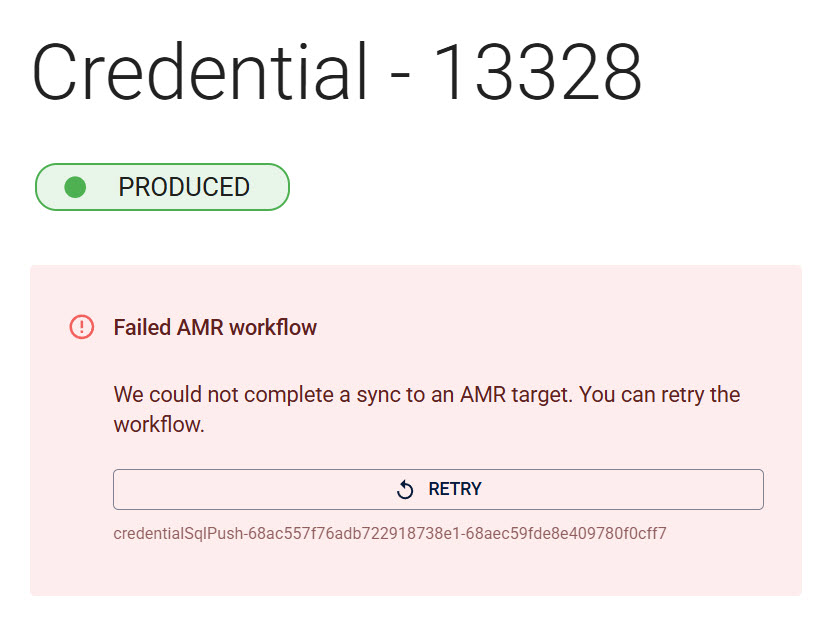
- A warning appears on the Credential page with a Retry button. Use Retry after you’ve resolved the underlying issue (for example connectivity, or mapping).
Incident notifications (Report incidents to)
Add one or more email recipients under "Report incidents to" to be informed about failures and other important events for this AMR template.
What you’ll receive:
- Emails when the system detects repeated errors during push activities for this template.
- Messages are batched within a short window to avoid inbox spam.
- Each email groups identical errors together and shows a single sample technical detail with a tidy list of affected Credentials (with tenant‑aware links).
- If a Credential later succeeds before the email is sent, it is removed from the batch. If all items recover, no email is sent.
- Emails never include sensitive secrets such as passwords.
Good practices:
- Use a shared mailbox or distribution list for on‑call/ops teams.
- Keep recipients scoped to people responsible for integrations.
- Review incidents and resolve underlying mapping, connectivity, or permission issues.