Setting up Azure App Service Hybrid Connection to Your SQL Server
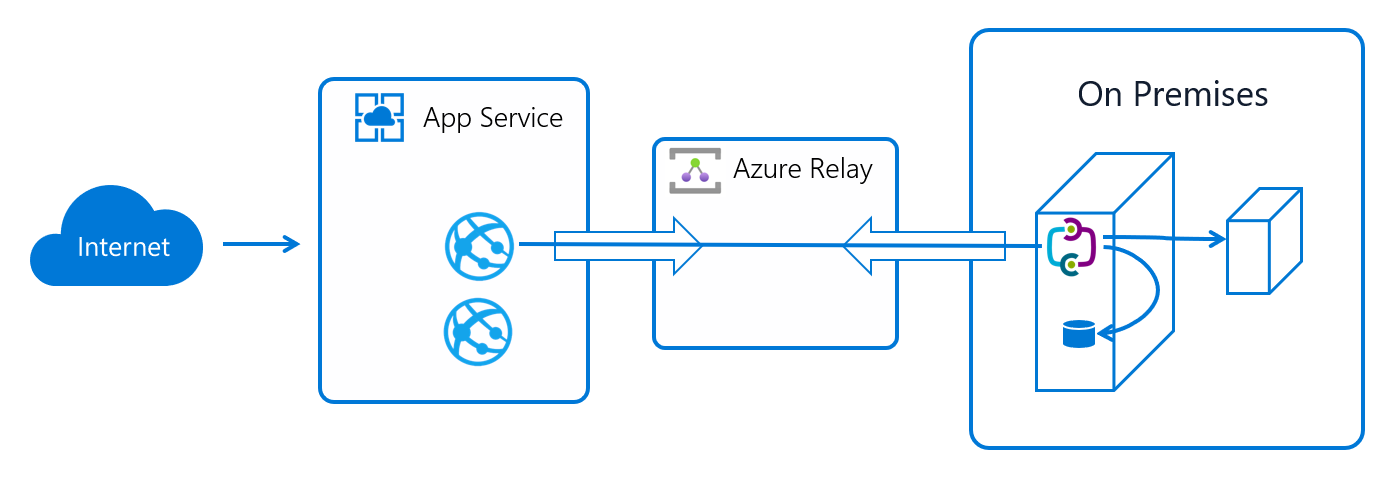
Use Azure App Service Hybrid Connections to let Breeze (running in Azure App Service) securely reach your on‑premises or private‑network SQL Server without opening inbound firewall ports. Hybrid Connections uses Azure Relay over outbound TLS to create a private TCP tunnel to a specific host and port in your network.
Customer Guide: This guide explains how to install and configure the Hybrid Connection Manager (HCM) in your environment so our cloud application can securely connect to your SQL Server without opening your network to the internet.
1. What is the Hybrid Connection Manager?
Purpose: Acts as a secure bridge between your SQL Server and our cloud service.
How it works:
- HCM runs as a Windows service in your network.
- It creates a secure outbound connection (TLS 443) to Microsoft Azure Relay.
- Our application connects to the same Relay.
- The Relay forwards only the SQL traffic to your SQL Server.
Important: The connection is outbound only. We cannot access your network in any other way.
2. Prerequisites on your side
Windows Server (VM or physical) that:
- Is always on and has network access to your SQL Server
- Can reach the internet over TCP 443 (outbound)
Your SQL Server must:
- Listen on a fixed TCP port (commonly 1433)
- Allow login with the credentials we have agreed upon (SQL login only)
- Use TLS 1.2+ with a publicly trusted CA certificate; CN/SAN must match the host name used by the connection
Other requirements:
- DNS resolution in your network for the SQL Server host name
Hybrid Connections supports TCP to a single host and port. It does not carry UDP. Named instances that rely on SQL Browser (UDP 1434) are not supported unless the SQL instance listens on a known fixed TCP port.
3. Install Hybrid Connection Manager (HCM)
- Download the latest HCM installer from Microsoft: Hybrid Connection Manager download
- Run the installer on the chosen Windows Server
- Open the Hybrid Connection Manager UI (Start menu)
- Confirm the "Hybrid Connection Manager Service" is running (set Startup type to Automatic)
4. Add the Hybrid Connection
We will provide you with:
- Hybrid Connection Name (for example,
hc-customer-sql01) - Listener SAS Key (shared access key) or full connection string
Steps:
- In the HCM UI, click "Add a new Hybrid Connection"
- Paste the connection string or SAS key we provided
- Save
- The connection should now appear in the list
5. Verify the connection
- In the HCM UI, the connection should show as "Connected"
- If it shows "Not connected":
- Ensure the server has outbound internet access on TCP 443 to
*.servicebus.windows.net - Confirm the SQL Server host/port is reachable from the HCM machine
- Ensure the server has outbound internet access on TCP 443 to
6. Security notes
- No inbound firewall changes are needed
- The SAS key we provide is scoped only to this specific Hybrid Connection
- We can rotate keys at any time if needed
- You control the SQL Server, its firewall, and its logins — we cannot access anything else in your network
- TLS 1.2+ must be used with a certificate from a publicly trusted CA (private CAs and self‑signed certificates are not supported)
- Only SQL logins are supported
7. Ongoing maintenance
- Keep the Windows Server hosting HCM always running
- Ensure the Hybrid Connection Manager Service is set to Automatic Start
- Monitor Windows Event Logs under: Applications and Services Logs → Microsoft Web Apps → HybridConnectionManager
- Apply Microsoft updates to the server as usual
✅ Summary
By installing HCM and adding the connection we provide, you enable a secure, outbound‑only tunnel so our cloud service can write to your SQL database. Nothing else in your network is exposed.
Microsoft documentation
- Azure App Service Hybrid Connections (overview and setup): Microsoft Learn
- Install the Hybrid Connection Manager (HCM): Microsoft Learn – Install HCM
- Hybrid Connections troubleshooting: Microsoft Learn – Troubleshooting
Next steps
- Return to your AMR SQL Sync template and complete mapping and activation
- See also:
docs/integrations/amr/sql-syncronization.md