Deleting Templates
Permanent Action
Deleting a template is a permanent action that cannot be undone. Ensure you have backups of any important configuration data before proceeding.
Step 1: Initiate Deletion
- In the template list, click the "Slett" (Delete) button next to the template you want to remove
- A confirmation dialog will appear
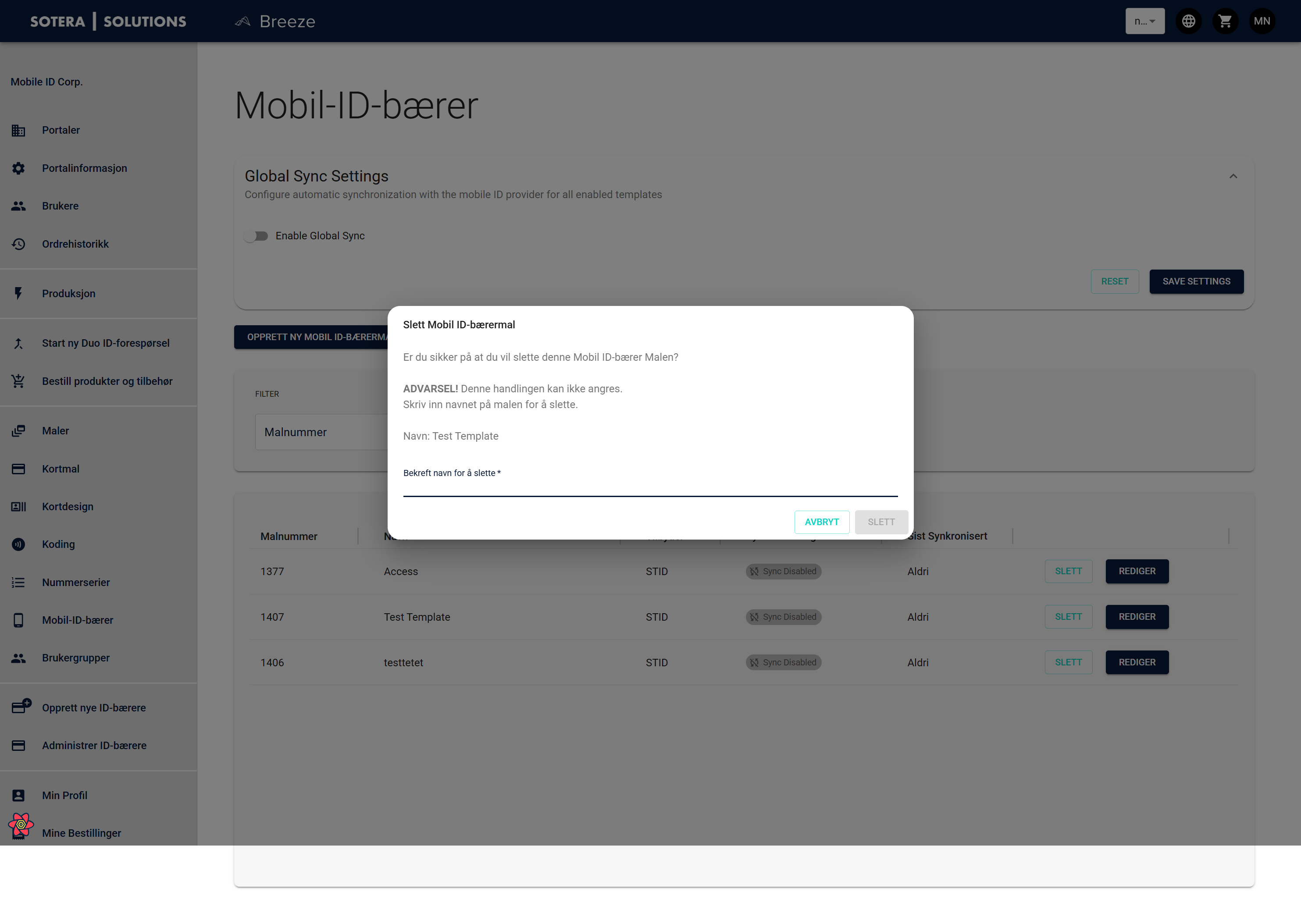
Step 2: Confirm Deletion
The deletion process includes a safety confirmation to prevent accidental deletions:
- Review the Warning: The dialog shows the template name and warns that the action cannot be undone
- Type Confirmation: Enter the exact template name in the "Bekreft navn for å slette" (Confirm name to delete) field
- Delete: The "Slett" button will become enabled once you've typed the correct name
- Cancel: Click "Avbryt" (Cancel) to abort the deletion
Safety Feature
The name confirmation requirement prevents accidental deletions and ensures you're deleting the intended template.
Considerations Before Deleting
Before deleting a template, consider:
- Are there active Credentials using this template?
- Do you have a backup of the template configuration?
- Is the template used in any automated workflows?
Related Topics
- Creating Templates - Create new templates
- Editing Templates - Modify existing templates instead of deleting