Setting Up Axia Frakt
This guide is for Domain Administrators and Tenant Administrators. Complete these steps before Warehouse Operators can create consignments from orders.
Setup has two required steps — enable the feature at Domain level, then configure the Production Site — and two optional steps for price add-ons and per-Tenant sender overrides.
Steps vary by role:
- Enable Domain feature flag:
System Admin+Domain Administratortask role on the Domain's main Tenant - Enable on Production Site Tenant:
Super Administratoron the Production Site Tenant - Configure API key and Production Site defaults:
System Adminon the Production Site Tenant - Configure price add-on at Domain level:
System Adminon the Domain's main Tenant - Configure price add-on at Tenant level:
System Adminon the ordering Tenant
Step 1: Enable Axia Frakt for your Domain
A Domain Administrator must enable the Axia Frakt feature toggle before any Production Site in the Domain can use it.
- Open the Domain features drawer in Domain settings.
- Find Axia Frakt in the feature list.
- Toggle it on.
- Confirm the change.
Step 2: Configure the Production Site
Once the Domain flag is on, a Tenant Administrator configures the Production Site.
- Navigate to Tenant Settings → Production Settings.
- Enable Axia Frakt on the Production Site Tenant.
- Enter the following values from your Axia Frakt account:
- API key
- Default consignor ID
- Carrier ID
- Import ID
- Click Save.
The API key is stored encrypted and is never shown again after you save it. Confirm the setup is complete by checking that the "API key configured" indicator is shown in the panel.
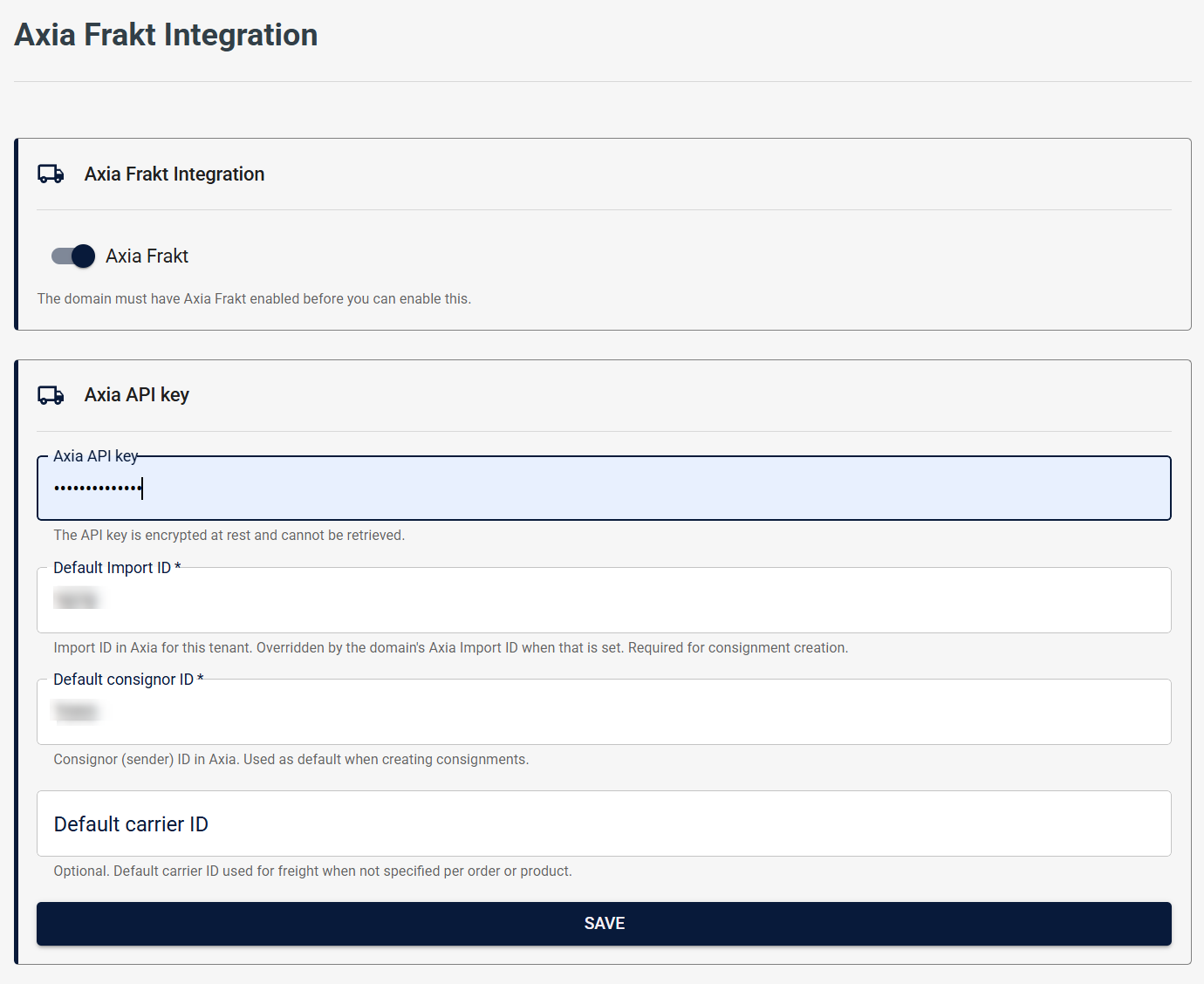
The Production Site Tenant must have production site settings configured before Axia Frakt can be enabled on it.
Step 3: Set a price add-on (optional)
A price add-on marks up the freight estimate shown to Warehouse Operators. For example, a multiply add-on of 1.3 adds a 30% surcharge on top of the carrier's base price from Axia.
- Navigate to Tenant Settings → Delivery settings.
- Set the price add-on operation and value.
- Click Save.
The add-on can be set at Domain level or Tenant level. The resolution order is: ordering Tenant override → Domain → Production Site default. The first level with an explicit setting wins.
The estimate shown to operators already includes the add-on — there is no separate line item.
Override sender for an ordering Tenant (optional)
Ordering Tenants that do not have their own Domain can set a Tenant-level Axia import ID and consignor ID. When their orders are fulfilled at an Axia-enabled Production Site, these values take precedence over Domain and Production Site defaults.
The sender address must be pre-registered with Axia before you set the override in Breeze.
- A
System Adminon the ordering Tenant navigates to Tenant Settings → Delivery settings → Axia Frakt Integration. - Enter the Tenant-level Axia import ID and/or consignor ID.
- Click Save.
If you don't see these fields for your Tenant, contact your system administrator.
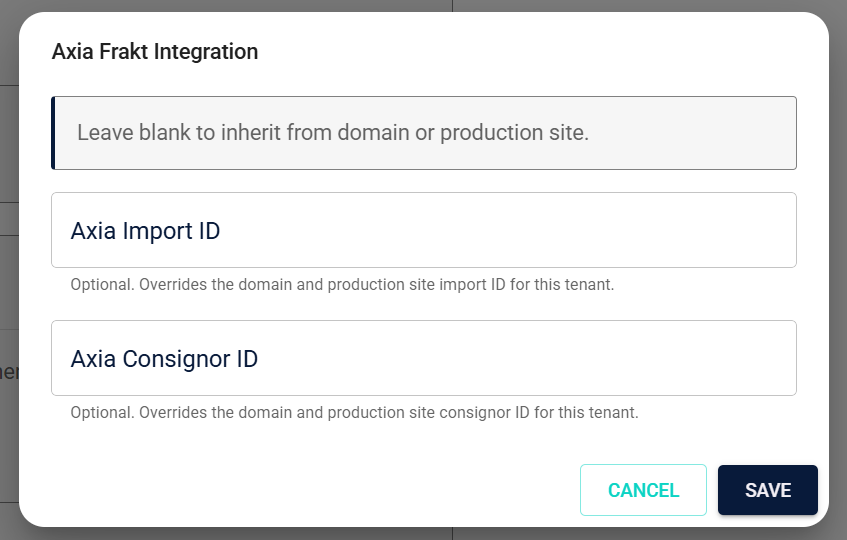
This override applies to import ID and consignor ID only. The API key always comes from the Production Site.
Clearing an override to revert to Domain or Production Site defaults is not yet supported through the UI. Contact your system administrator to remove an existing override.
View the settings overview
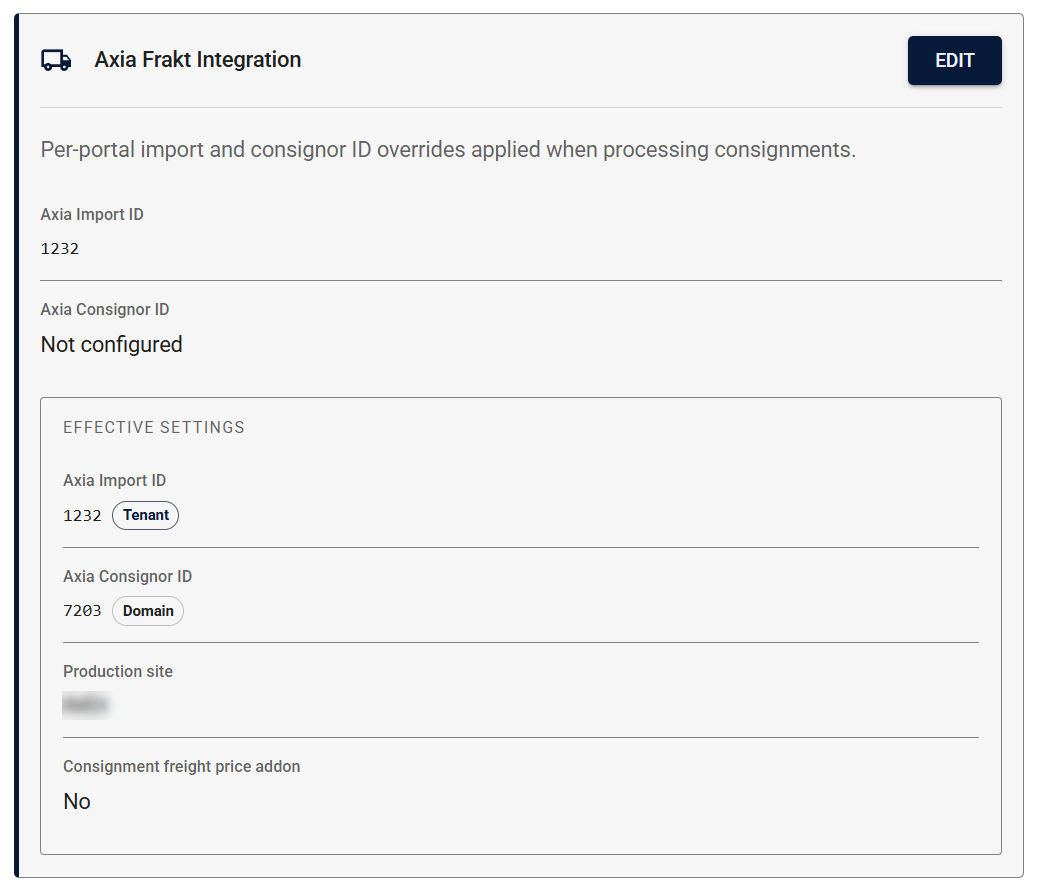
Tenant Settings → Delivery settings → Axia Frakt Integration includes an overview panel that shows where each Axia value comes from — Production Site, Domain, or ordering Tenant. Use this to verify the full inheritance hierarchy at a glance and to identify which level each value is inherited from.
What's next?
- Managing Parcel Profiles — create reusable parcel size presets before operators start creating consignments
- Creating Freight Consignments — share with Warehouse Operators once setup is complete