Creating Freight Consignments
Warehouse Operators use this guide to create and delete Axia Frakt freight consignments from orders in Breeze. Before you start, confirm that Axia Frakt is configured for your Production Site — contact your Tenant Administrator if you are unsure.
Required roles: System Admin + Warehouse Operator task role on the Production Site Tenant
Create a consignment
- Open the order in Breeze (Production Site view). The order must be in packing, in production, or pending state.
- Click Create consignment.
- In the dialog, select a parcel profile or enter package dimensions manually.
- Select a carrier and service type from the dropdown.
- Review the freight price estimate. The displayed price is the carrier's base price from Axia multiplied by the configured add-on (for example, ×1.3 for a 30% surcharge).
- Click Confirm.
Expected outcome: A consignment card appears on the order showing the tracking reference, a Print label link (PDF), and a Track shipment link. The entry also appears in the consignment history panel.
You can create more than one consignment per order. Each new consignment is added alongside the existing ones.
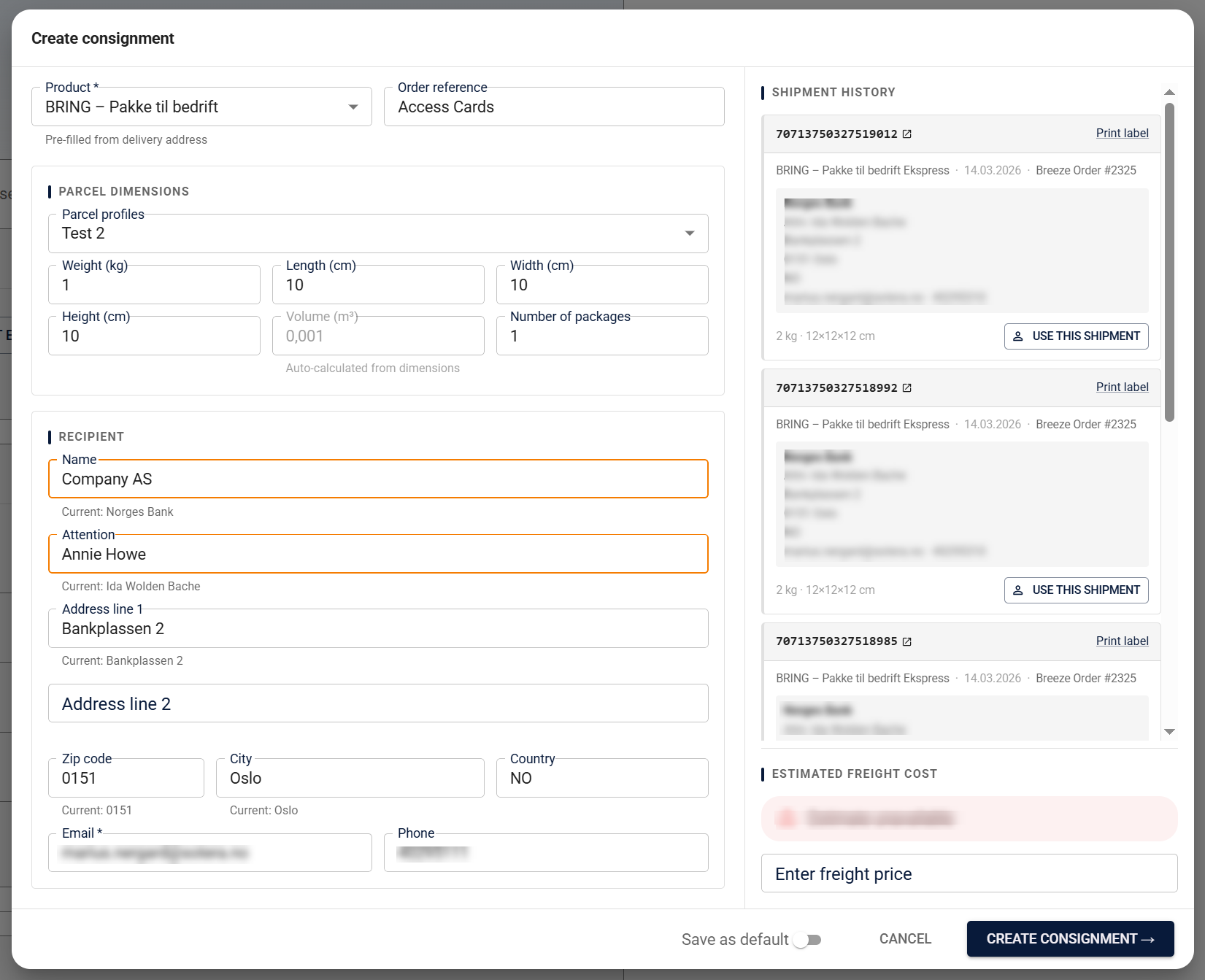
Caption: The Create Consignment dialog showing parcel profile selection, carrier and service type, and price estimate.
Price estimates
When you select a carrier and service type, Breeze fetches a freight price estimate from Axia and displays it in the dialog before you confirm.
The price shown is the carrier's base price from Axia multiplied by the price add-on configured for your Tenant or Domain. The add-on is applied automatically — you do not need to calculate it separately.
Some service types may not return a price from Axia. No estimate is shown for those types, but you can still proceed with consignment creation.
The price estimate is informational only. The actual billed price may differ if Axia rates change between the estimate and the time you create the consignment.
Delete a consignment
- Open the consignment card on the order.
- Click Delete.
Deleting a consignment in Breeze does not cancel it in Axia Frakt. If you need to cancel a consignment after it has been created, contact your Axia account manager.
Known limitations
- Consignment creation is always manual — Breeze does not create consignments automatically when an order moves to packing state.
- Return consignments are not supported in this version.
- The "Att:" field is not printed on freight labels. Breeze uses the order number as the recipient reference in Axia.
What's next?
- Managing Parcel Profiles — set up reusable parcel size presets to speed up consignment creation
- Setting Up Axia Frakt — for administrators who need to configure or update Axia Frakt settings