Content Management and Formatting
This guide explains how to create, edit, and manage Terms and Conditions content using the built-in Markdown editor.
Creating and Updating Content
Opening the Editor
- Navigate to Domain Administration → Select your domain → Terms and Conditions
- Click MANAGE TERMS & CONDITIONS
- Click UPDATE TERMS to open the editor
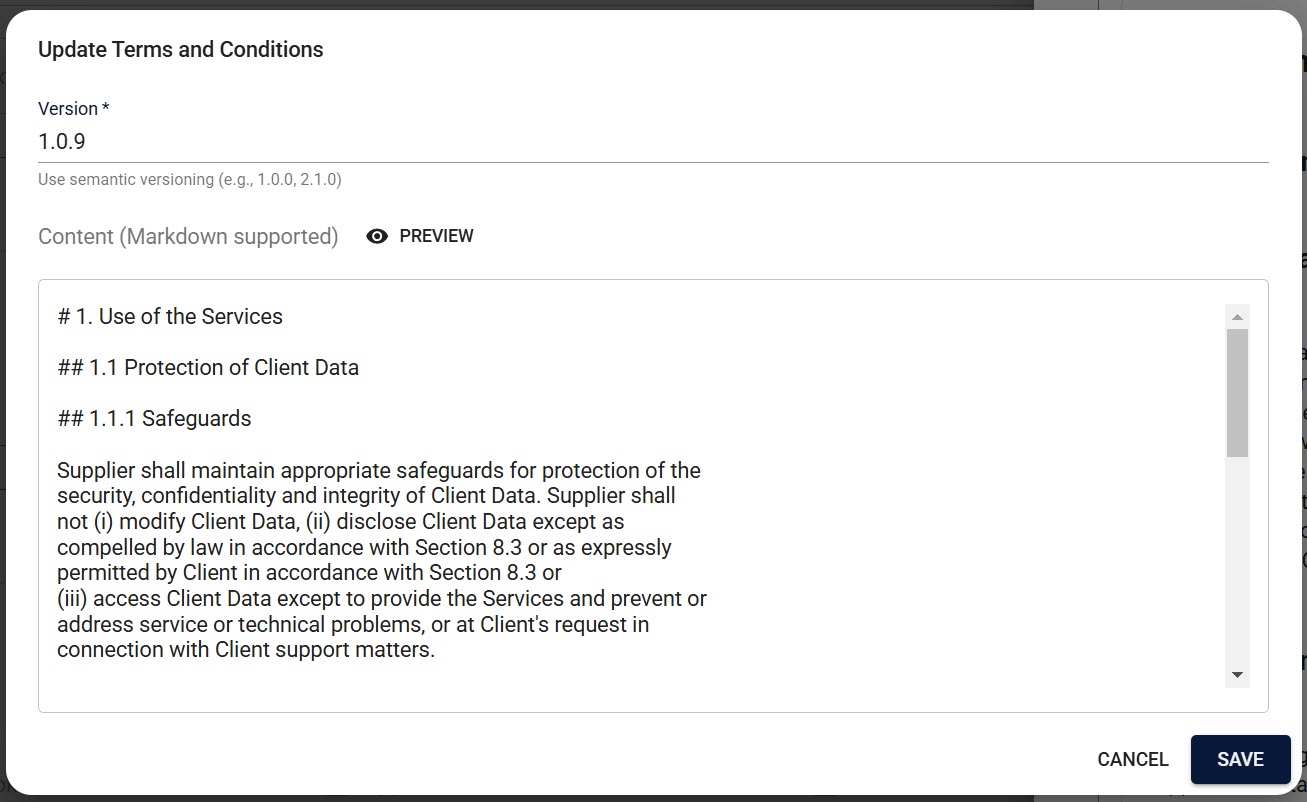
Creating a New Version
-
Enter a new version number
- System suggests the next version (e.g., "1.0.9")
- Must follow format X.Y.Z (e.g., 1.0.0)
- Must be higher than current version
-
Edit your content
- Use Markdown formatting (see Markdown Support)
- Use headings with # symbols
- Structure content with clear sections
- Click "PREVIEW" to check formatting
-
Preview your changes:
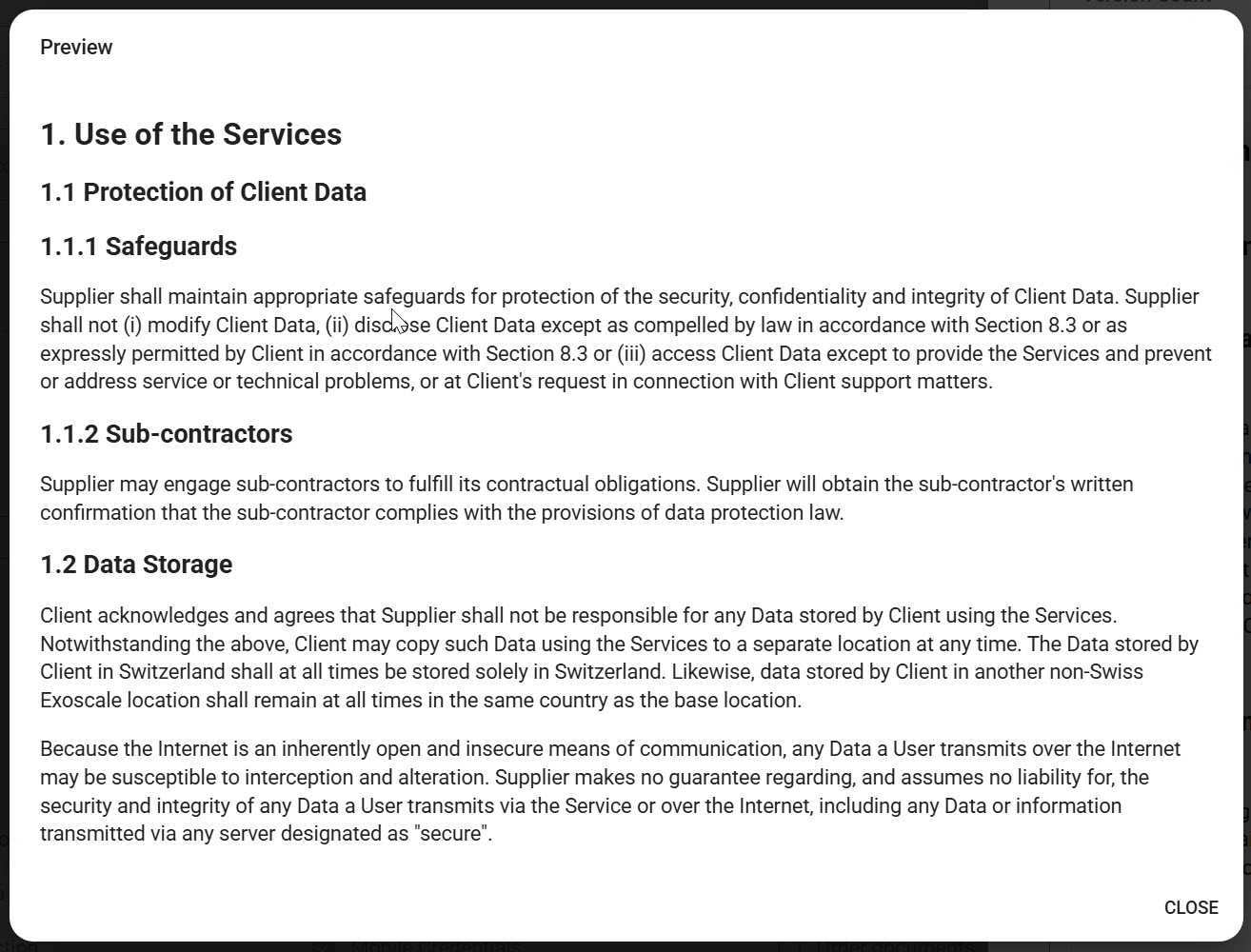
- Click "SAVE" to publish or "CANCEL" to discard changes
Version Management
Version History
Access version history by clicking "VERSION HISTORY":
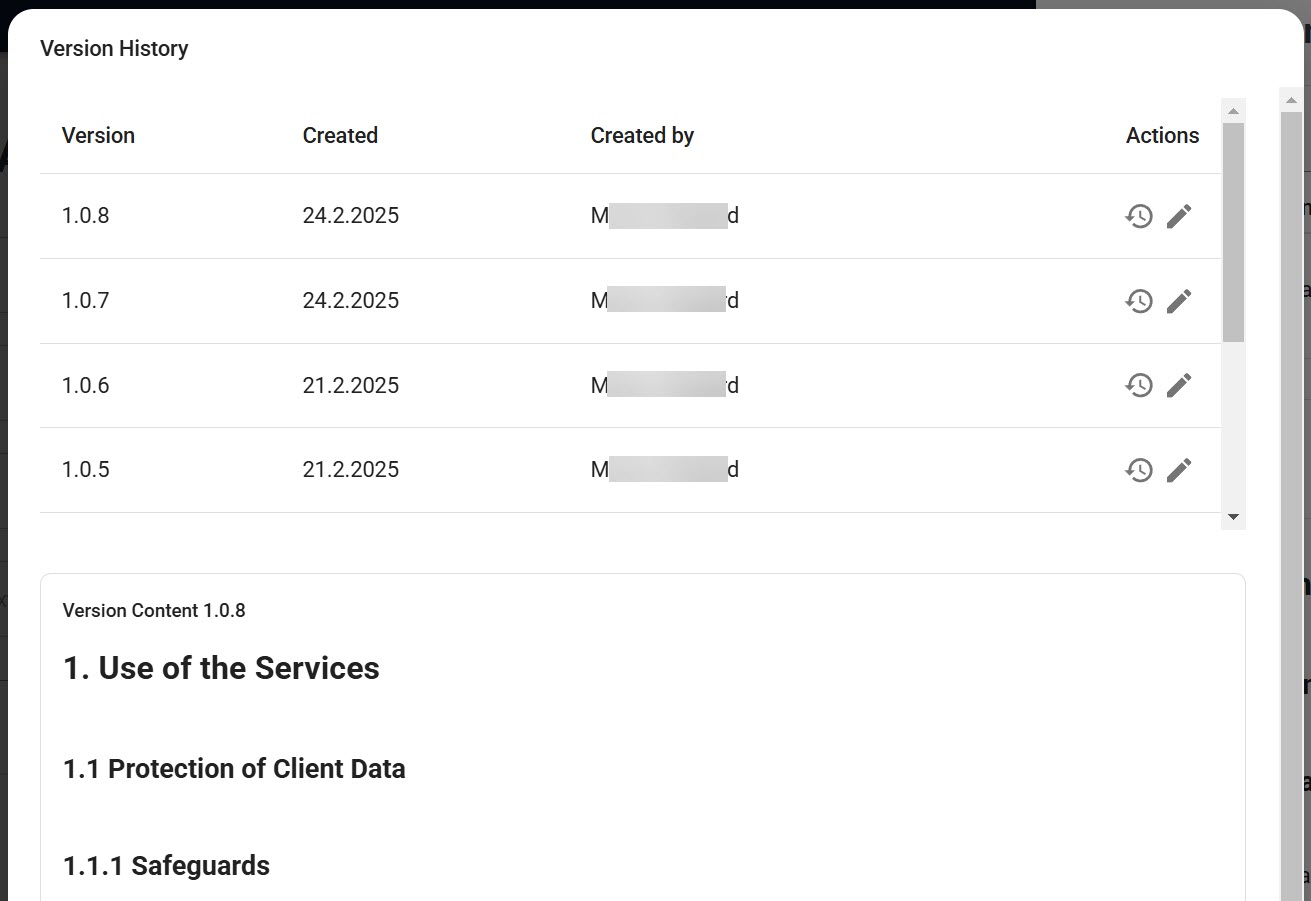
The history shows:
- Version numbers
- Creation dates
- Authors
- Actions (restore/edit)
For each version you can:
- View the content
- See who created it
- Check when it was created
- Restore previous versions if needed
Version Guidelines
Choose the right version number based on your changes:
Patch Version (1.0.8 → 1.0.9)
- Fixing typos
- Clarifying existing text
- No policy changes
Minor Version (1.0.9 → 1.1.0)
- Adding new sections
- Updating existing policies
- Restructuring content
Major Version (1.1.0 → 2.0.0)
- Significant policy changes
- Major restructuring
- Changes affecting user rights
Content Recommendations
While the specific content of your Terms and Conditions is determined by your organization and legal team, here are some common elements often included in T&C documents:
-
Structure Suggestions
- Clear section headings for easy navigation
- Logical content organization
- Consistent hierarchy
- Professional formatting
-
Common Sections
- Legal disclaimers
- User obligations
- Privacy policies
- Contact information
- Last updated date
-
Formatting Best Practices
- Professional presentation
- Readable layout
- Proper spacing
- Consistent style
Note: The actual content and structure of your Terms and Conditions should be determined by your organization's needs and legal requirements. Breeze provides the tools to implement and manage your T&C system, but the specific content should be reviewed and approved by your legal team.
Markdown Support
The editor supports standard Markdown features:
Text Formatting
- Headers using
#symbols (H1-H6) - Bold text using
**text** - Italic text using
*text* Strikethroughusing~~text~~
Lists and Structure
- Bulleted lists (using
-or*) - Numbered lists (using
1.,2., etc.) - Nested lists with indentation
- Task lists with
- [ ]and- [x]
Advanced Elements
- Tables with column alignment
- Code blocks with syntax highlighting
- Blockquotes for important notes
- Horizontal rules for section breaks
- Links to external resources
- Images with alt text
Helpful Online Markdown Tools
To make content creation easier, you can draft and preview your content using these online Markdown editors before copying it to Breeze:
Recommended Tools
-
StackEdit (stackedit.io)
- Real-time preview
- Clean, professional interface
- Export to multiple formats
- Works offline
- Free to use
-
Dillinger (dillinger.io)
- No account required
- Side-by-side preview
- Clean interface
- Export options
- Completely free
VS Code Extensions
If you use Visual Studio Code, these extensions can help:
- "Markdown All in One" - formatting shortcuts and preview
- "Markdown Preview Enhanced" - advanced preview features
- "Markdown Table Formatter" - automatic table formatting
Best Practices
Content Organization
-
Structure
- Use clear section numbering (1.1, 1.1.1)
- Keep formatting consistent
- Include all required legal sections
- Maintain logical flow
-
Version Control
- Make one change at a time
- Write clear change descriptions
- Review changes carefully
- Keep version history organized
-
User Communication
- Inform users of updates
- Highlight important changes
- Allow time for review
- Monitor acceptance
Writing Guidelines
- Use clear, simple language
- Break long paragraphs into bullet points
- Include examples where helpful
- Define technical terms
- Be specific about user obligations
Before Publishing
- Preview all changes
- Check formatting consistency
- Verify links work
- Review version number
- Consider impact on users
Common Issues and Solutions
Version Number Errors
- Check format is X.Y.Z
- Ensure new version is higher
- Version must be unique
Content Not Saving
- Verify version number
- Check content isn't empty
- Confirm admin permissions
Preview Issues
- Check Markdown syntax
- Refresh the preview
- Clear browser cache
Need Help?
- Review the Setup Guide for initial configuration
- See User Acceptance Flow for understanding user experience
- Contact support for technical assistance