Duo ID Email Settings
Duo ID sends up to four emails during a Credential's life cycle: the invitation that starts the process, a rejection email when a submission is rejected and must be sent in again, a reminder halfway to expiry, and a reminder as expiry approaches. By default, all four use Breeze's built-in text and whatever sender your Domain already uses for other transactional email. Duo ID Email Settings let you replace that text and sender at the Domain level, so every Tenant under the Domain sends consistent, on-brand Duo ID communications instead of each Tenant producing its own subject line.
Required roles: System Administrator, Domain Administrator
To perform the following steps, you need to have the roles listed above.
Where to find it
Navigate to Domain Administration → select your Domain → Duo ID email settings. This opens a full-screen editor headed Duo ID emails, with a close button in the top left and Save changes in the top right.
How settings are resolved
Tenants can also customize the subject and content of their Duo ID emails, on top of what you set here at the Domain. They can't change the sender: that is set here, and only here. The two parts of the settings — sender, and subject/content — therefore resolve differently.
Subject and content
For each of the four email types, Breeze looks for a value in this order:
- The Tenant's own setting, if the Tenant has customized that email type.
- This Domain's setting, if you've customized it here.
- Breeze's built-in default text.
A Domain can customize the invitation email while leaving both reminders on Breeze's default text, and a Tenant under it can then customize only the last reminder while everything else it sends keeps falling through to this Domain's or Breeze's text. Nothing is all-or-nothing.
Each email type stands on its own. If nobody has written rejection text, a person whose submission is rejected gets Breeze's built-in rejection text — never your custom invitation, which would read as if they were being invited for the first time.
You write each email once, not once per language. The person receiving a Duo ID email is an outside collaborator rather than a Breeze user, so Breeze has no way to know which language they read. If you need to reach people in more than one language, write both languages into the same text — for example, the English wording followed by the Norwegian.
Breeze's own built-in text and the starting templates are in your Domain's language, and so are the button and footer in every Duo ID email.
Sender
The sender name and address are set for the whole Domain, and follow this chain:
- This Domain's Duo ID sender, if you set one here.
- The Domain's general email sender — the same sender name and address your Domain already uses for activation, password-reset, and other transactional email today.
- A built-in Breeze fallback.
If you leave the sender fields on this screen empty, your Duo ID emails keep coming from exactly the sender they use today — nothing changes. Setting a sender here only affects Duo ID email; it does not change the sender used for other transactional email. A Tenant's Duo ID email settings show the sender in use, but can't change it.
The screen at a glance
The screen has three columns:
- On the left, the sender your Duo ID emails come from, and the list of the four emails. Each email shows when it's sent and which text it uses: Breeze text, or Your text once you've written your own. An orange dot marks an email with changes you haven't saved yet, and a red icon marks one that has a problem to fix before you can save.
- In the middle, the email you've selected in the list, where you choose its text and write it.
- On the right, a live preview of that email as people receive it, and a button for sending yourself a test copy.
Save changes and Discard changes sit at the top, next to a count of your unsaved changes. On a narrow window the columns stack, with the preview below the editor.
To make the preview wider or narrower, drag its left edge — a grip appears when you point at it. Double-click the edge to go back to the standard width. Breeze remembers the width you chose in this browser.
Setting the sender
Under Sent from you see the sender name and address your Duo ID emails are sent from.
Click Change to give Duo ID email its own identity — for example, a dedicated
duoid@yourcompany.com address instead of the one your Domain uses for everything else —
and fill in Sender name and Sender address.
Duo ID emails can only be sent from an address on an email domain that is verified with our email security partner. Before you use a new sender address, contact Sotera support so the email domain can be verified. If it isn't verified, Duo ID emails from this Domain aren't delivered — for every Tenant under it.
The information icon next to Sent from shows the same reminder.
A custom sender needs both fields filled in. If you fill in only one and save, Breeze blocks the save and asks you to complete both or clear both. Clearing both fields and saving reverts Duo ID email to the sender described in How settings are resolved above — it does not delete or disable your existing general sender.
Choosing the text for each email
Select an email in the list — Invitation, Rejection, Halfway reminder, or Last reminder. Under its name, a short line says when that email is sent. The Rejection email, for example, goes out when an administrator rejects a submission and asks the person to send it in again.
A switch at the top chooses which text the email uses:
- Breeze text — Breeze's standard text, in your Domain's language, kept up to date by Breeze. The preview shows it, so you can read exactly what people get.
- My own text — the text you write here.
Starting from a template
The first time you choose My own text for an email, Breeze offers a starting point instead of an empty box:
- Friendly — a warm, personal email.
- Short and formal — a brief, businesslike one.
- Blank — an empty email.
Point at a template to see it in the preview, then click it to use it. Templates are written in your Domain's language and already contain the Duo ID button, so they're ready to save as they are. You can change every word afterwards.

If you switch an email back to Breeze text, Breeze keeps what you wrote until you save. Switching to My own text again brings it back. Saving with Breeze text selected removes your text for that email.
Writing the email
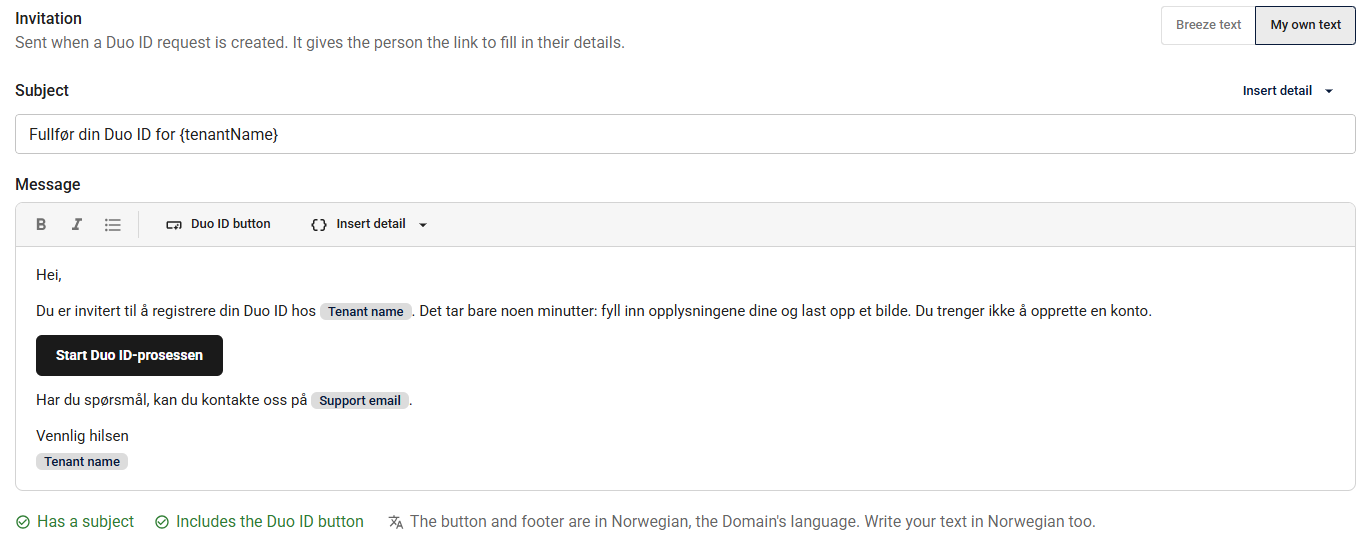
The editor has a Subject and a Message. Above the message, a toolbar has buttons for bold, italic, and bullet lists, a Duo ID button button, and Insert detail. Pressing Ctrl+B while typing in the message applies bold, instead of opening the portal's quick-search overlay as it does elsewhere. Anywhere else on this screen, Ctrl+B does nothing.
Use Insert detail, above the subject and in the toolbar, to add a detail that Breeze fills in for each person. Details show up in the editor by name, and are replaced with the real value when the email is sent:
| Detail | Available on | Filled in with |
|---|---|---|
| Tenant name | All four emails | The name of the Tenant the Credential was ordered from |
| Support email | All four emails | Your support contact address |
| Domain name | All four emails | This Domain's name |
| Expiry date | All four emails | The date the Duo ID link stops working, formatted for your Domain's language |
Below the editor, two checks turn green as you write: Has a subject and Includes the Duo ID button.
The Duo ID button
Duo ID button adds the button that opens the person's Duo ID request. It goes on its own line, and the editor shows it with the same label people see. In the email that is sent, the full address appears under the button as plain text, so someone whose email program blocks the button can copy it into their browser instead.
The button isn't offered for the subject: a web address in a subject line makes an email more likely to be treated as spam.
Your own text must contain the Duo ID button, or Breeze won't save it — without it, the
recipient has no way to reach their Duo ID request. Typing {duoIdLink} by hand doesn't
count: it only shows the address as plain text.
Which language to write in
The button label, the line under it, and the email footer are always in your Domain's language. The screen reminds you of this under the editor. Write your own text in the same language, or in several languages if you need to reach people who read different ones.
Previewing and sending a test email
The preview always shows the selected email as people receive it: Breeze's text, a template you're pointing at, or your own draft as you type. It shows the whole email, including your Domain's logo at the top and the footer at the bottom. Those come from the Domain's email settings and can't be changed on this screen. Empty lines you add in the message, for example to leave more space under the Duo ID button, appear in the preview and in the sent email.
The preview is built the same way as a test email, with your real names filled in: the Tenant's name (or, on the Domain screen, the Domain's), your support address, and an expiry date two weeks ahead. Switch between Computer and Phone to see how the email reads on a narrow screen.
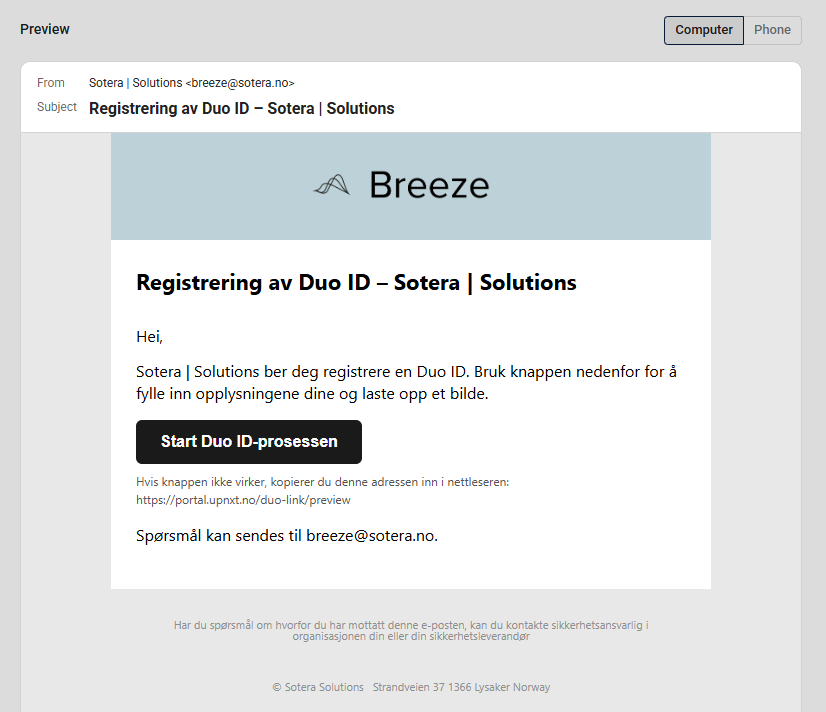
Once an email uses your own text, Send test email under the preview sends a real email, built from whatever you currently have typed — saved or not — to your own address. You can't send it somewhere else: the text and sender are whatever you have typed in, so being able to name any recipient would turn this into a way to send arbitrary mail from your organization's sending address. Test-sending never saves your draft.
The button in a test email doesn't open a live Duo ID request. It opens a page that says this is a test email, and explains what the link does in a real one. That page is on Breeze's own portal address, so the address under the button can differ from the one in a real email, which uses your portal's address.
Saving
Save changes saves all four emails and the sender together. Before you save, the list on the left shows which emails you've changed, and the top of the screen counts the changes.
If something would stop the save — an email without a subject, or without the Duo ID button — Breeze opens the first email with a problem, explains what's missing there, and marks every email with a problem in the list. The marks disappear as you fix them.
Because one save covers all four emails, avoid having this screen open for editing in two browser tabs at once: the second save overwrites the first. Saving doesn't close the dialog, so you can keep editing — a confirmation message appears briefly at the bottom of the screen. Discard changes puts everything back the way it was last saved.
If you close the dialog with changes you haven't saved, Breeze asks whether to discard them or keep working on the settings.
Learn more
- Tenant-level Duo ID email settings — layer Tenant-specific text on top of this Domain's settings.