Managing Production Site Devices
This page covers how to manage printing devices scoped to your Production Site. It is for Production Site administrators who need to set up or maintain the devices that produce physical Credential cards. Use it when you need to add a new device, update an existing one, delete a retired device, or control which Domains can access a device.
Required roles: System Administrator AND Production Operator on the Production Site Tenant.
Both roles are required. Either role alone is not sufficient to access device management.
View your devices
Navigate to Templates → Devices.
The list shows devices owned by your Production Site. Global devices are not shown in the management table, but they appear as replacement candidates when you delete a device that is in use.
If your Tenant is not configured as a Production Site, the page shows an informational message instead of the device list.
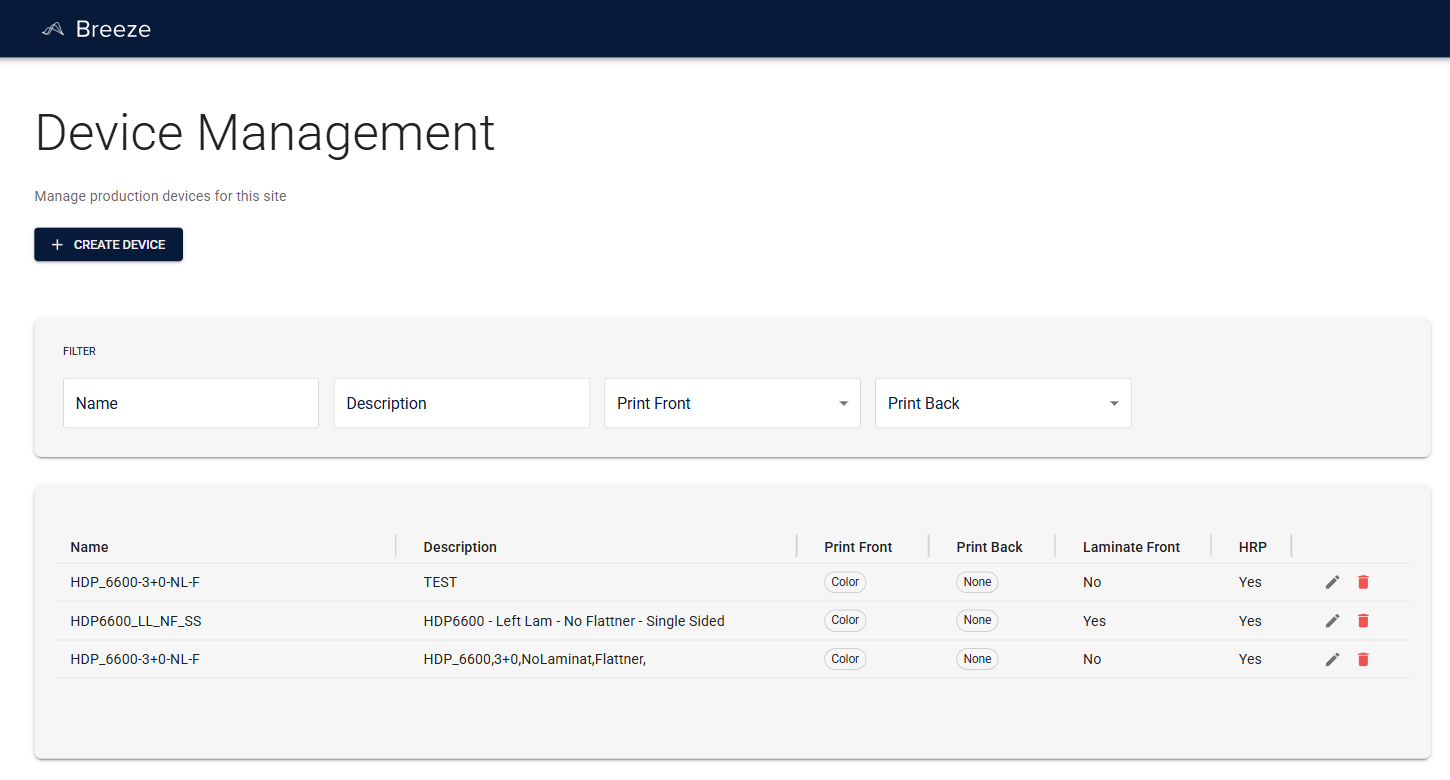
Add a device
- Navigate to Templates → Devices.
- Click Create Device.
- Enter a name and description for the device.
- Choose print modes for front and back, and configure the device's lamination, eject, and other hardware settings.
- Click Create.
The new device appears in the list and is immediately available for selection in Card Template General Settings.
Edit a device
- Click the device row.
- Click Edit.
- Update the settings.
- Click Save.
The Production Site association cannot be changed after a device is created.
Delete a device
Delete an unused device
- Navigate to Templates → Devices.
- Click Delete on the device.
- Confirm in the dialog.
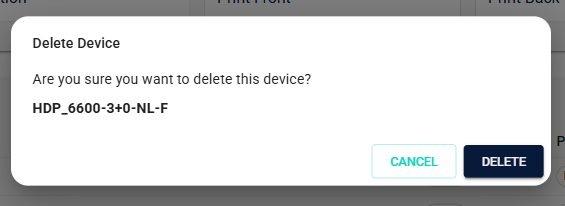
Delete a device used in active Card Templates
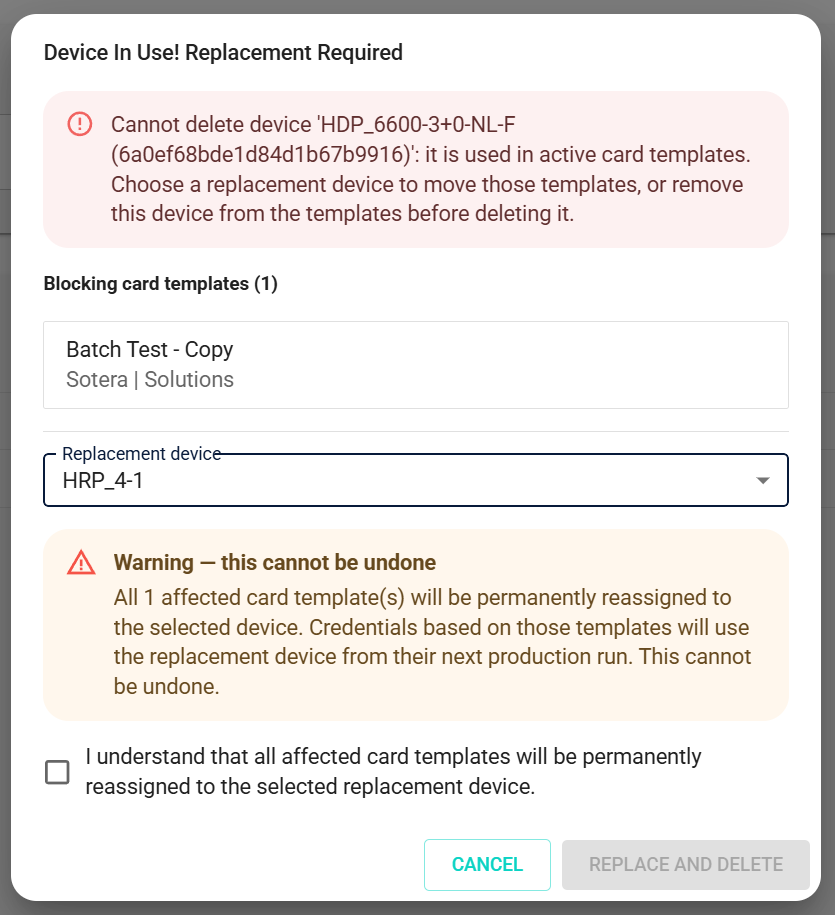
When you try to delete a device that is referenced by active Card Templates, Breeze shows a replacement-selection dialog instead of a simple confirmation. You must pick a replacement before the deletion can proceed.
- Navigate to Templates → Devices.
- Click Delete on the device to retire.
- Review the list of affected Card Templates shown in the dialog (up to 50 are listed, with a count of any additional ones).
- In the Replacement Device dropdown, select the device that should take over.
- Check the acknowledgment checkbox to confirm you understand the consequences.
- Click Replace and Delete.
All listed Card Templates are reassigned to the replacement device, and the original device is deleted. A success notification confirms the action.
This permanently removes the device. All listed Card Templates will be reassigned to the replacement you select. This cannot be undone.
Configure Domain access for a device
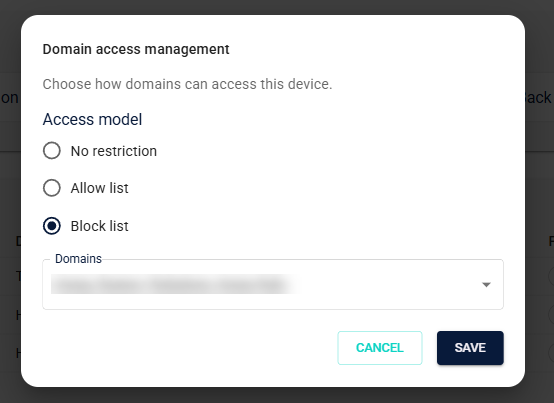
Domain access lets you restrict which Domains can use a device — using an allow list, a block list, or no restriction.
Required roles: System Administrator on the main Tenant of each Domain being configured.
This permission is separate from device ownership. A Production Site administrator who manages devices may not have this permission unless they are also System Administrator on the relevant Domain Tenants.
- Navigate to Templates → Devices.
- Click Edit on the device to configure.
- In the edit drawer, locate the Domain access section and click Change.
- In the Domain Access dialog, select the access model:
- No restriction — all Domains can use the device.
- Allow list — only the Domains you select can use the device.
- Block list — the Domains you select cannot use the device.
- If you selected Allow list or Block list, select one or more Domains from the list.
- Click Save.
The Domain access summary in the drawer updates to reflect the new setting.
Domain access can only be configured after a device is created. The Domain access section is not available during the create flow.
Switching between Allow list and Block list clears the opposing list. Previously selected Domains in the cleared list are removed.
Device selection in Card Templates
When you configure a Card Template's General Settings, the device picker automatically shows devices available for your Tenant's Production Site. Select the appropriate device and save.
For detailed Card Template configuration, see Editing Card Templates.
What's next?
- Editing Card Templates — configure card layouts, encoding, approvals, and other production settings
- Template Management overview — overview of all template types in Breeze