Life Cycle Management
Introduction
Life Cycle Management in Breeze allows you to automatically manage the life cycle of existing users. This feature is useful for maintaining a clean database and adhering to GDPR policies.
The Life Cycle Management feature allows you to automatically expire registered users who have not been activated within a specified number of days. Any registered user that remains inactive for more than the specified number of days will be deleted. An email notification can be sent to the registered email address X days prior to deletion, warning the user of the impending action and providing an opportunity to activate their account.
This feature also allows you to deactivate active users who have not been active for a specified number of days and delete them after a certain number of days after deactivation.
All system domains will have a default configuration for Life Cycle Management. However, you can customize the configuration in the Tenant settings.
This guide provides instructions on how to configure Life Cycle Management in Breeze.
Prerequisites
Before setting up Life Cycle Management, ensure that you have the necessary permissions to access the Tenant settings in Breeze.
Default and Tenant-Specific Configuration
By default, the Life Cycle Management settings are configured at the Domain level. These settings apply universally across all tenants below this domain unless overridden in the Tenant Settings.
To ensure flexibility, Breeze allows each Tenant to customize their own Life Cycle Management settings according to their specific needs.
Domain Configuration
Role level: System Administrator
Task Role: Domain Administrator
To perform the following steps, you need to have the roles listed above.
The Domain provides the baseline settings for Life Cycle Management, which include default values for user inactivity periods, warning notifications, and deletion timelines. These settings are automatically applied to all underlying Tenants unless they are specifically overridden in the Tenant Settings. Domain administrators can configure these settings to align with the organization's policies and compliance requirements.
To access and edit the Life Cycle Management settings at the Domain level:
- Navigate to the
Domain Administrationsection. - Select the
Domainfor which you want to configure Life Cycle Management. - Locate the
User life cycle managementsettings and click on theChange Settingsbutton. - Follow the on-screen instructions to access the Life Cycle Management configuration. Read more about the configurable settings below.
Tenant-Specific Configuration
Role level: Super Administrator
To perform the following steps, you need to have the roles listed above.
Each Tenant in Breeze can override the default Domain settings by configuring their own Life Cycle Management rules. This is particularly useful for Tenants who may have different compliance requirements or user engagement strategies.
To override the default settings and apply tenant-specific configurations:
- Navigate to the
Tenant Settingssection. - Open the
Life Cycle Managementtab. - Locate the
User life cycle managementsettings and click on theChange Settingsbutton.
Settings details
| User Status | Setting | Description | Default Value |
|---|---|---|---|
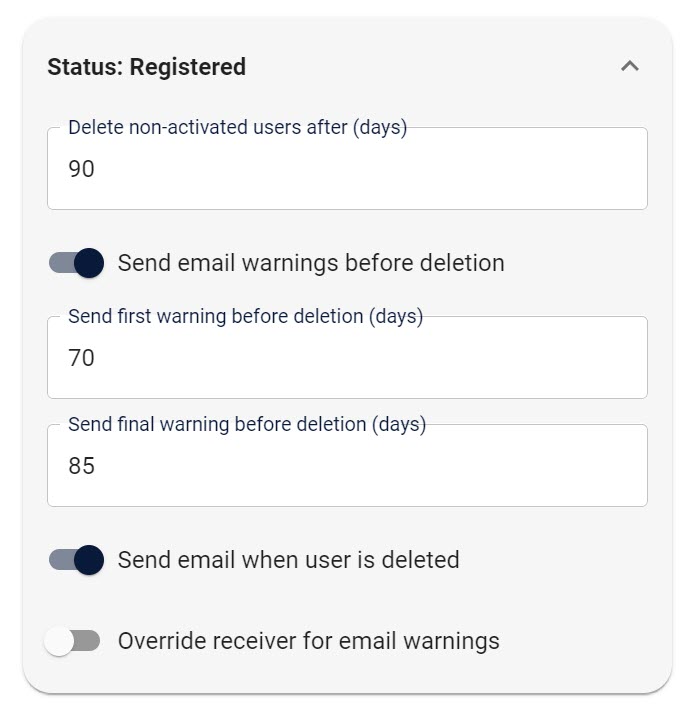
| Registered | Delete non-activated users after (days) | Amount of days before non-activated users are deleted. | 90 |
| Registered | Send email warnings before deletion | Check to automatically send email warnings to the registered email. | true |
| Registered | Send first warning before deletion (days) | Number of days before deletion to send the first warning email. | 70 |
| Registered | Send final warning before deletion (days) | Number of days before deletion to send the final warning email. | 85 |
| Registered | Send email when user is deleted | Check to send an email to the registered email when the user is deleted. | true |
| Registered | Override receiver for email warnings | Override the receiver email address for email warnings. | false |
| Active | Deactivate users after (days) | Amount of days without logging in before active users are deactivated. | 90 |
| Active | Send email warnings before deactivation | Check to automatically send email warnings to the registered email. | true |
| Active | Send first warning before deactivation (days) | Number of days before deactivation to send the first warning email. | 70 |
| Active | Send final warning before deactivated (days) | Number of days before deactivation to send the final warning email. | 85 |
| Active | Send email when user is deactivated | Check to send an email to the registered email when the user is deactivated | true |
| Active | Override receiver for email warnings | Override the receiver email address for email warnings. | false |
| Deactivated | Delete users after (days) | Amount of days after deactivation before users are deleted. | 30 |
| Deactivated | Send email warnings before deletion | Check to automatically send email warnings to the registered email. | false |
| Deactivated | Send first warning before deletion (days) | Number of days before deletion to send the first warning email. | 0 |
| Deactivated | Send final warning before deletion (days) | Number of days before deletion to send the final warning email. | 0 |
| Deactivated | Send email when user is deleted | Check to send an email to the registered email when the user is deleted. | false |
| Deactivated | Override receiver for email warnings | Override the receiver email address for email warnings. | false |
Delete non-activated users after (days)
This setting specifies the number of days before non-activated users are deleted from the system. Users who have registered but not activated their accounts within the specified period will be automatically removed from the database.
Email warnings will be sent to the registered email address per the configured timeline (first warning and final warning as described below).
Deactivate users after (days)
This setting determines the number of days of inactivity before active users are deactivated. Users who have not logged in for the specified period will be automatically deactivated. Email warnings will be sent to the registered email address per the configured timeline (first warning and final warning as described below).
Delete users after (days)
This setting specifies the number of days after deactivation that users will be permanently deleted from the system. Deactivated users who have not been reactivated within the specified period will be automatically removed from the database. Email warnings will be sent to the registered email address per the configured timeline (first warning and final warning as described below).
Send email warnings before deletion / deactivation
When enabled, this setting will automatically send email warnings to the registered email address before the user is deleted. The email notifications serve as a reminder to the user to perform the necessary actions to prevent their account from being deleted or deactivated.
Configure the timeline for sending the first and final warning emails using the Send first warning before deletion (days) and Send final warning before deletion (days) settings.
Send first warning before deletion / deactivation (days)
This setting determines the number of days before deletion that the first warning email will be sent to the registered email address. The first warning email serves as an initial notification to the user that their account is at risk of being deleted.
This number must be less than the Delete non-activated users after (days) setting to ensure that the warning emails are sent within the specified timeline.
Setting this to 0 will disable the first warning email.
Send final warning before deletion / deactivation (days)
The Send final warning before deletion (days) setting specifies the number of days before deletion that the final warning email will be sent to the registered email address. The final warning email serves as a last reminder to the user before their account is permanently deleted.
This number must be higher than the Send first warning before deletion (days) setting and less than the Delete non-activated users after (days) setting to ensure that the final warning email is sent within the specified timeline.
Setting this to 0 will disable the final warning email.
Send email when user is deleted / deactivated
When enabled, this setting will send an email to the registered email address when the user status has been changed to deleted or deactivated.
The email notification serves as a confirmation to the user that their account has been removed from the system.
Note that deactivated users will be deleted after a specified number of days, as configured in the Delete users after (days) setting.
Deactivated users can be reactivated by administrators of the Tenant.
Deleted accounts are permanently removed from the system and cannot be recovered.
Override receiver for email warnings
This setting allows you to specify an alternate email address to receive the warning emails. By default, the registered email address on the user will be used for sending notifications.
When enabled, you can enter a custom email address to receive the warning emails.
The registered user will not receive any warning emails if this setting is enabled and a custom email address is provided.
The override receiver email address will receive all warning emails, including the first and final warnings.
This may result in a spamming of the email address if not managed properly.
Ensure that the email address is valid and accessible to the intended recipient.
Implementation Considerations
When configuring Life Cycle Management, it is essential to consider the implications for user experience and compliance with data protection regulations, such as GDPR. Ensure that the configuration aligns with legal requirements and provides users with adequate notice and opportunities to maintain their accounts.
Once configured, Life Cycle Management in Breeze will automatically handle the lifecycle of user accounts, keeping your database clean and up to date while ensuring compliance with necessary policies.
Any changes to the Life Cycle Management settings may interfere with any ongoing processes.
Ensure that the changes are communicated to the relevant stakeholders and users to avoid any disruptions.
Timeline example
Consider the following example to understand how the Life Cycle Management settings work:
If this is the setup:
Then this will be the timeline:
