SSO User Onboarding
Introduction
Single Sign-On (SSO) User Onboarding in Breeze allows you to automatically create and manage users based on their identity provider (IdP) credentials. This ensures a seamless login experience and simplifies user management by leveraging existing identity systems. This guide provides instructions on how to configure SSO User Onboarding in Breeze.
Prerequisites
Before setting up SSO User Onboarding, ensure that an SSO integration is already set up in Breeze.
For more information on setting up SSO, refer to the Setup Azure AD/ Entra ID.
Any changes performed in the SSO User Onboarding configuration will take immediate effect.
Ensure that you have tested the configuration in a non-production environment before applying it to a production environment.
Consider communicating with your users before making changes to the SSO User Onboarding configuration to avoid any disruptions.
Configuration
Default Configuration
By default, the user onboarding configuration is set to "none." This means that users from the IdP will not be accepted or created in Breeze unless they are already manually created in Breeze with the same email as registered in the IdP.
Enabling Automatic User Onboarding
To enable automatic user onboarding, the following steps are required:
- Navigate to Tenant Settings: In the Breeze admin portal, go to the
Tenant settingspage. - Open Security Settings: Select the
Security settingstab and click onEdit security settings. - Configure SSO Settings: In the
SSO Settingssection, click theChange Settingsbutton. - Locate the
User Onboardingsection and click on theChange Settingsbutton. - Change the
SSO User Onboarding Typesetting toCreate users. - Configure as needed, see more details below.
Static Mapping
In static mapping, all users are assigned to a single tenant. This is the simplest form of mapping and is what most Tenants will use.
Simply set the Mapping Type to static and select the Tenant to which all users will be assigned.
Once a new user logs in via SSO, they will be created in the selected tenant.
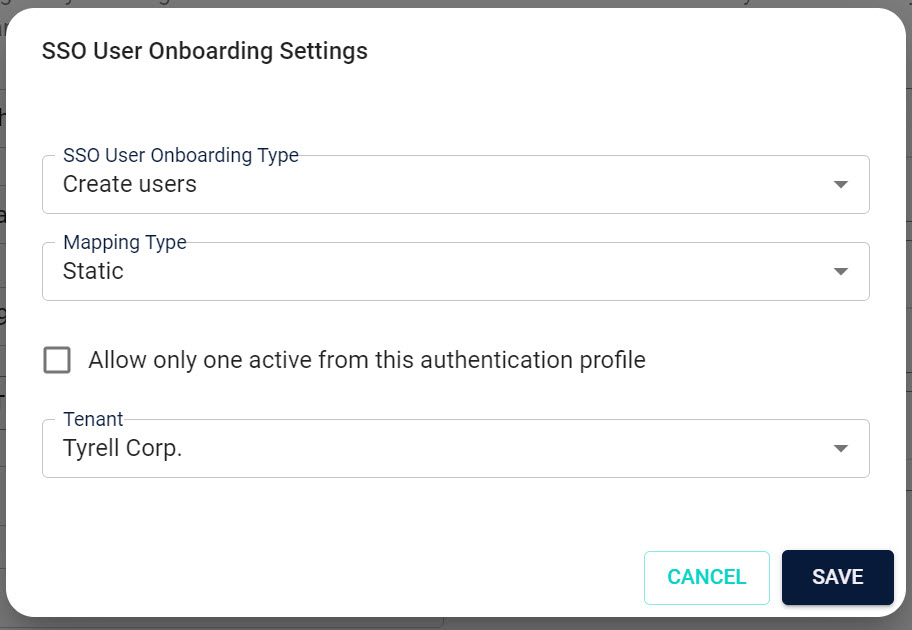
Settings details
| Setting | Description |
|---|---|
| Mapping Type | Set to Static |
| Allow only one active account | Check this box to allow only one active account per user. |
| Tenant | The tenant ID to which all users will be assigned. Dropdown with a list of available tenants. |
Dynamic Mapping
In dynamic mapping, users are assigned to tenants based on specific attributes in the IdP response. This allows for more granular control over user onboarding and tenant assignment.
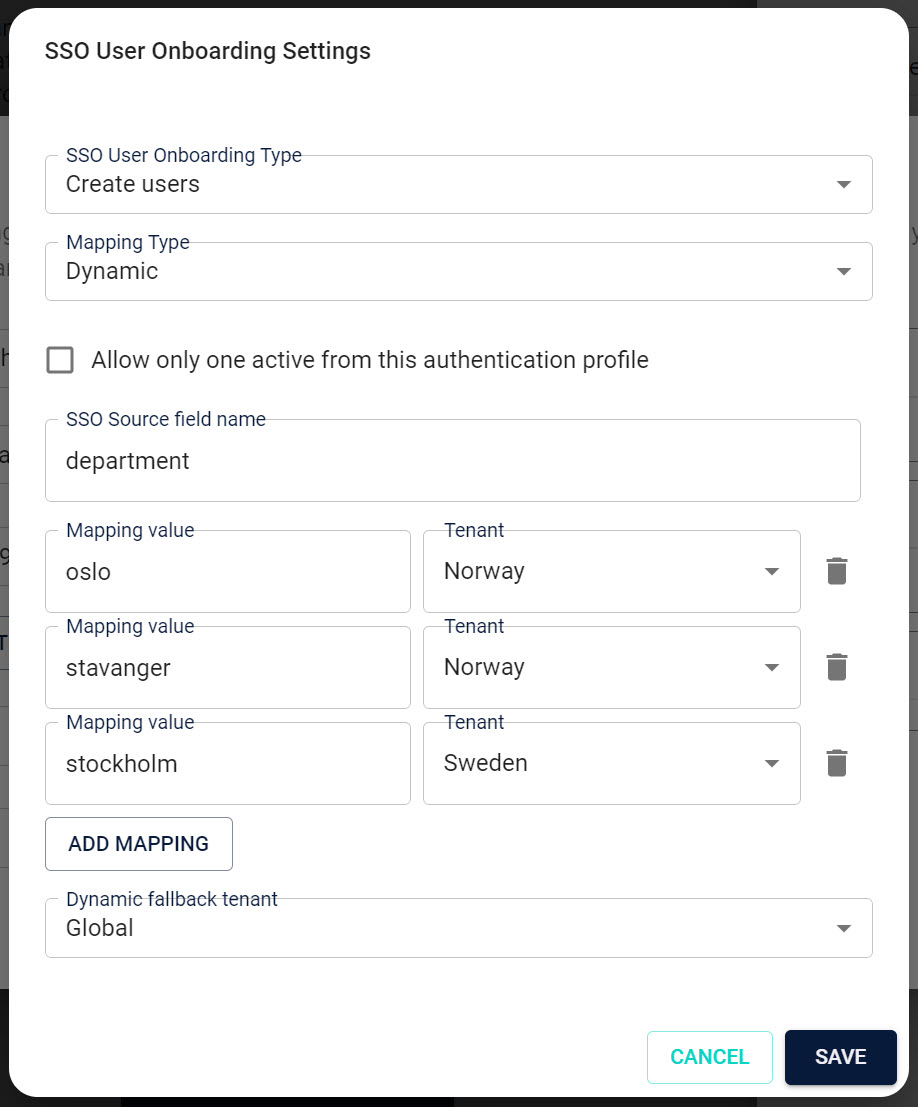
Settings details
| Setting | Description |
|---|---|
| Mapping Type | Set to Dynamic. |
| Allow only one active account | Check this box to allow only one active account per user. |
| Dynamic SSO Field | The field in the IdP response that contains the value used to map the user to a tenant. |
| Dynamic Values | A list of mappings that define which tenant corresponds to which IdP field value. |
| Dynamic SSO Fallback | The fallback tenant ID if no dynamic mapping is found. |
Dynamic SSO Field
The Dynamic SSO Field setting specifies the field in the IdP response that contains the value used to map the user to a tenant.
This field must be present in the IdP response in order to map users to tenants dynamically.
For example, if the IdP response contains a field called department that specifies the user's department, you would set the Dynamic SSO Field to department.
If this field is not present in the IdP response, the user will be assigned to the fallback tenant.
Dynamic Values
The Dynamic Values setting allows you to define mappings that specify which tenant corresponds to which IdP field value.
To add multiple mappings, click the Add Mapping button and enter the IdP field value and the corresponding tenant ID.
Breeze will then parse the IdP response and assign the user to the tenant that corresponds to the value in the specified field.
For example, if the department field in the IdP response contains the value Oslo, you would create a mapping that assigns users with the Oslo department to the Norway tenant.
If the IdP response contains a value that does not have a corresponding mapping, the user will be assigned to the fallback tenant.
Dynamic SSO Fallback
The Dynamic SSO Fallback setting specifies the tenant ID to which users will be assigned if no dynamic mapping is found or if the Dynamic SSO Field is not present in the IdP response.
Allow only one active account
Check this box to allow only one active account per user.
If a user is already active on a different tenant under the same SSO Auth profile, they will be deactivated before the new user is activated/created.
This may happen if the SSO is set up with a dynamic tenant mapping, or if the static tenant has changed since the user was created.
This setting is available for both Static and Dynamic mapping types.
Roles
Once a user is created in Breeze, they will be assigned a set of roles based on the configuration in the Role Management section.
By default all users will be assigned the User role, but you can configure this to assign different roles or even set up dynamic role assignment based on the user's IdP attributes.
For more information on role management, refer to the Role Management guide.