Role management via SSO
Introduction
Single Sign-On (SSO) Role Management in Breeze allows you to automatically assign and update roles to users based on their identity provider (IdP) credentials.
This ensures that users have the appropriate permissions and access rights when logging in via SSO.
The default behavior with SSO authentication methods is just to assign base roles to new users.
To further integrate role management from the IdP, you can set up SSO Role Management in Breeze. This is described in this guide.
This guide provides instructions on how to configure SSO Role Management in Breeze.
Prerequisites
Before setting up SSO User Onboarding, ensure that an SSO integration is already set up in Breeze.
For more information on setting up SSO, refer to the Setup Azure AD/ Entra ID.
Any changes performed in the SSO Role management configuration will take immediate effect.
Ensure that you have tested the configuration in a non-production environment before applying it to a production environment.
Consider communicating with your users before making changes to the SSO Role management configuration to avoid any disruptions.
Configuration
Default Configuration
By default, all users created via SSO will be assigned the User role. No other role management is performed.
Changing Base Roles
Base roles are the roles that will be assigned to all users created via SSO. The default role is User.
This is the default behavior and will be applied to all users unless a more specific role is assigned based on the IdP response.
Changing the Base Roles will NOT affect existing users. It will only apply to new users created via SSO.
- Navigate to Tenant Settings: In the Breeze admin portal, go to the
Tenant settingspage. - Open Security Settings: Select the
Security settingstab and click onEdit security settings. - Configure SSO Settings: In the
SSO Settingssection, click theChange Settingsbutton. - Locate the
Role managementsection and click on theChange Settingsbutton. - Select the desired
Base Rolesusing theSelect rolesbutton. A dialog will appear with a list of available roles. - Save the changes.
For a more advanced and dynamic setup, read on below.
Setting up Role management via SSO
Breeze allows for more advanced role management via SSO. This is done by mapping roles from the IdP response to Breeze roles.
Setting up role management via SSO will ensure that users are assigned the correct roles based on their IdP credentials. Any changes in the IdP will be reflected in Breeze the next time the user logs in.
The roles must be provided in the IdP response in order to be mapped to Breeze roles.
We have provided an example guide on how to do this in Azure Entra ID, see Azure Role assignment.
To setup dynamic Role Management in Breeze, the following steps are required:
- Navigate to Tenant Settings: In the Breeze admin portal, go to the
Tenant settingspage. - Open Security Settings: Select the
Security settingstab and click onEdit security settings. - Configure SSO Settings: In the
SSO Settingssection, click theChange Settingsbutton. - Locate the
Role managementsection and click on theChange Settingsbutton. - Enable the
Role managementsetting. - Configure as needed, see more details below.
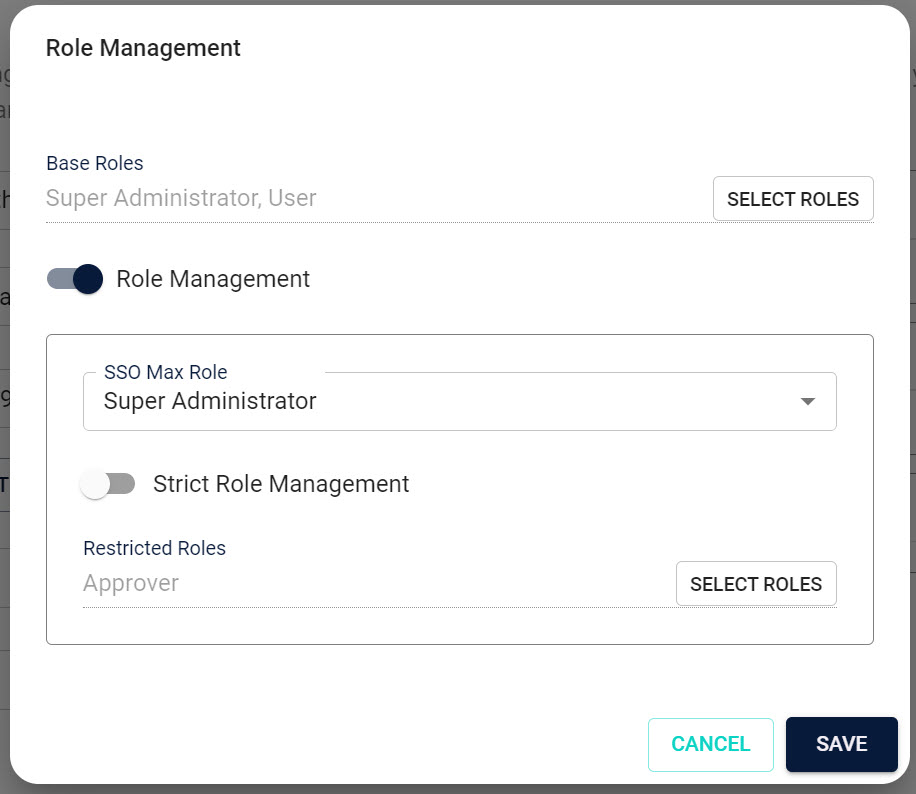
Settings details
| Setting | Description |
|---|---|
| SSO Max Role | The highest possible role-level the IdP can assign users. |
| Strict Role management | If enabled, users roles can only be assigned/updated by the IdP. |
| Restricted roles | A list of roles that cannot be assigned by the IdP. |
SSO Max Role
The SSO Max Role setting specifies the highest possible role-level the IdP can assign users.
If the IdP response contains one or more roles that is higher than the SSO Max Role, these will be ignored.
The dropdown list will only show roles that are the same or higher that YOUR current role. If you need a higher role, please contact Breeze Support or a know user with the correct role.
If the SSO profile is already set up with a SSO Max Role that is higher than your current role, you will not be able to update the Role Management settings at all.
Strict Role management
The Strict Role management setting specifies if users roles can only be assigned/updated by the IdP.
When this is enabled, it will not be possible to update SSO users roles manually in Breeze.
Restricted roles
The Restricted roles setting specifies a list of roles that cannot be assigned by the IdP.
Use the Select roles button to select the roles that should be restricted.
Allow only one active account
Check this box to allow only one active account per user.
If a user is already active on a different tenant under the same SSO Auth profile, they will be deactivated before the new user is activated/created.
This may happen if the SSO is set up with a dynamic tenant mapping, or if the static tenant has changed since the user was created.
This setting is available for both Static and Dynamic mapping types.